How To Secondary Image Examples for Electronics

247 real how to secondary images examples from Electronics listings on Amazon, with the purpose of each image explained. See all Electronics examples.
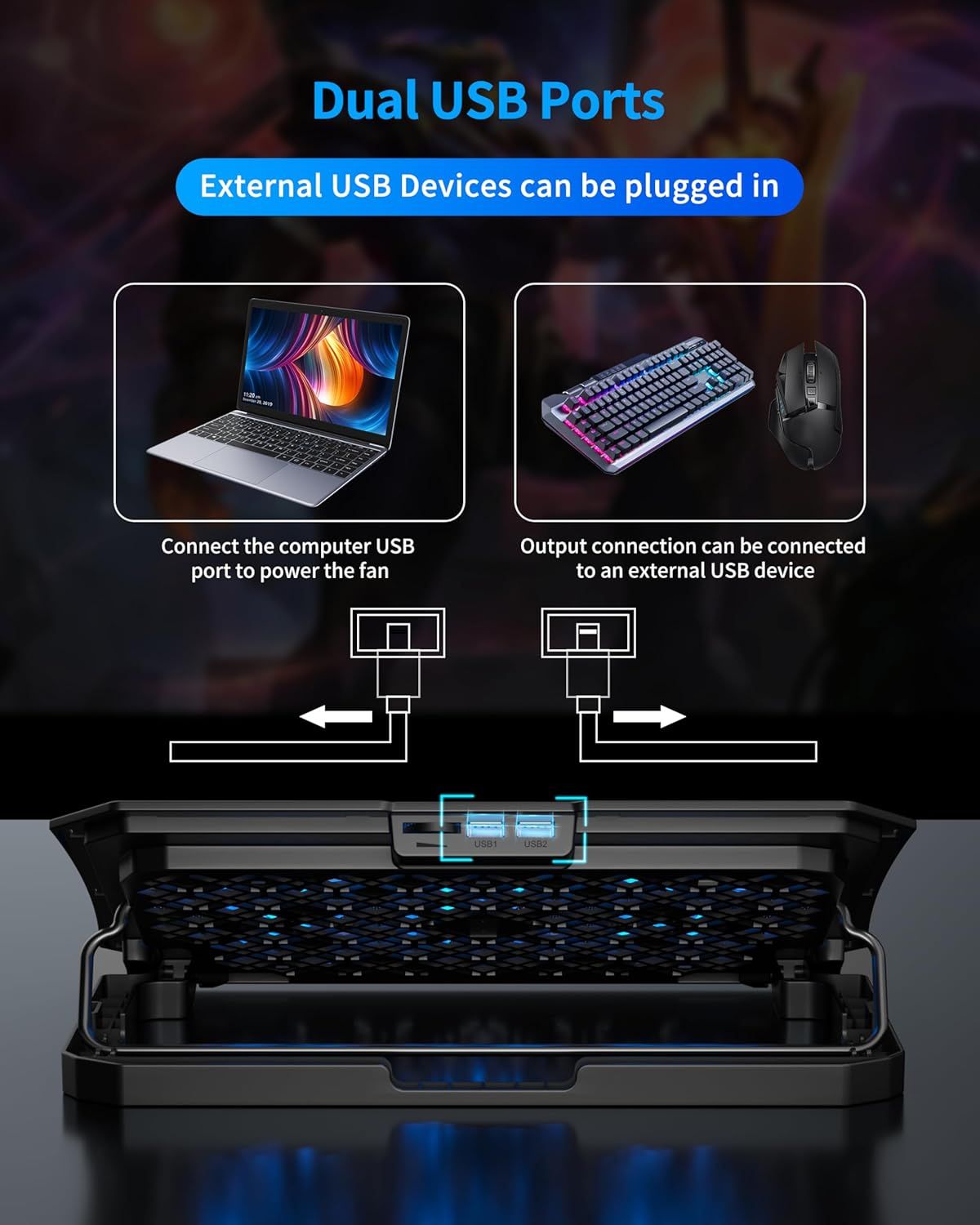
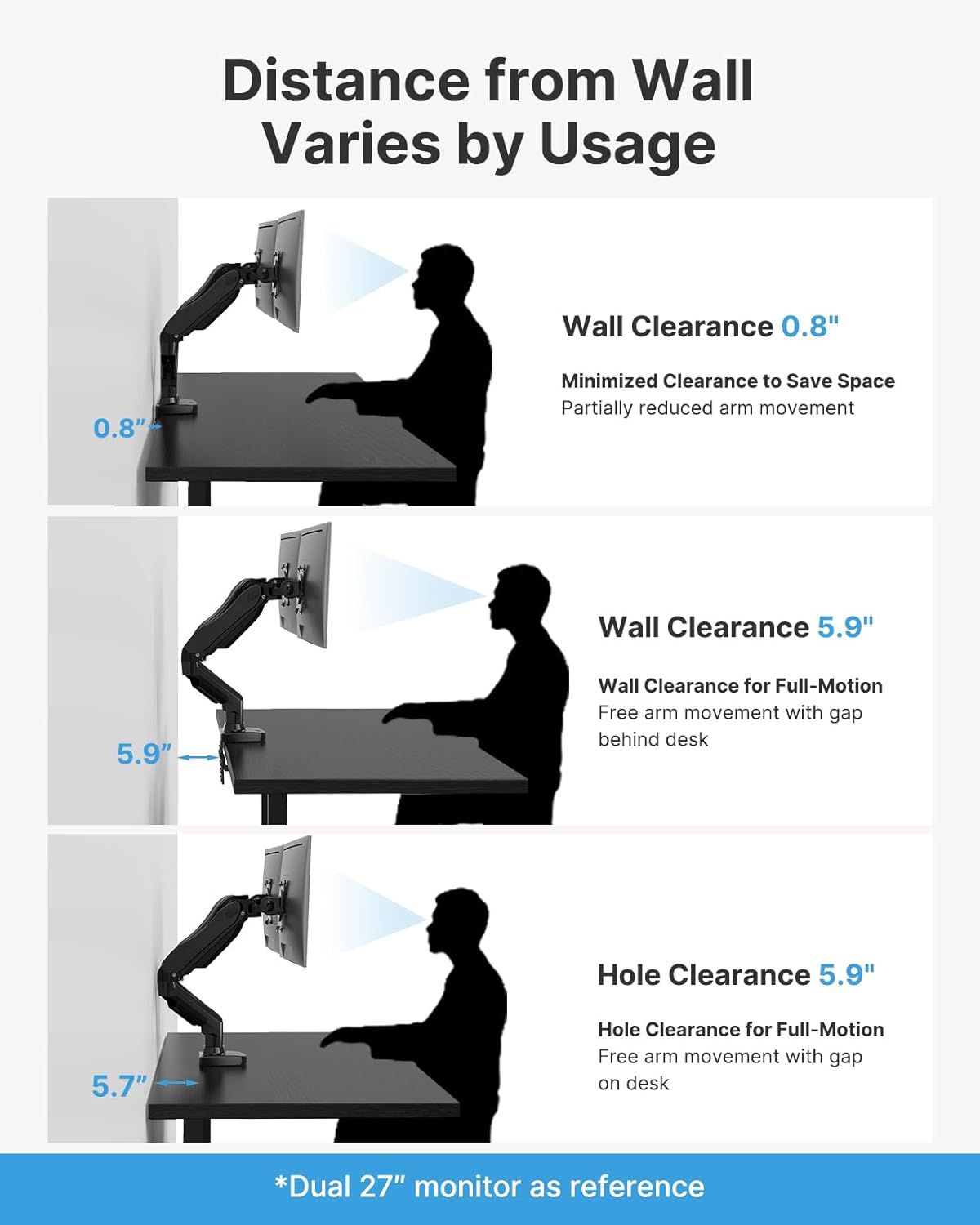
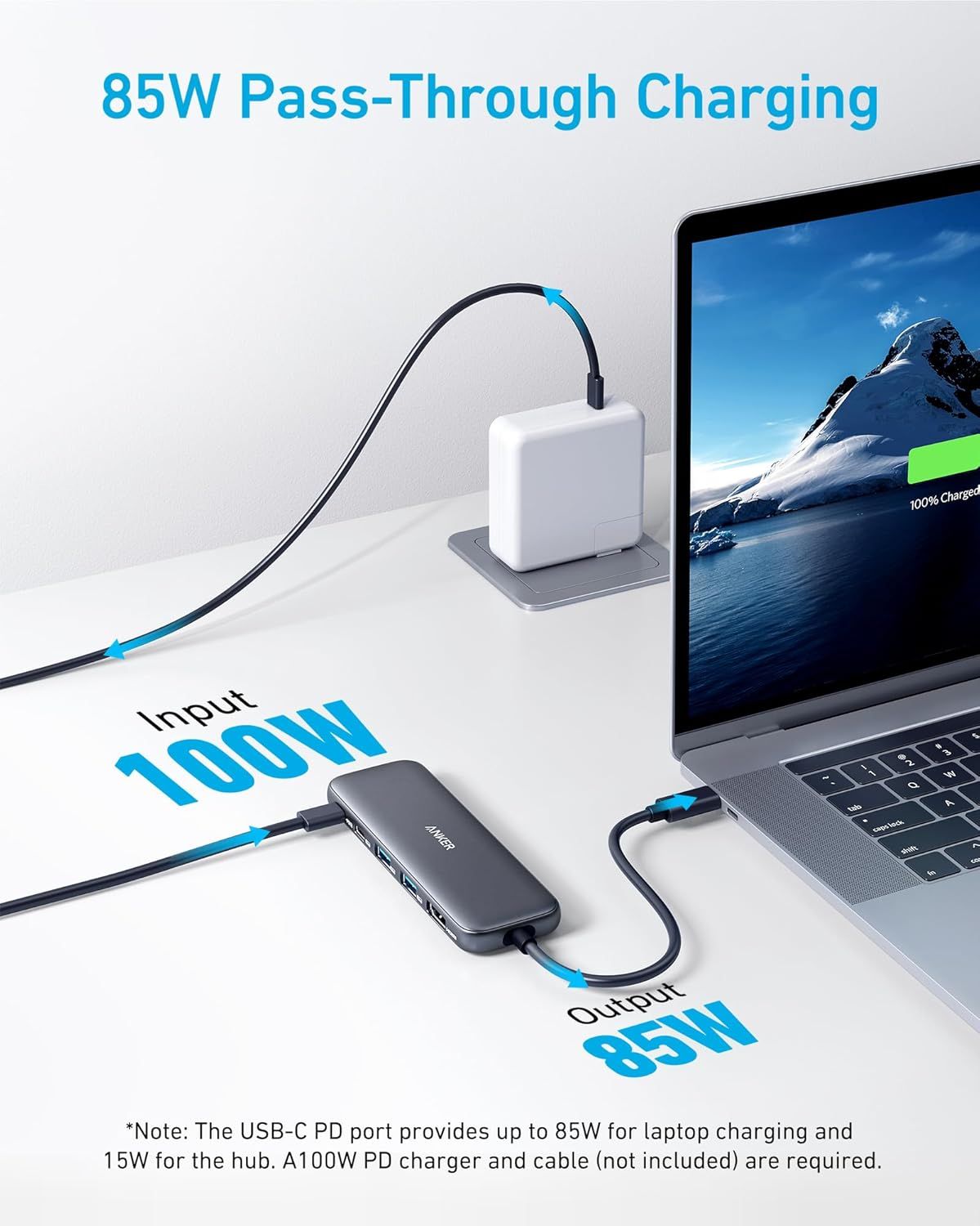
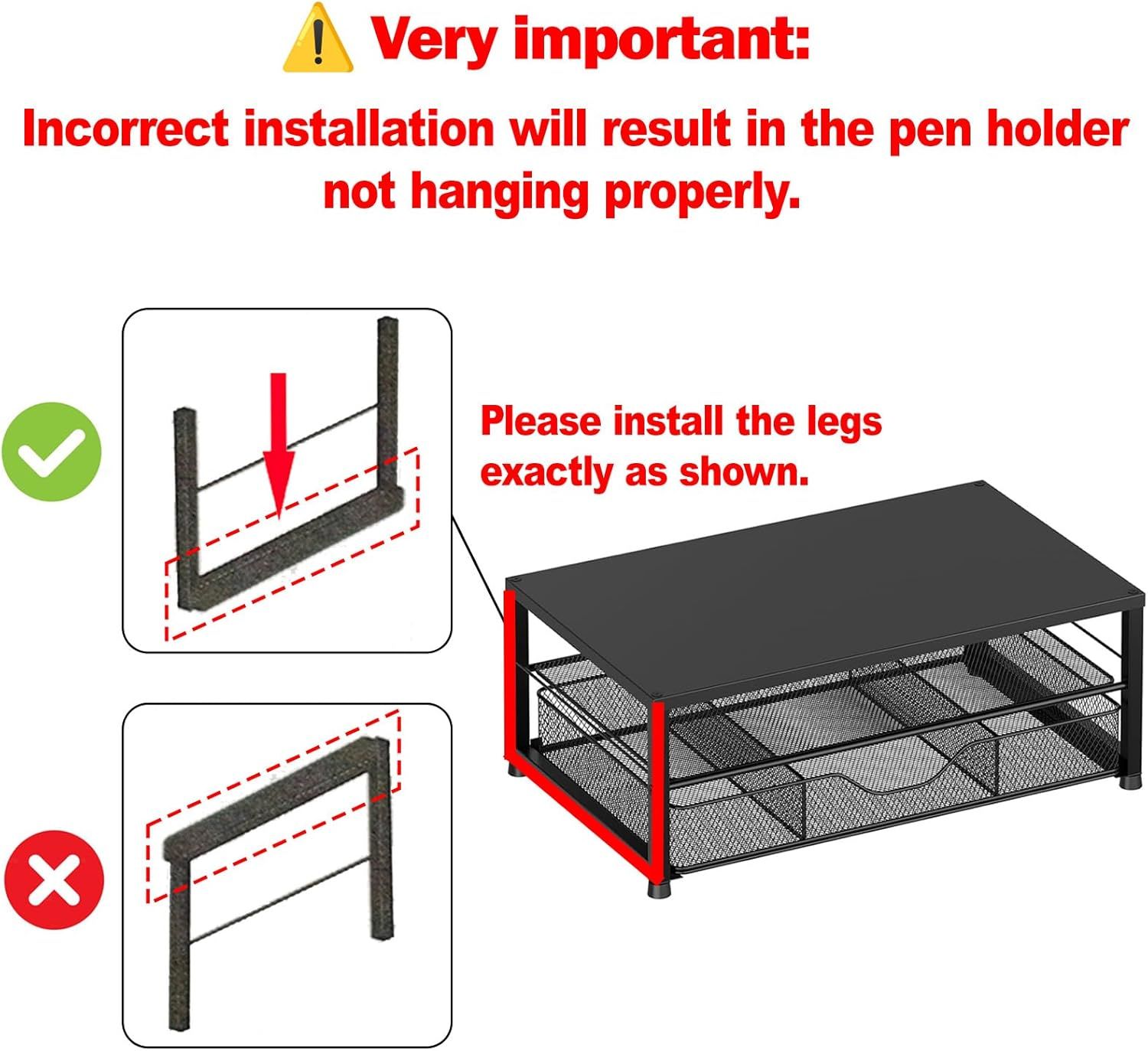
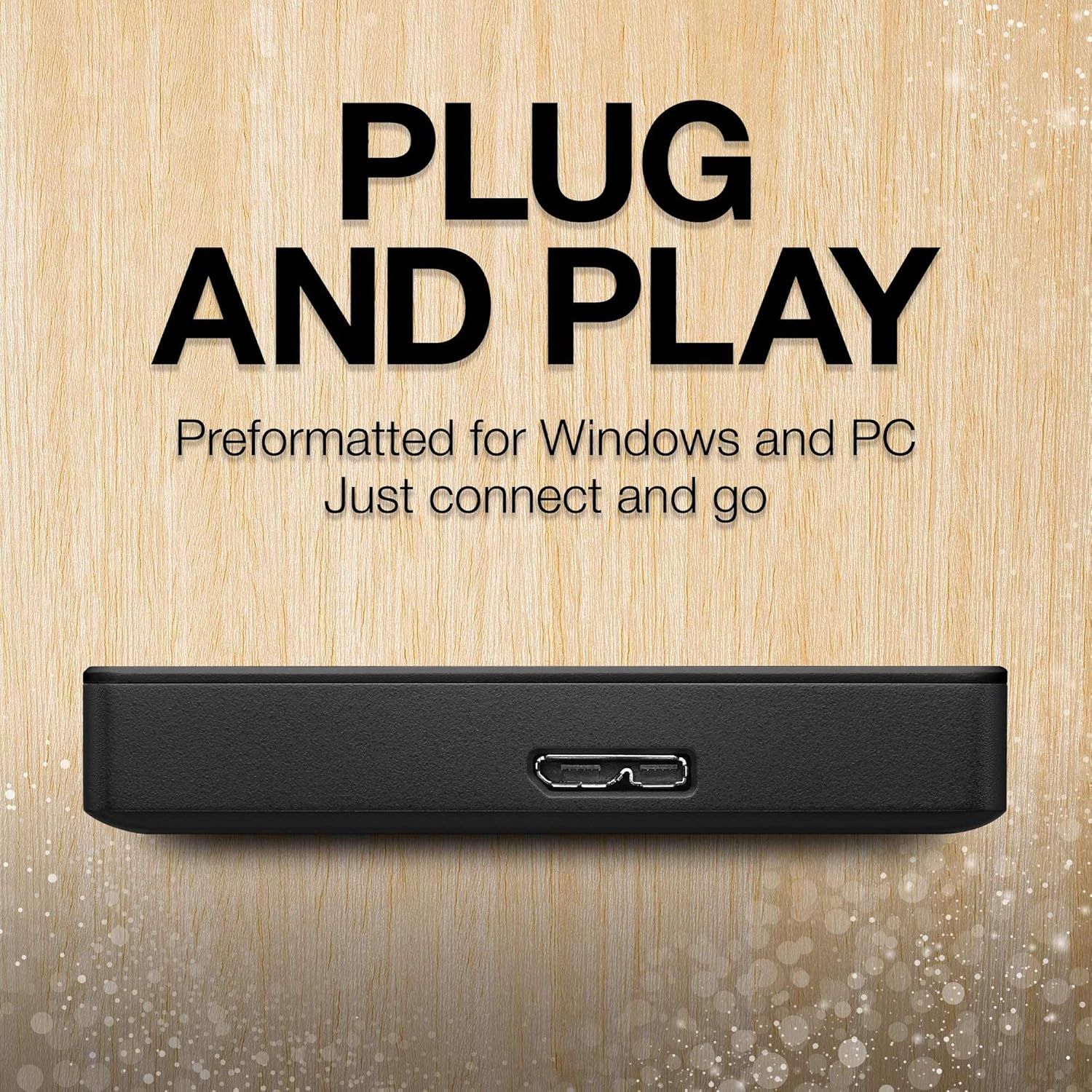
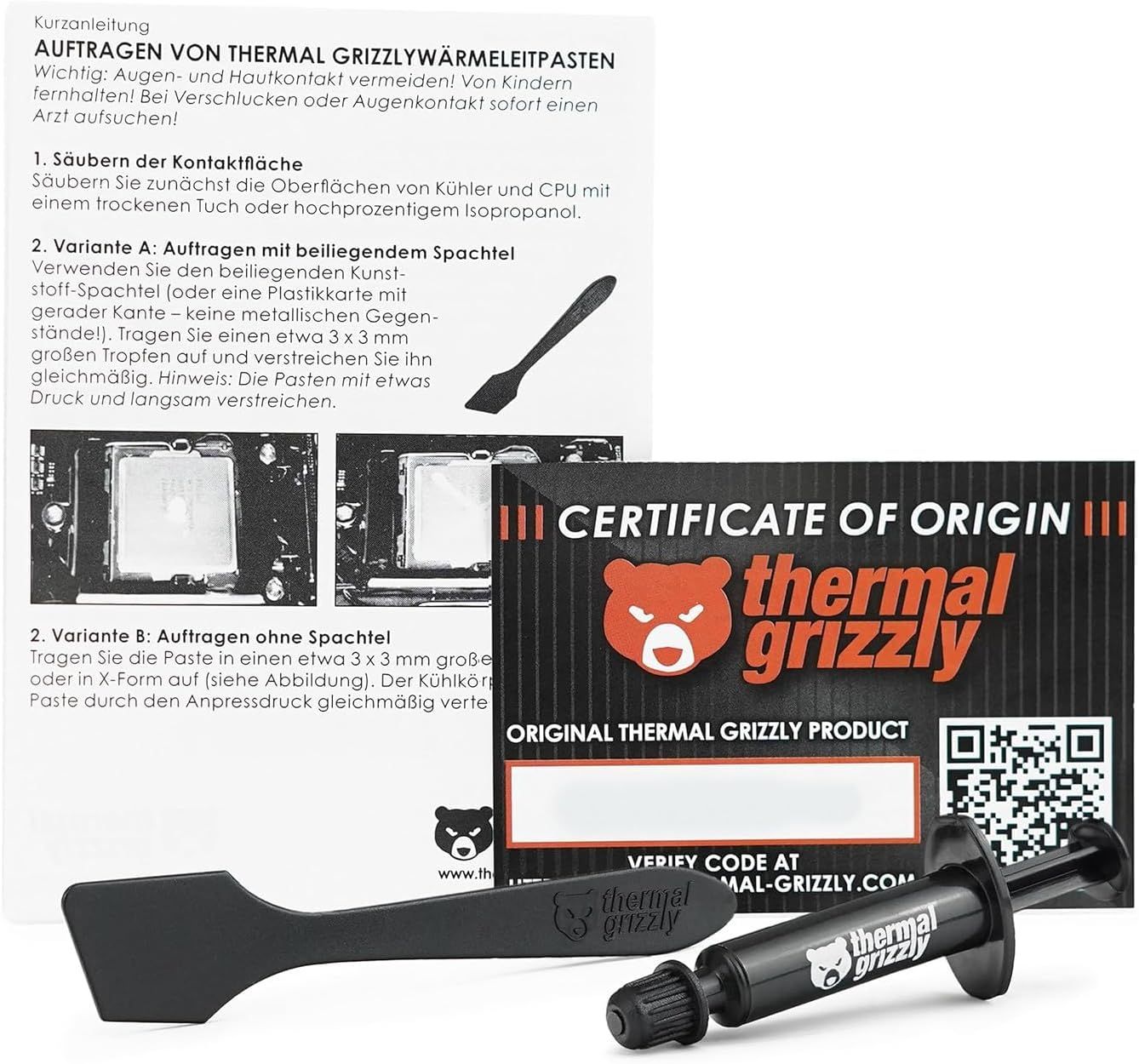
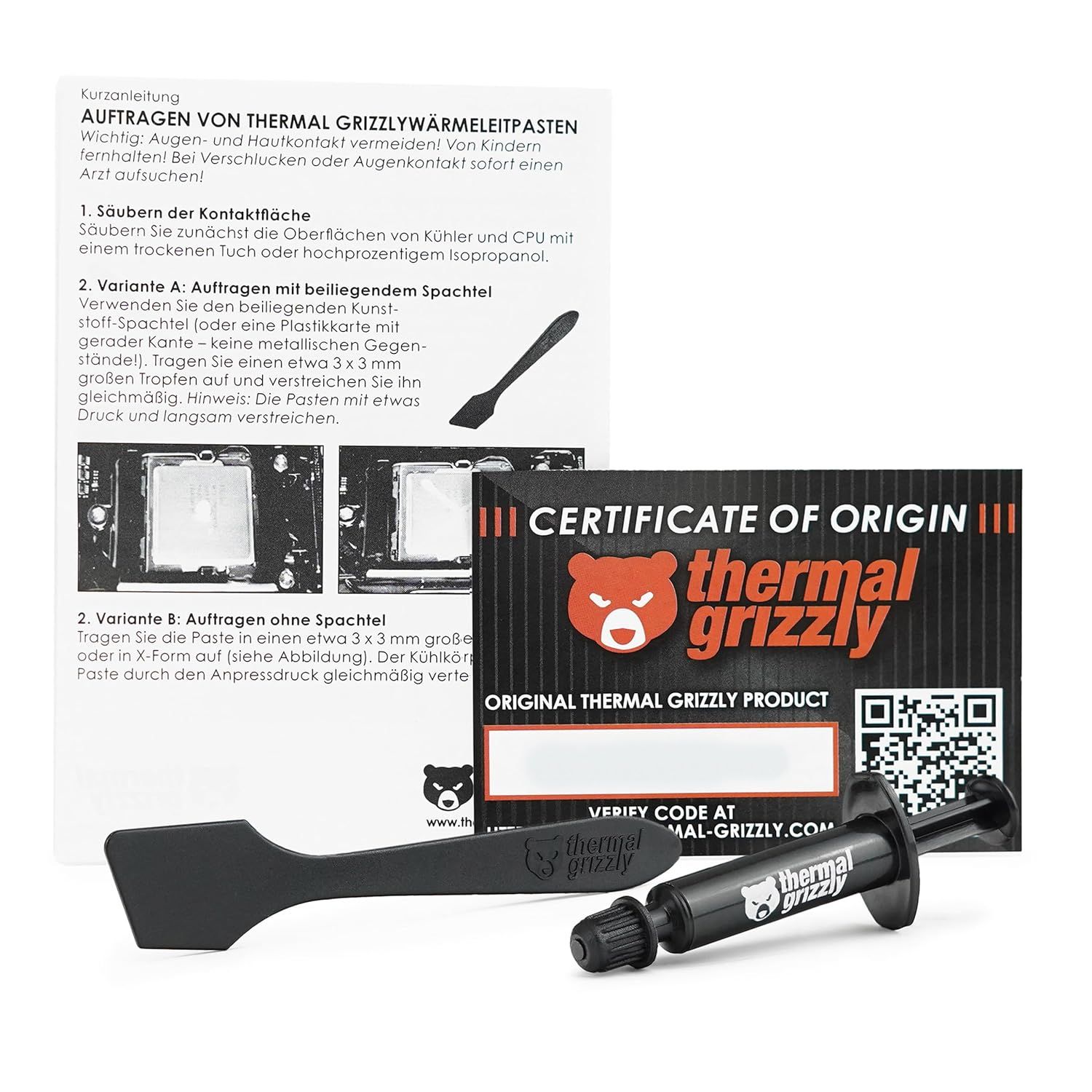
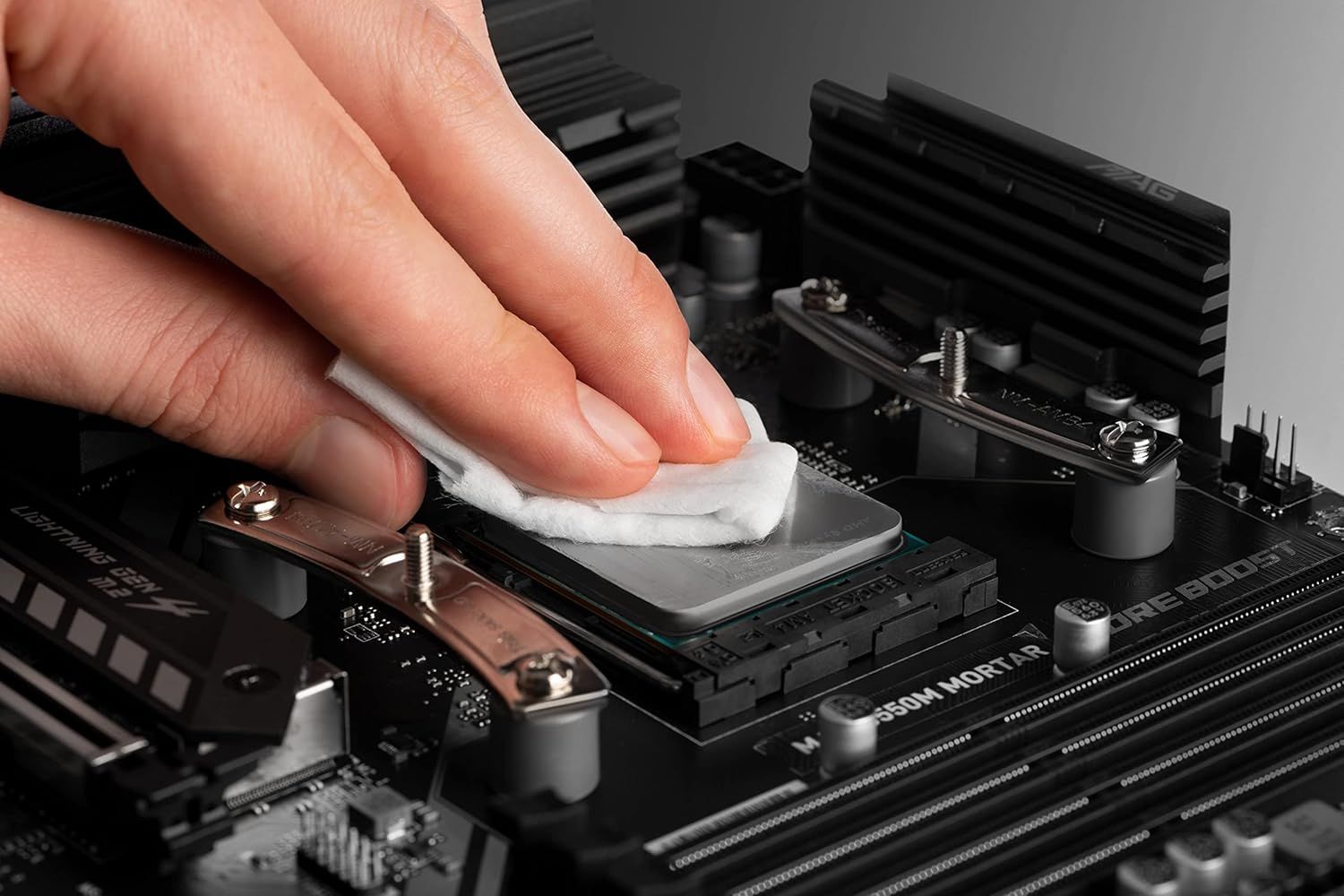
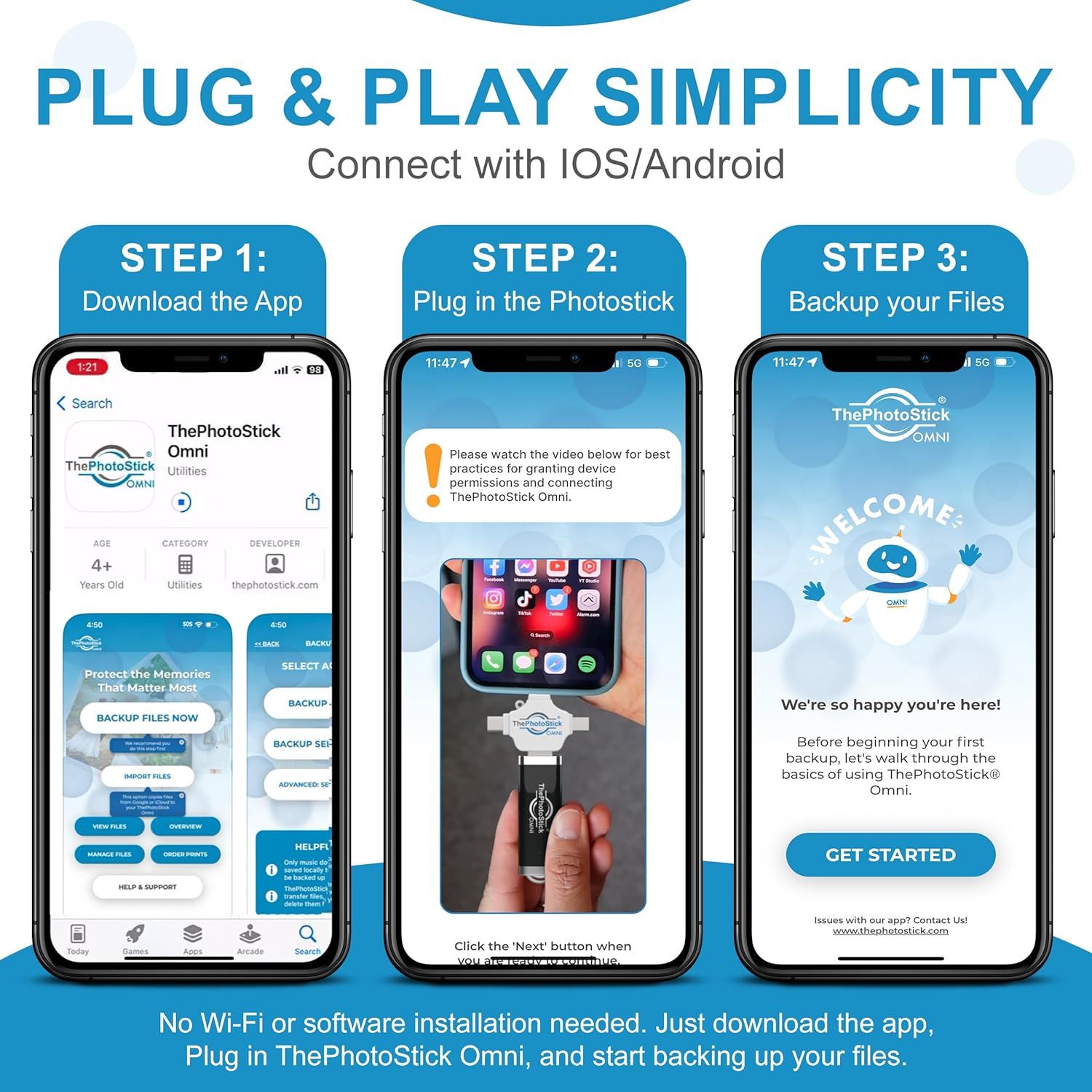
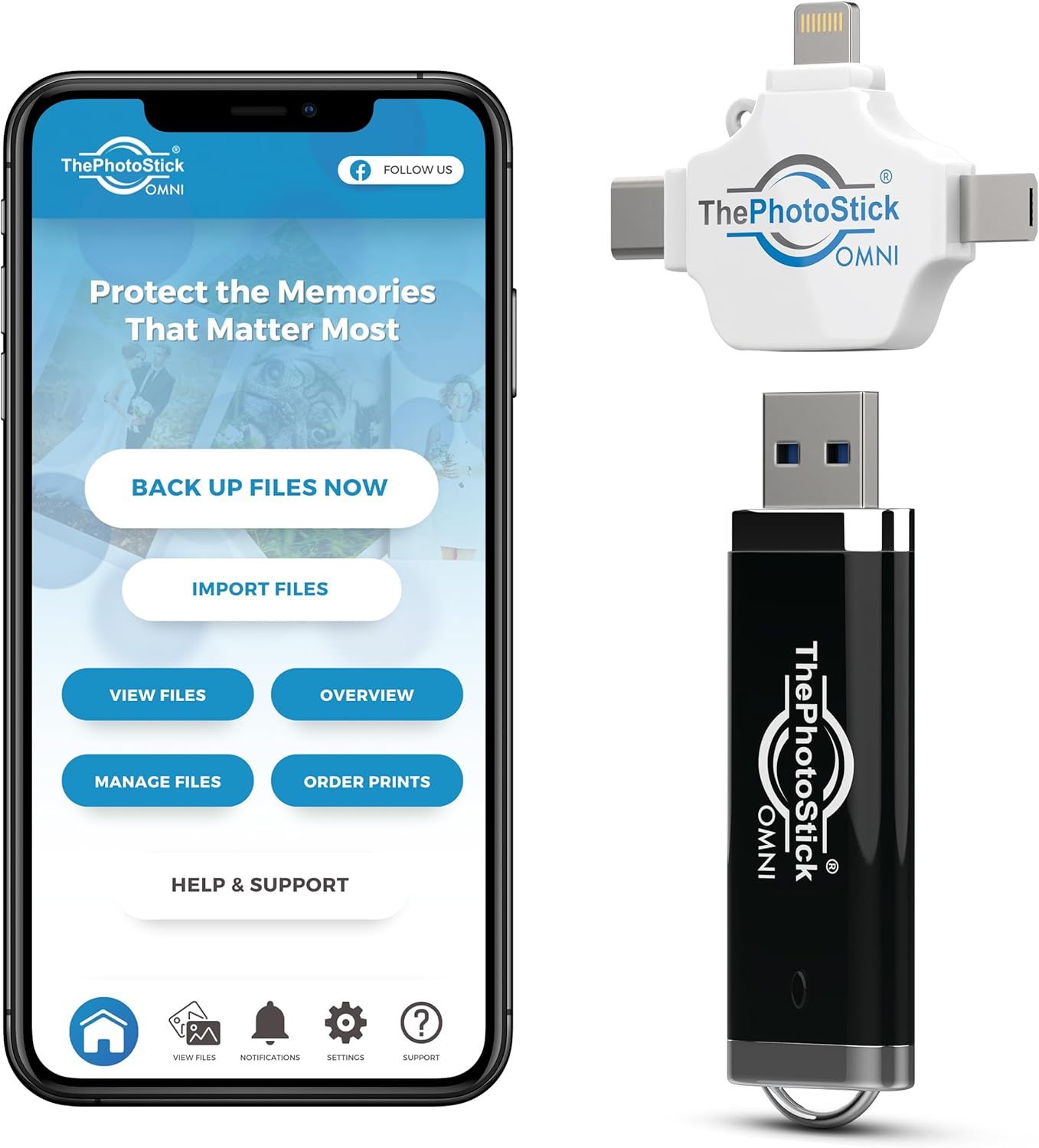
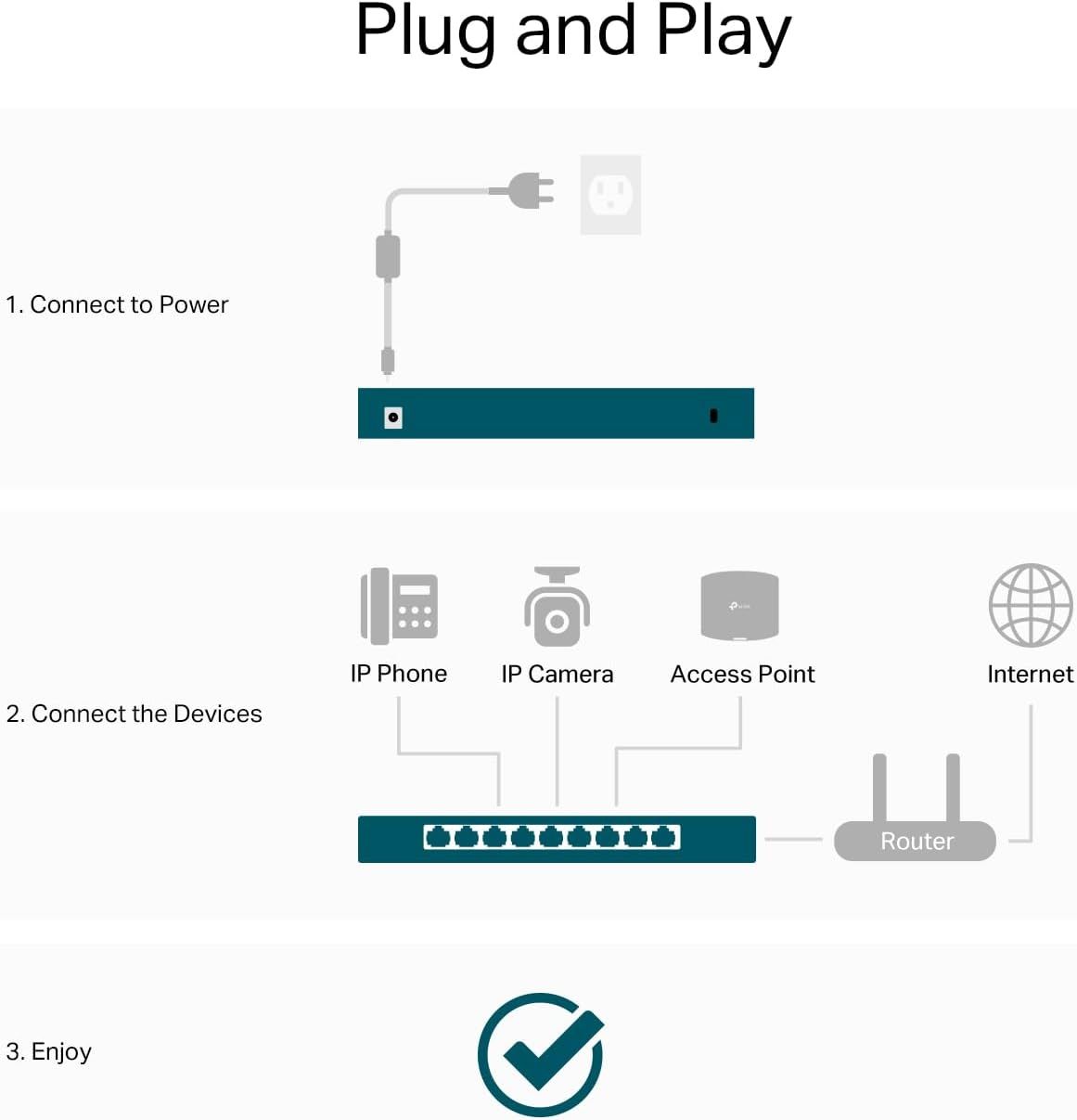
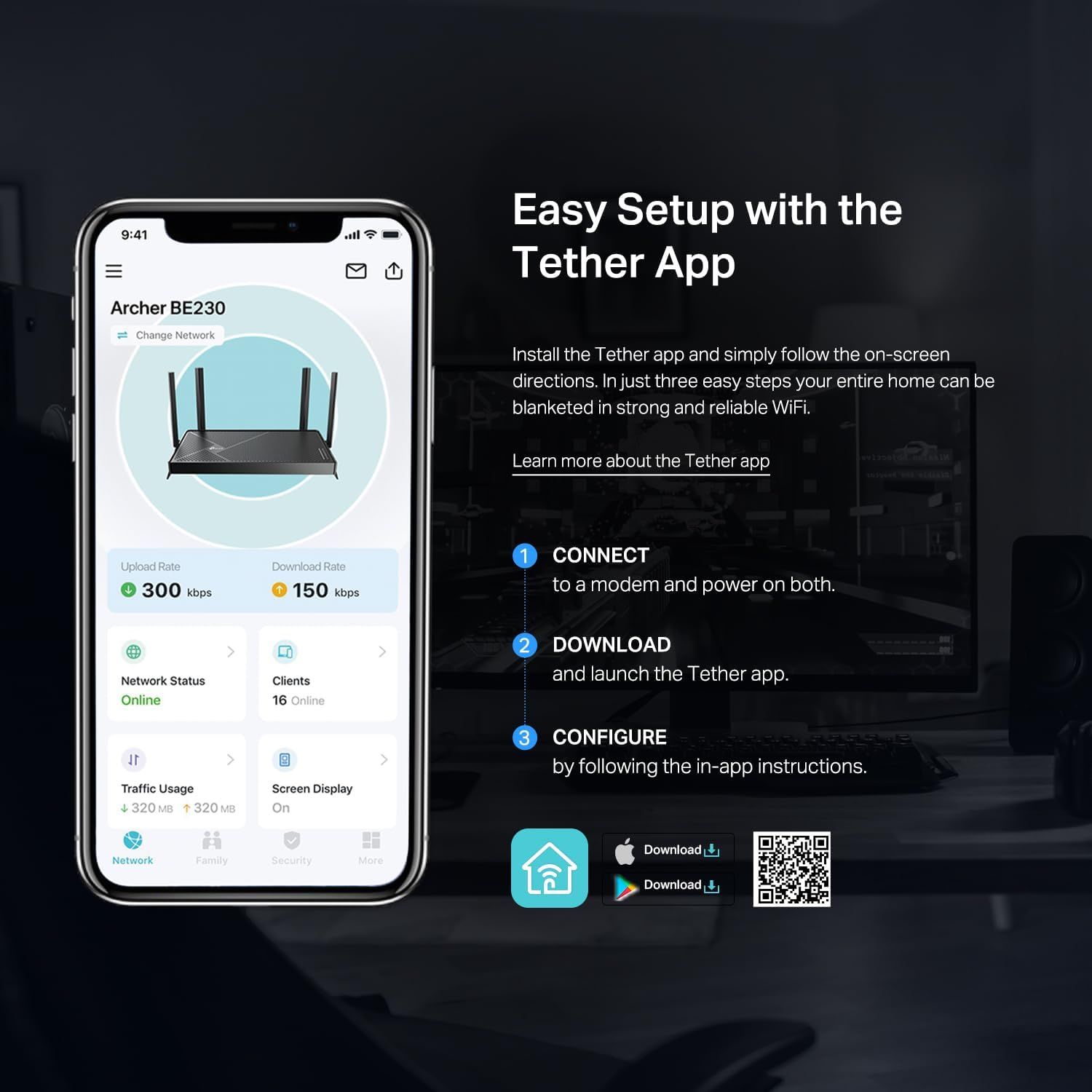
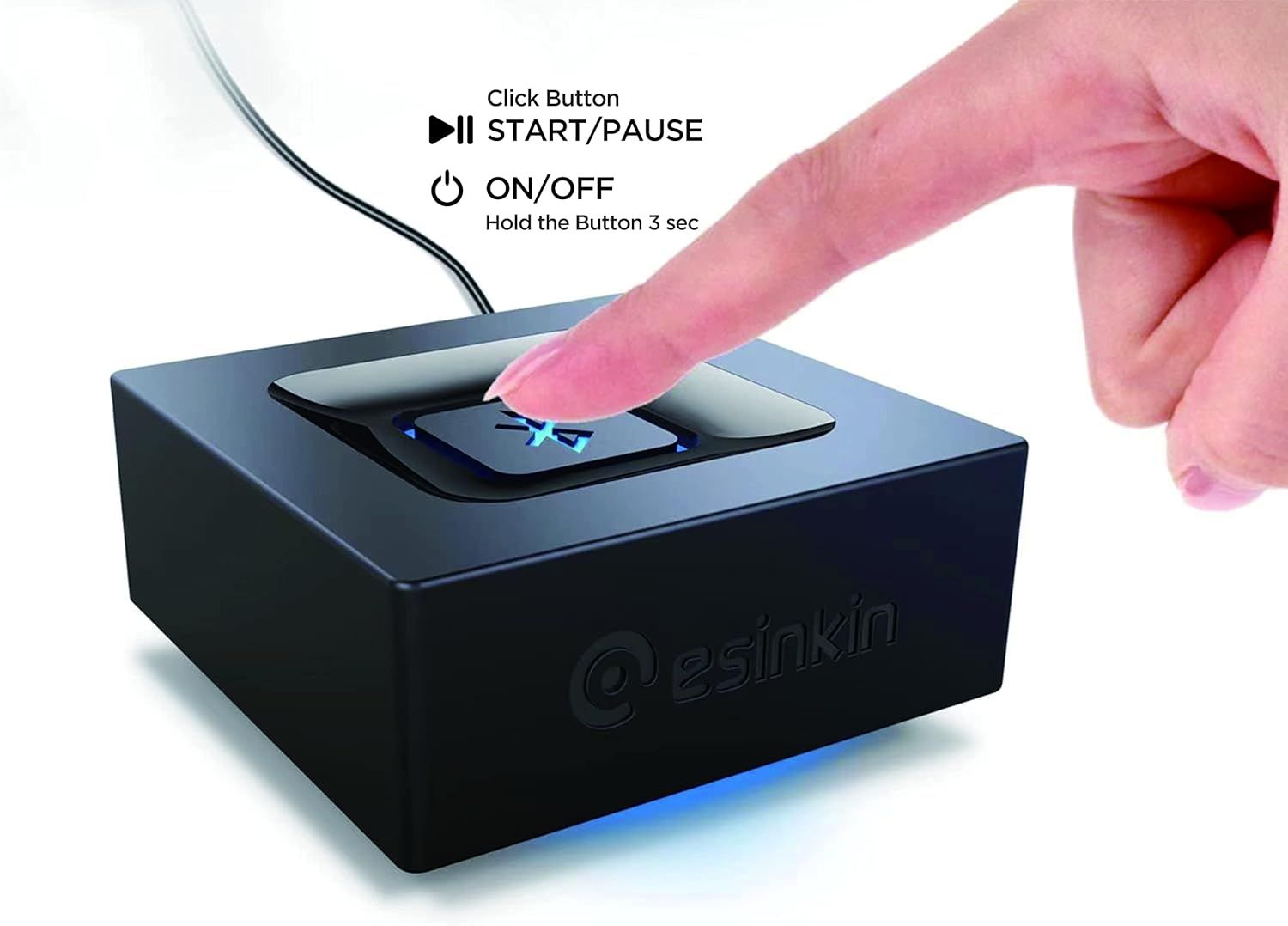
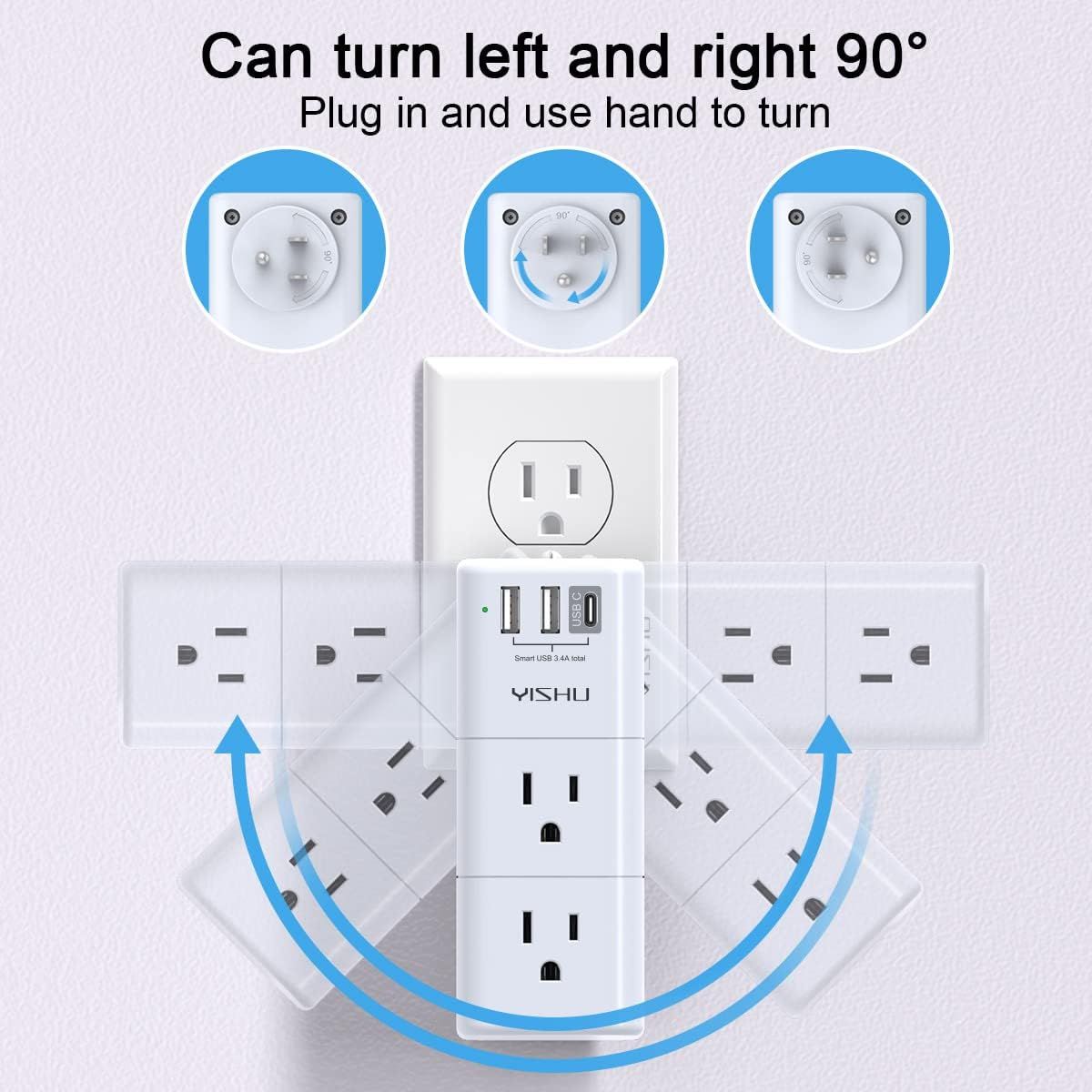
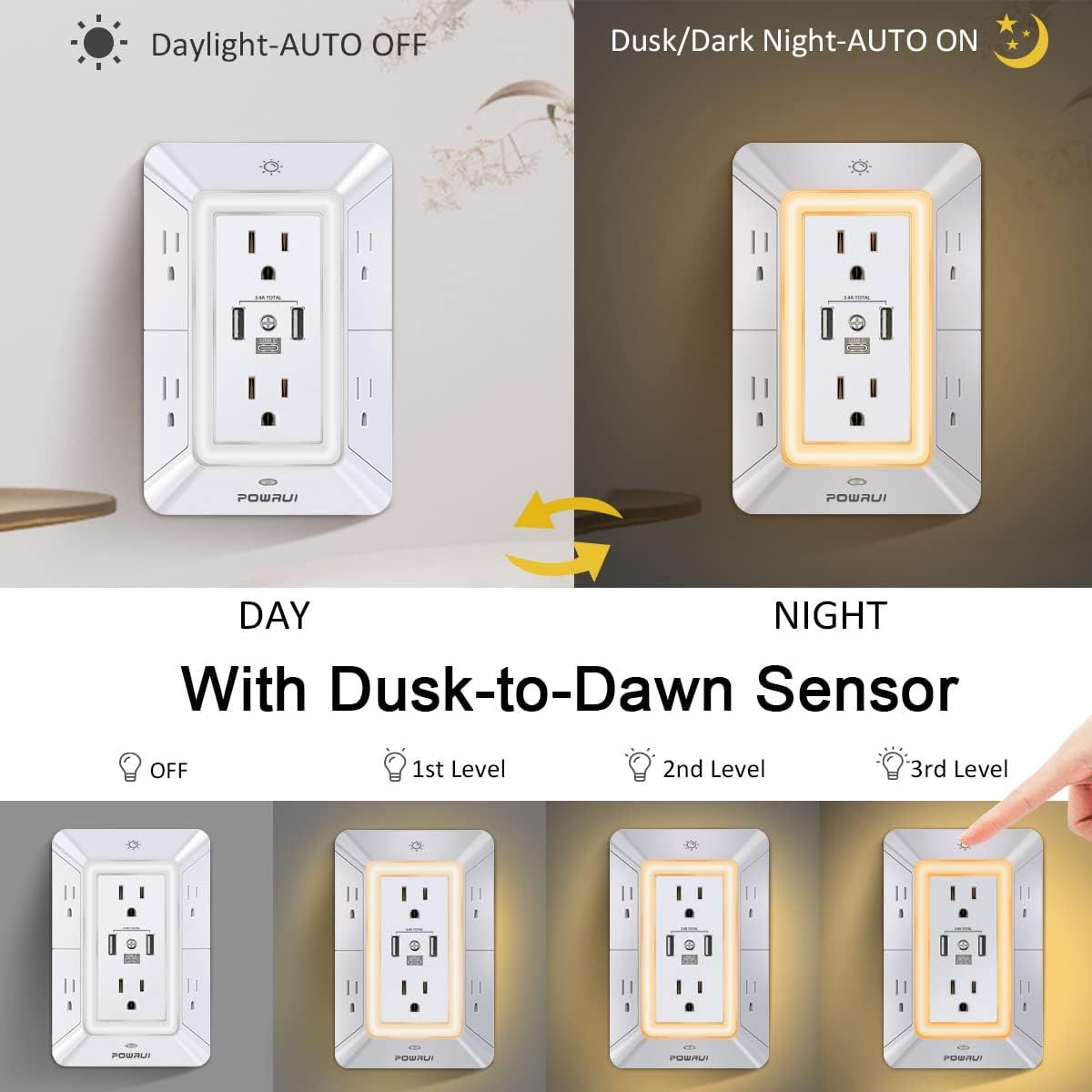
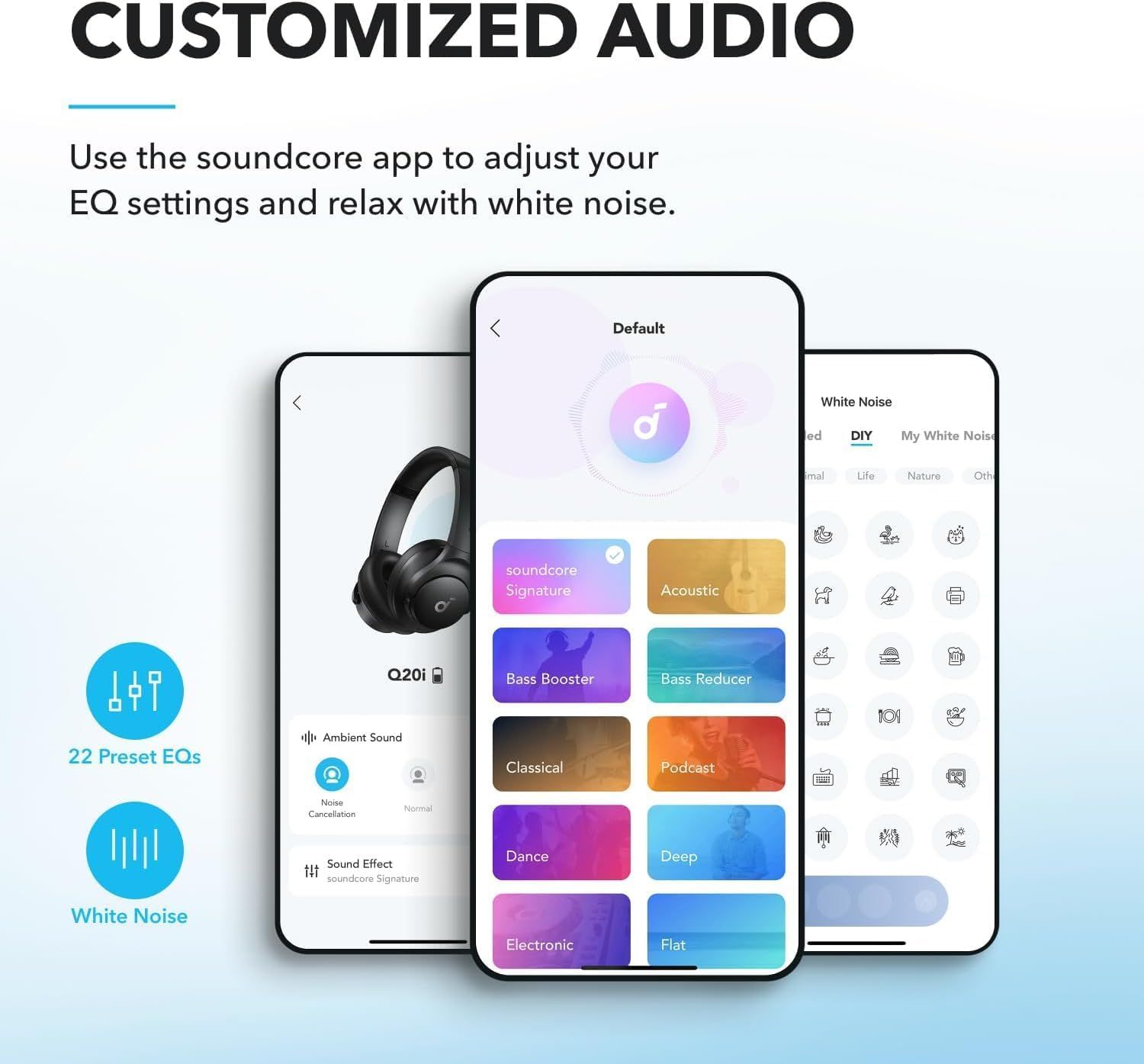
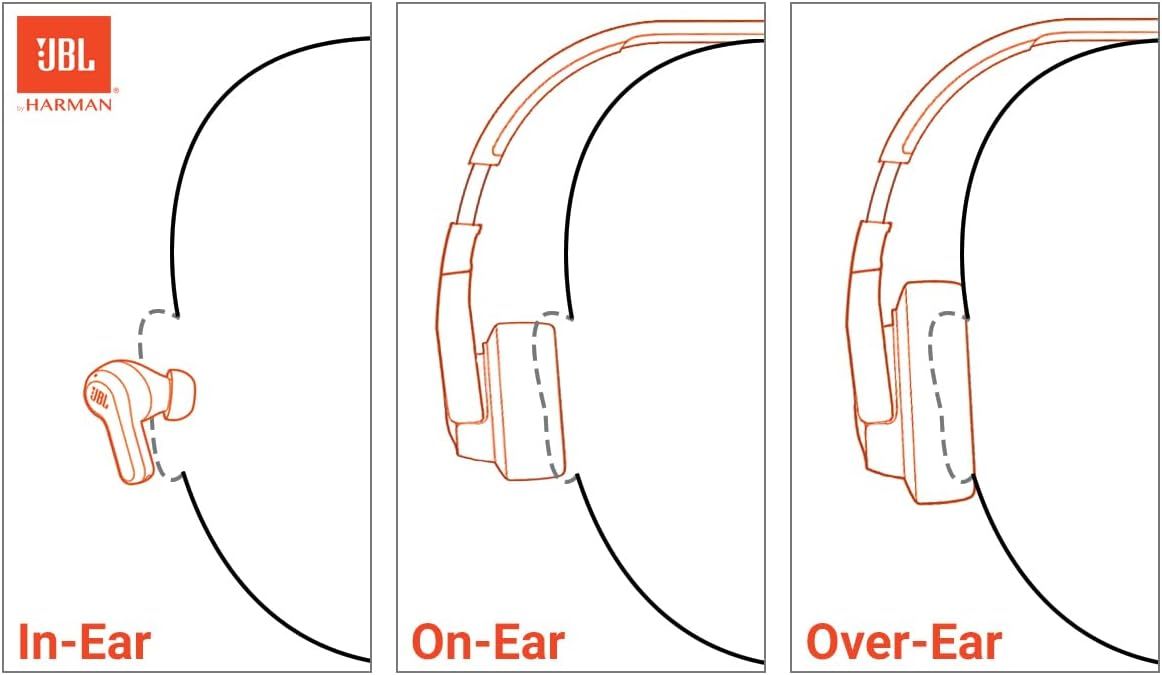
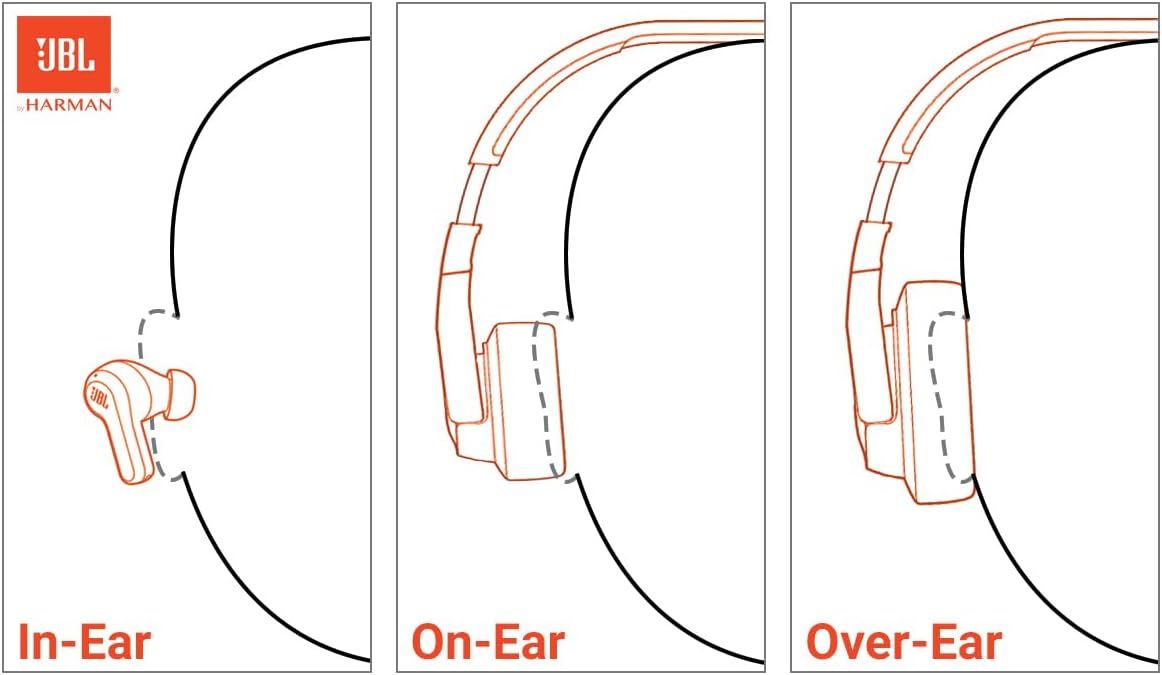
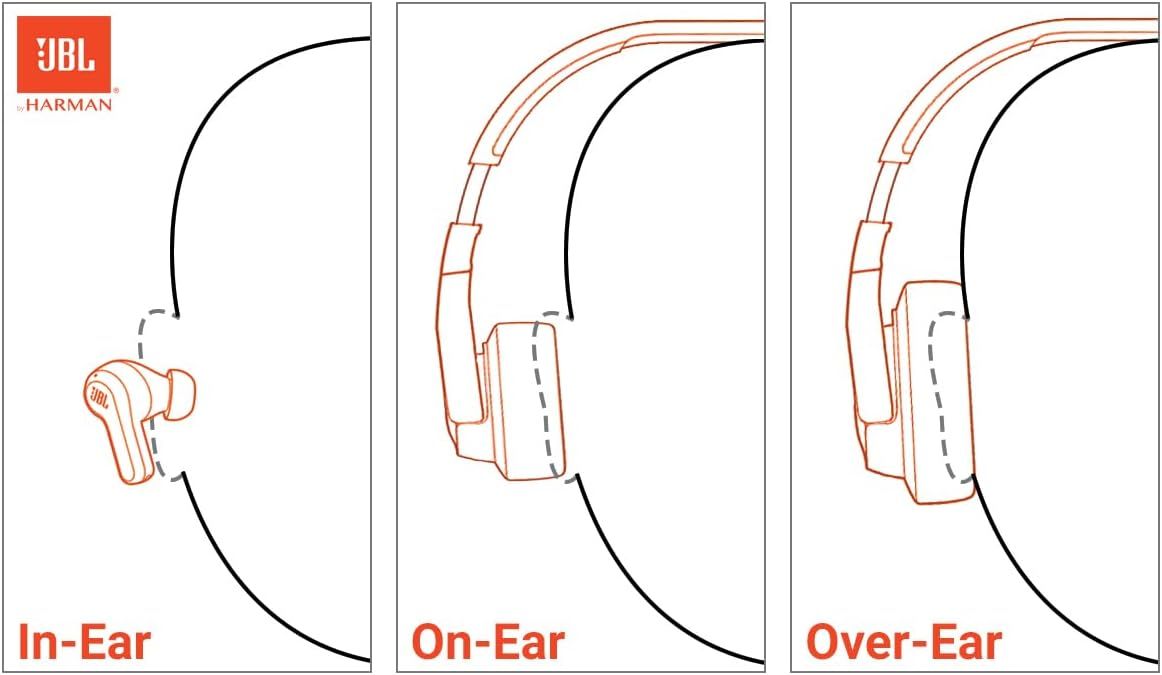
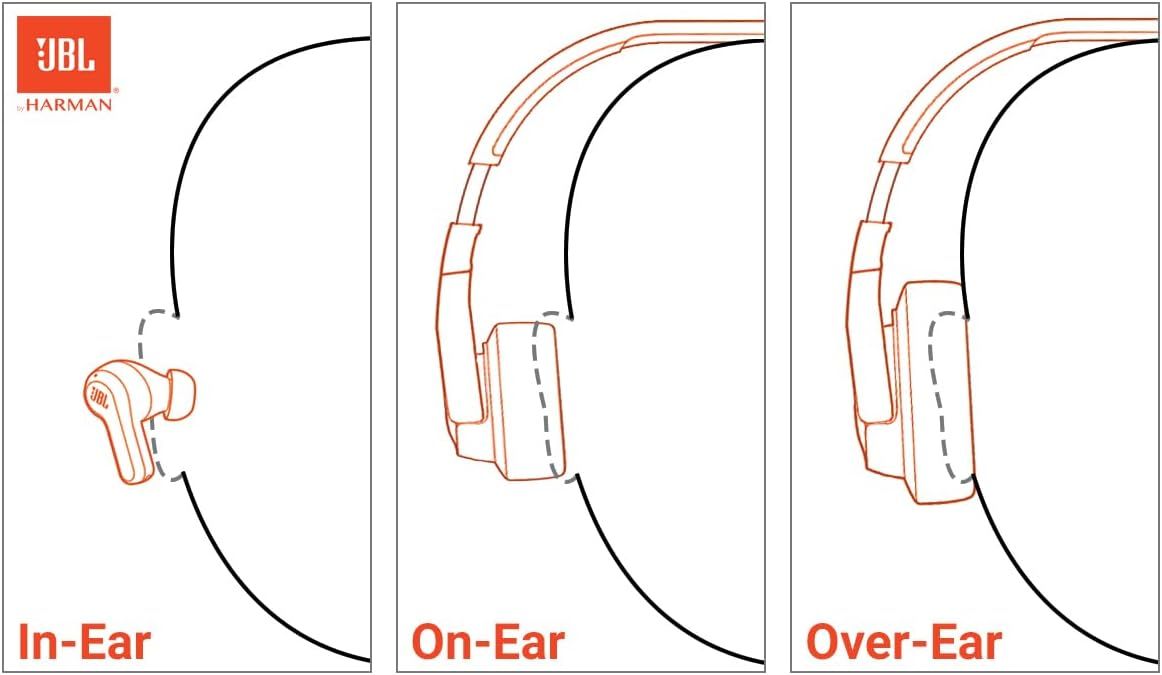
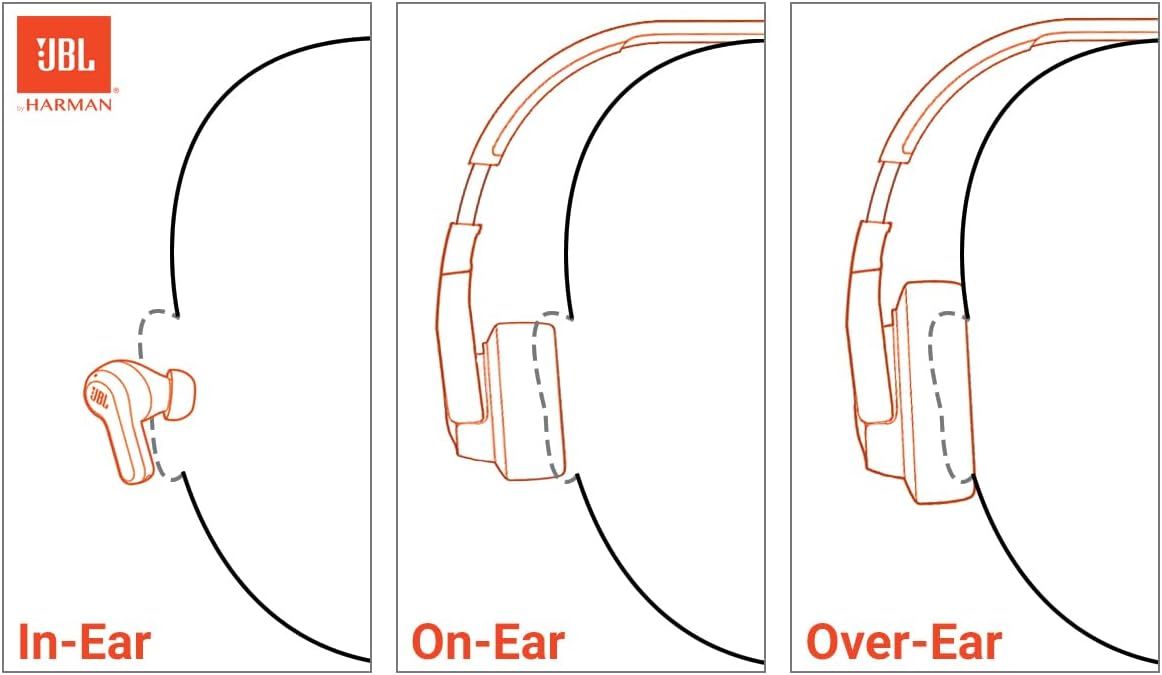
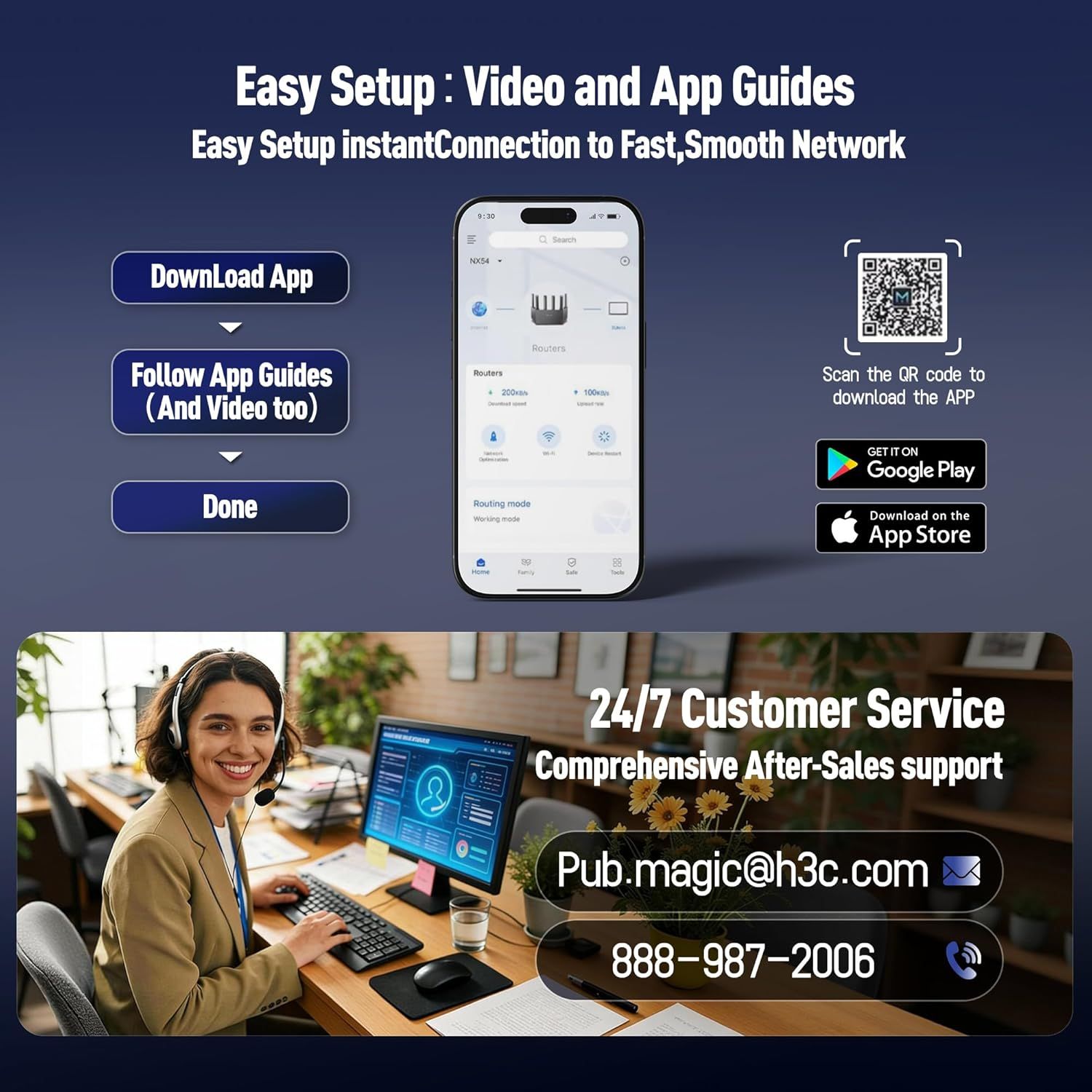
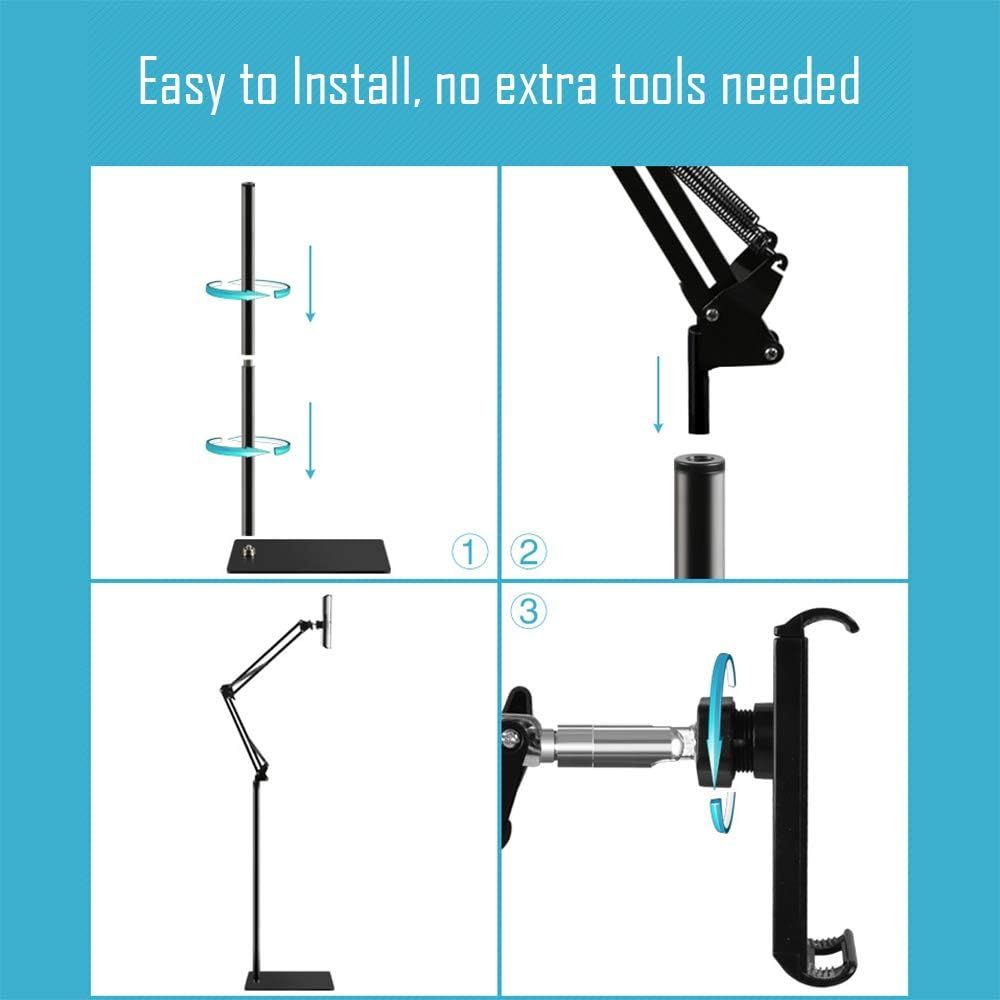
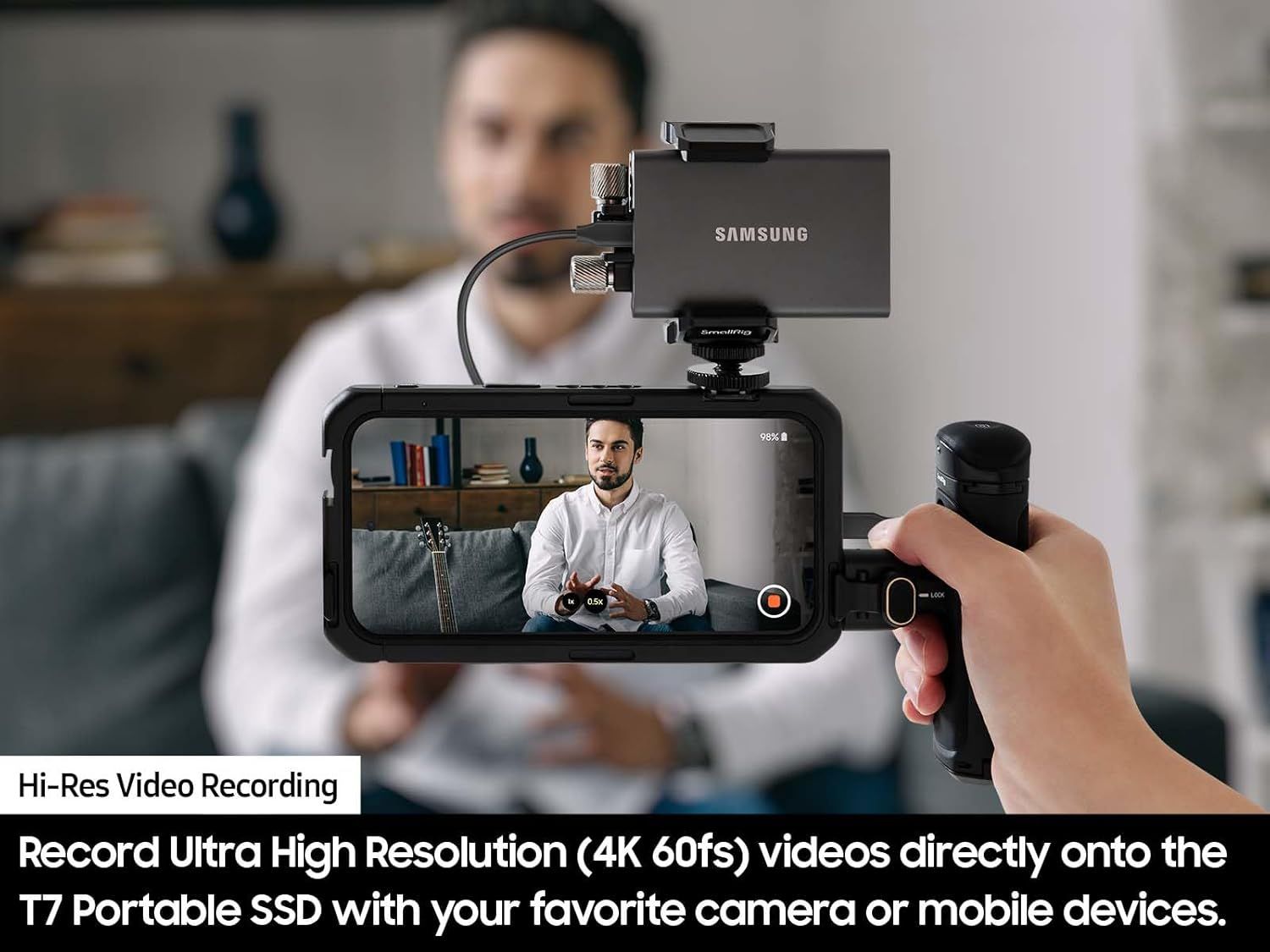
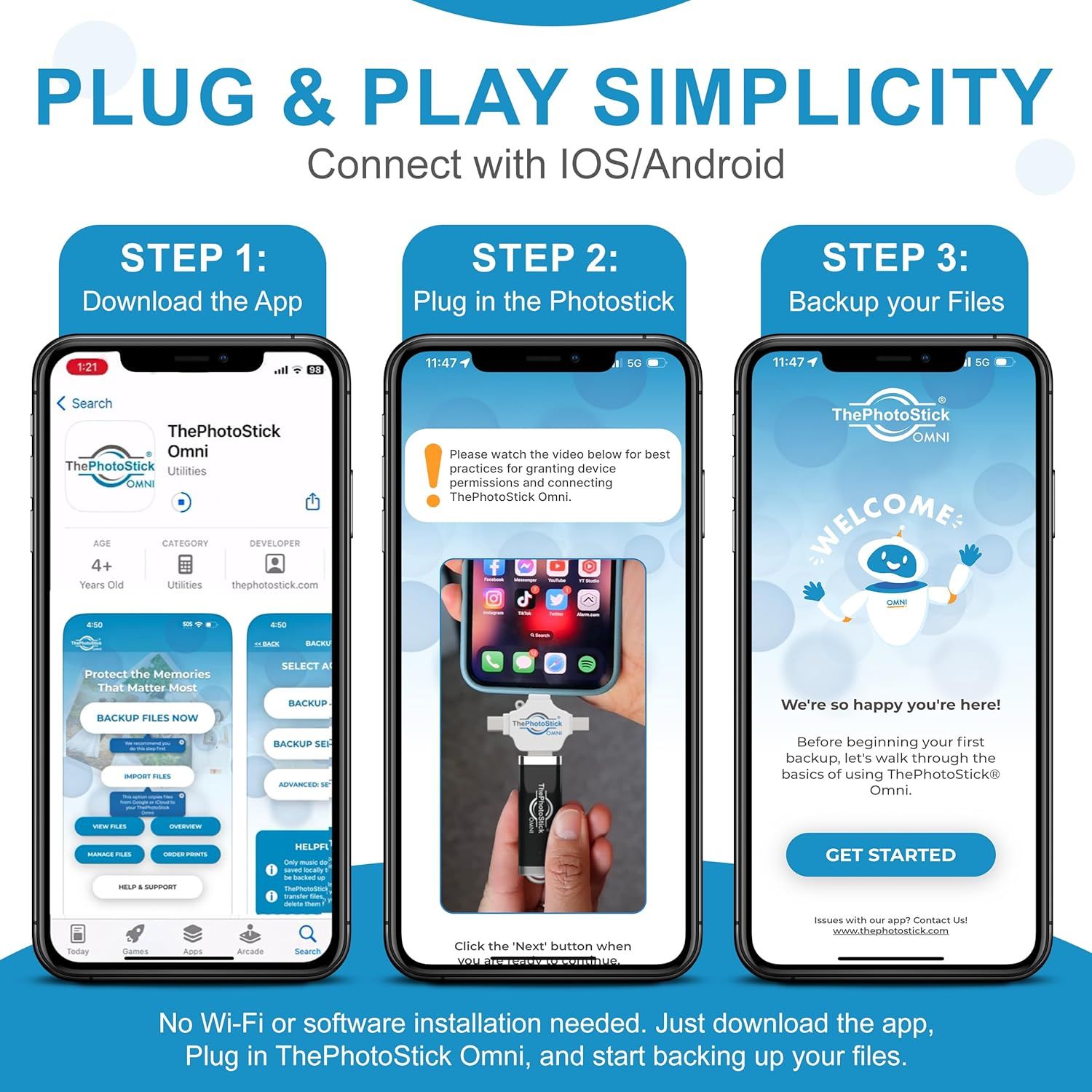
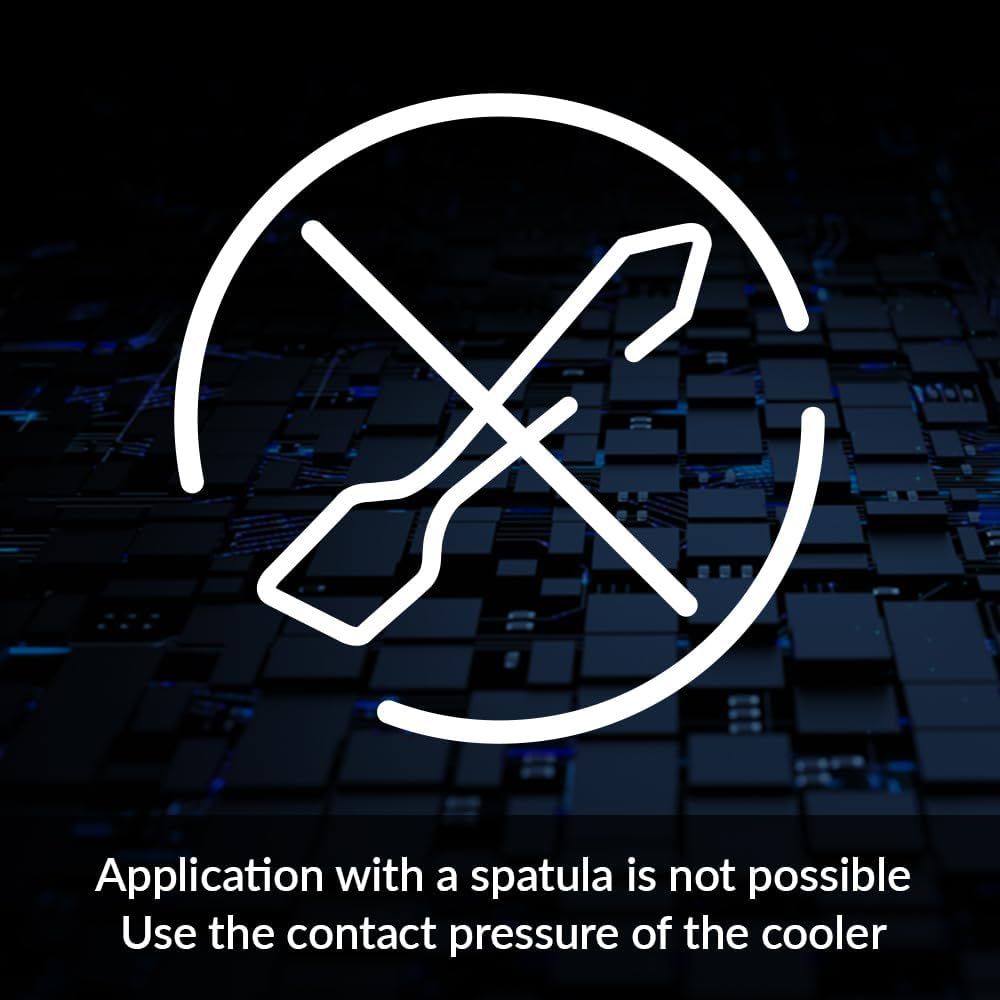
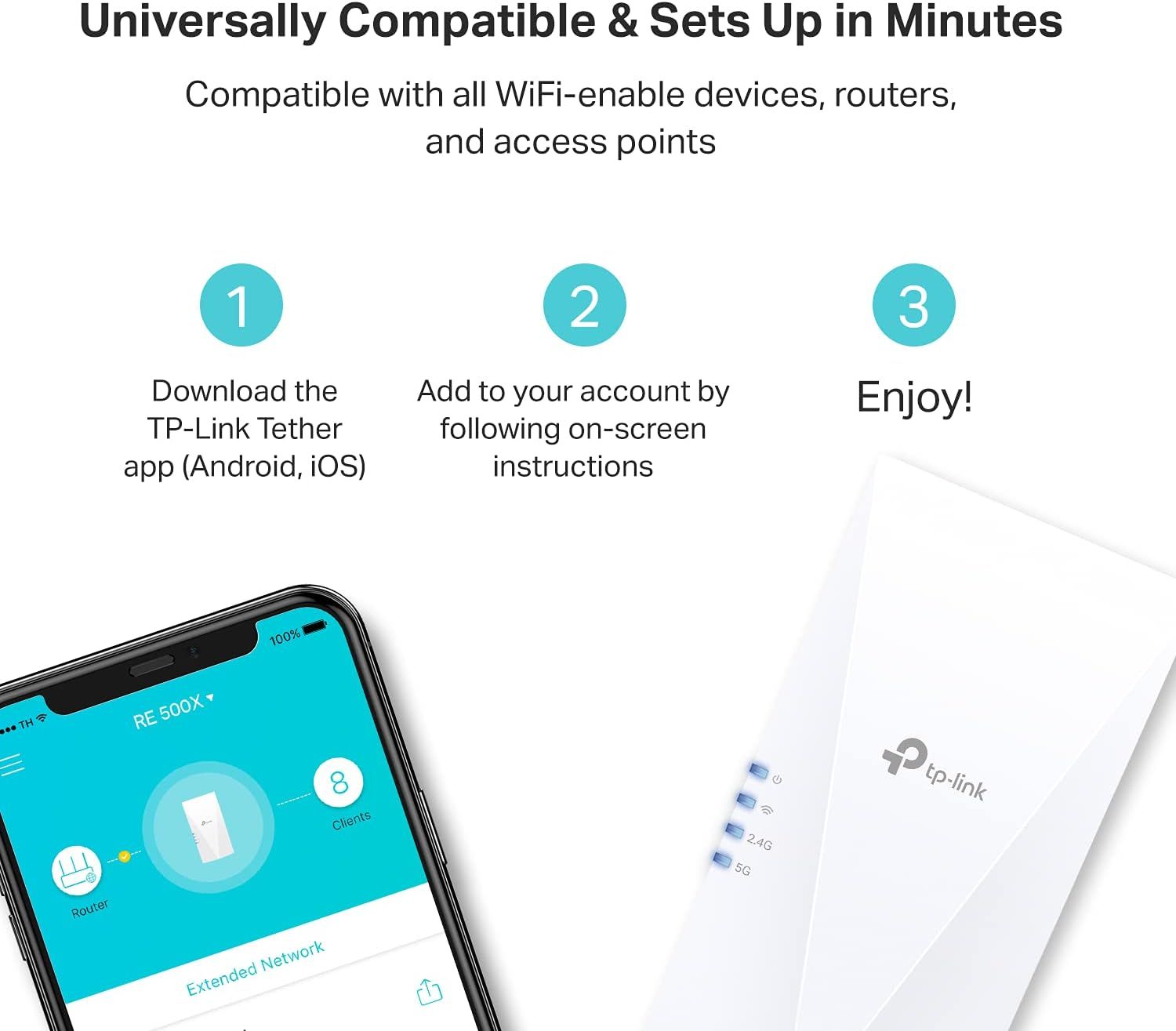
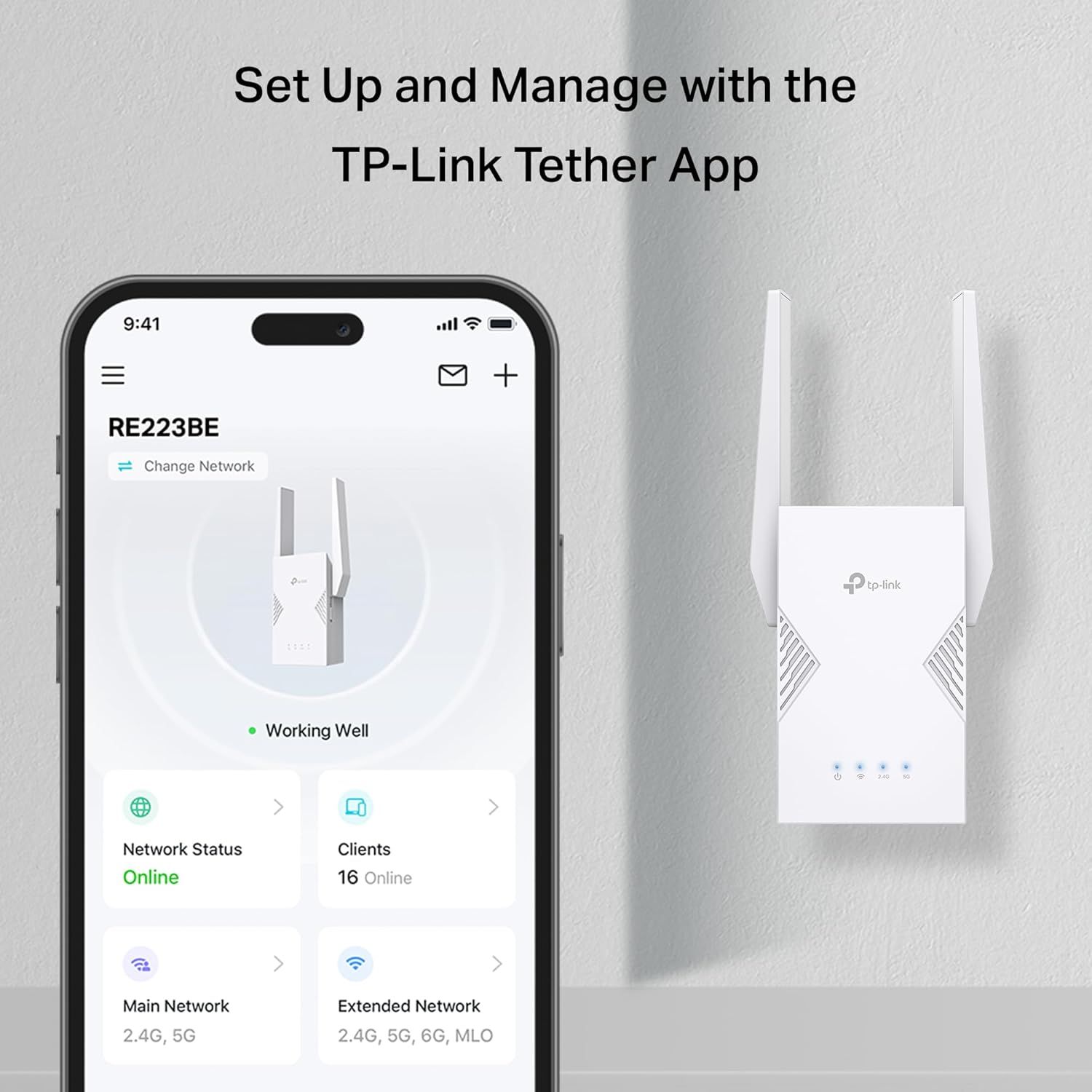
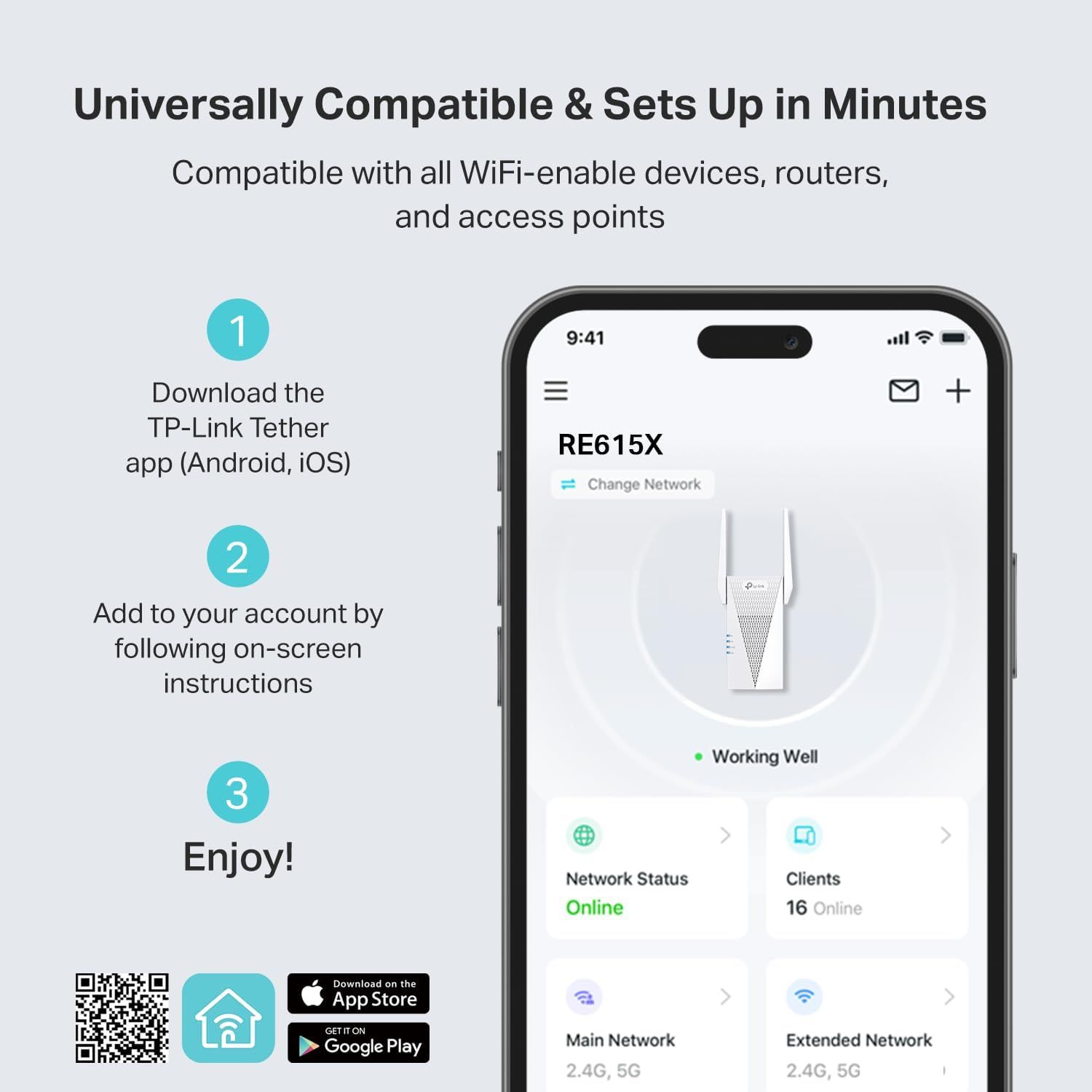
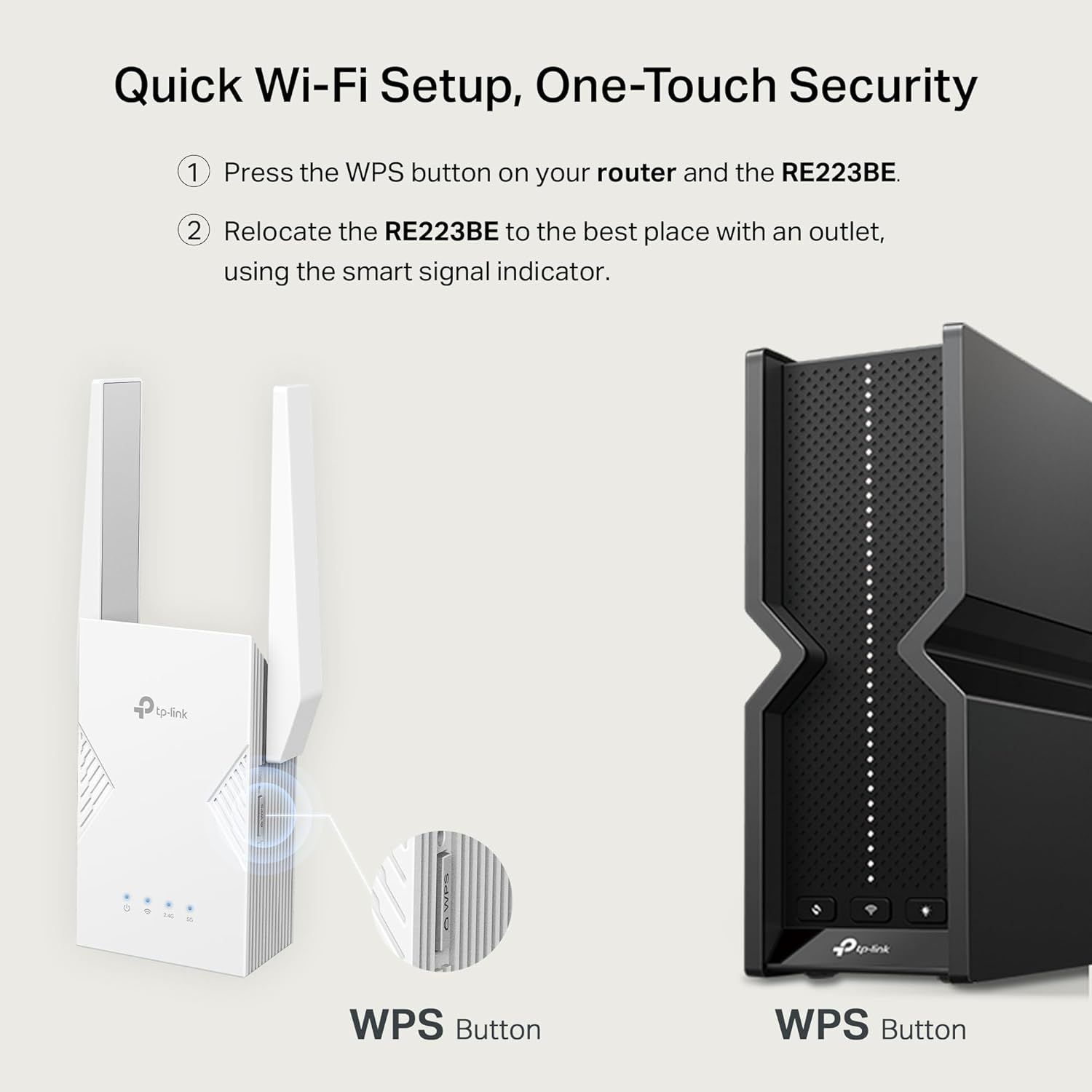
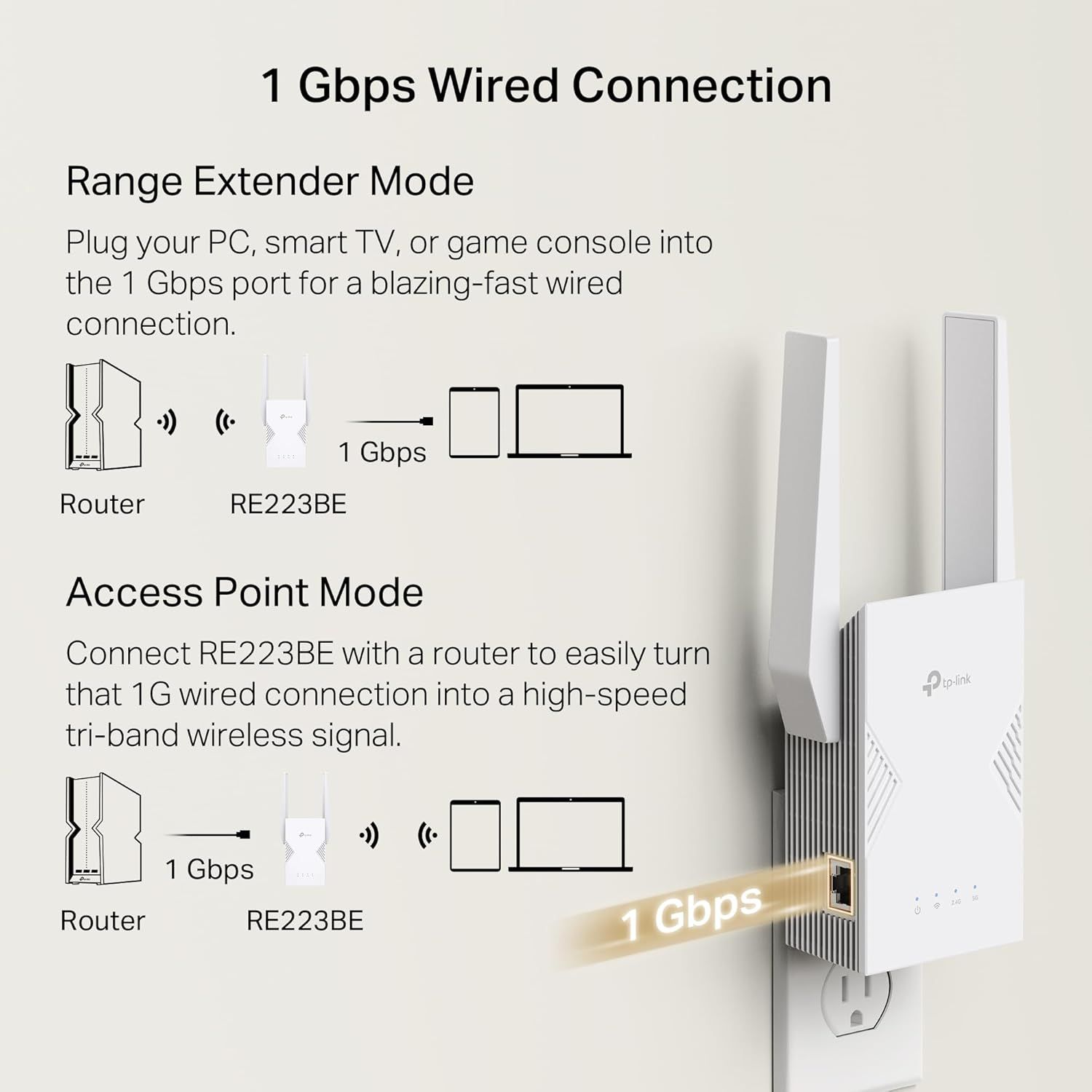
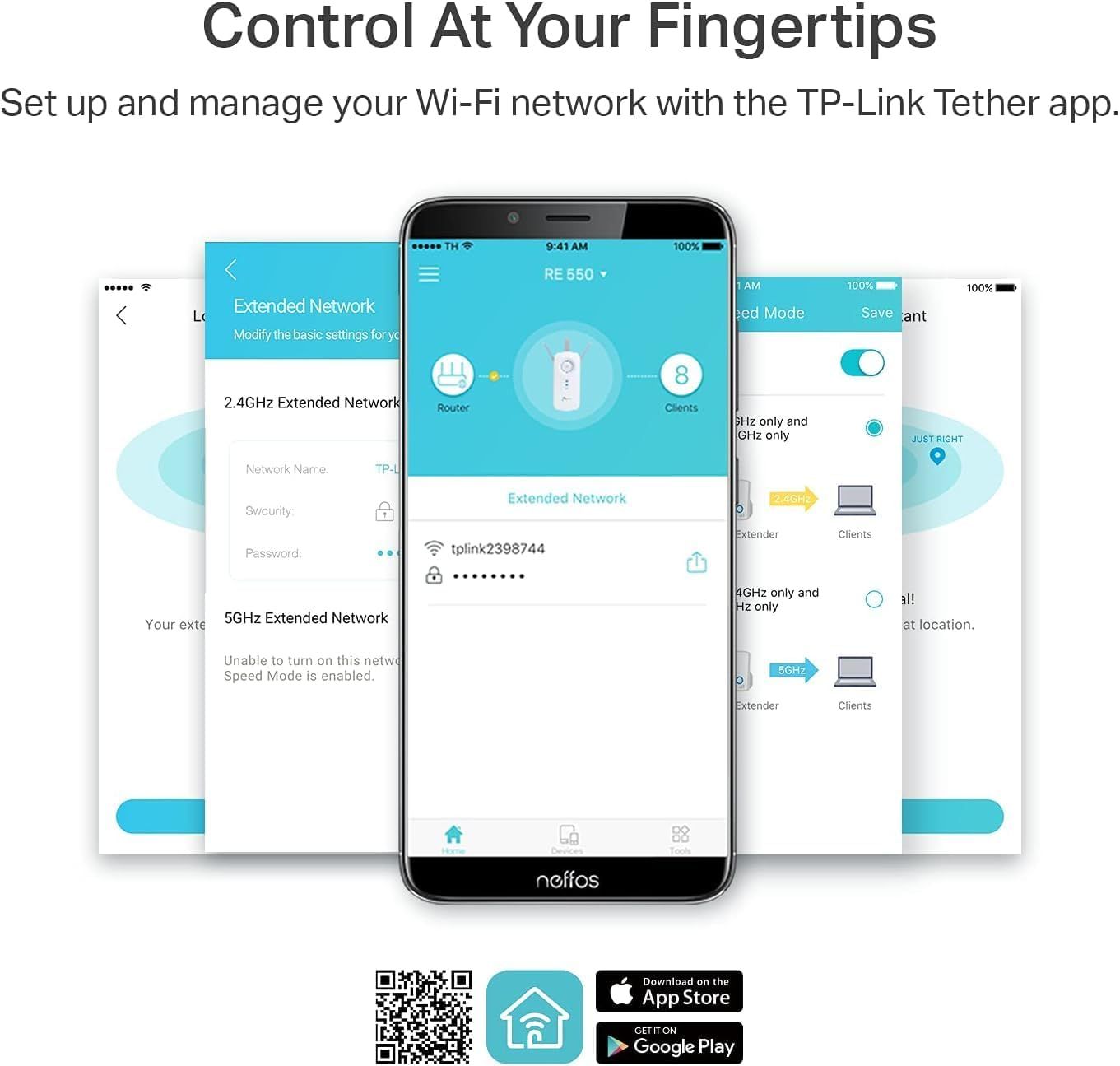
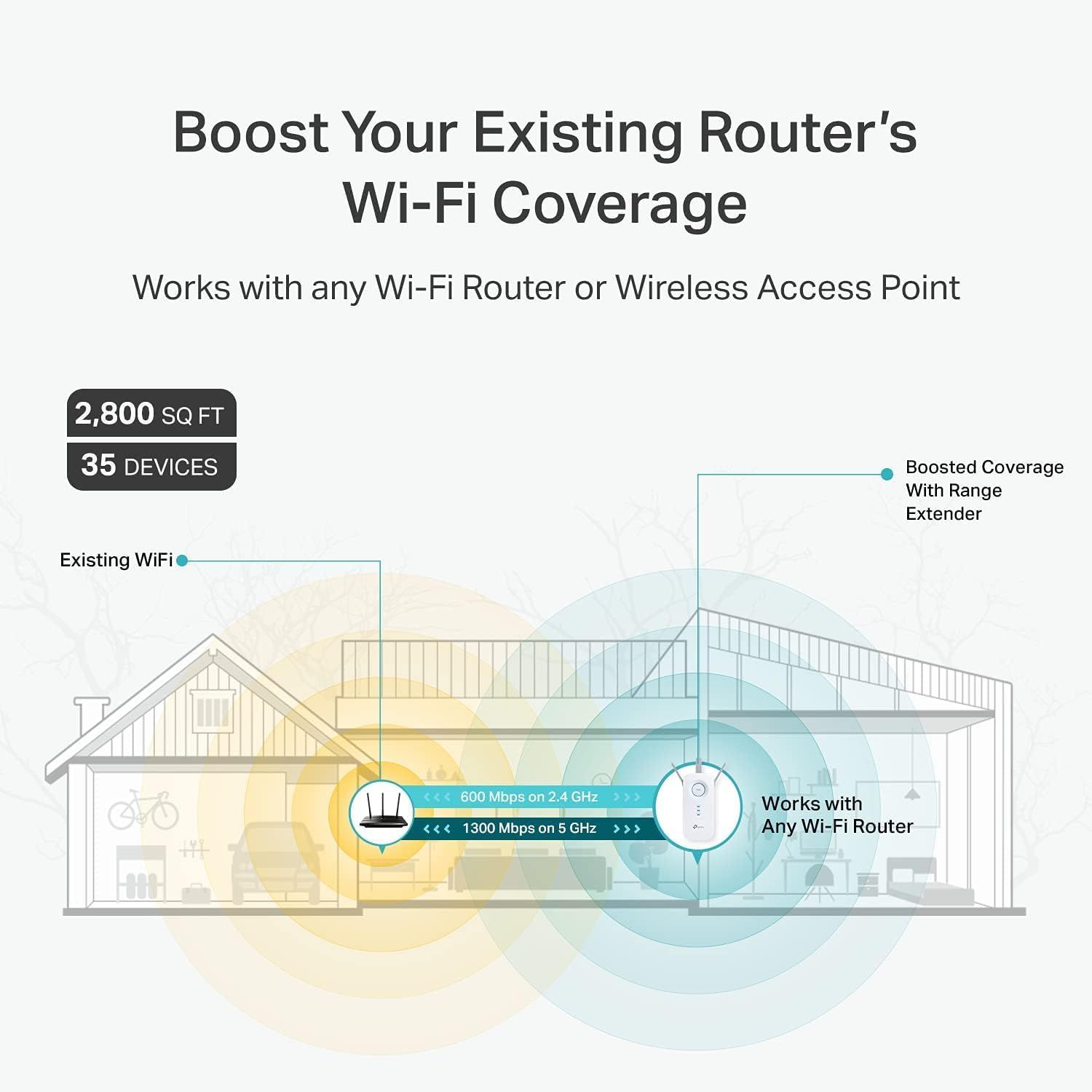
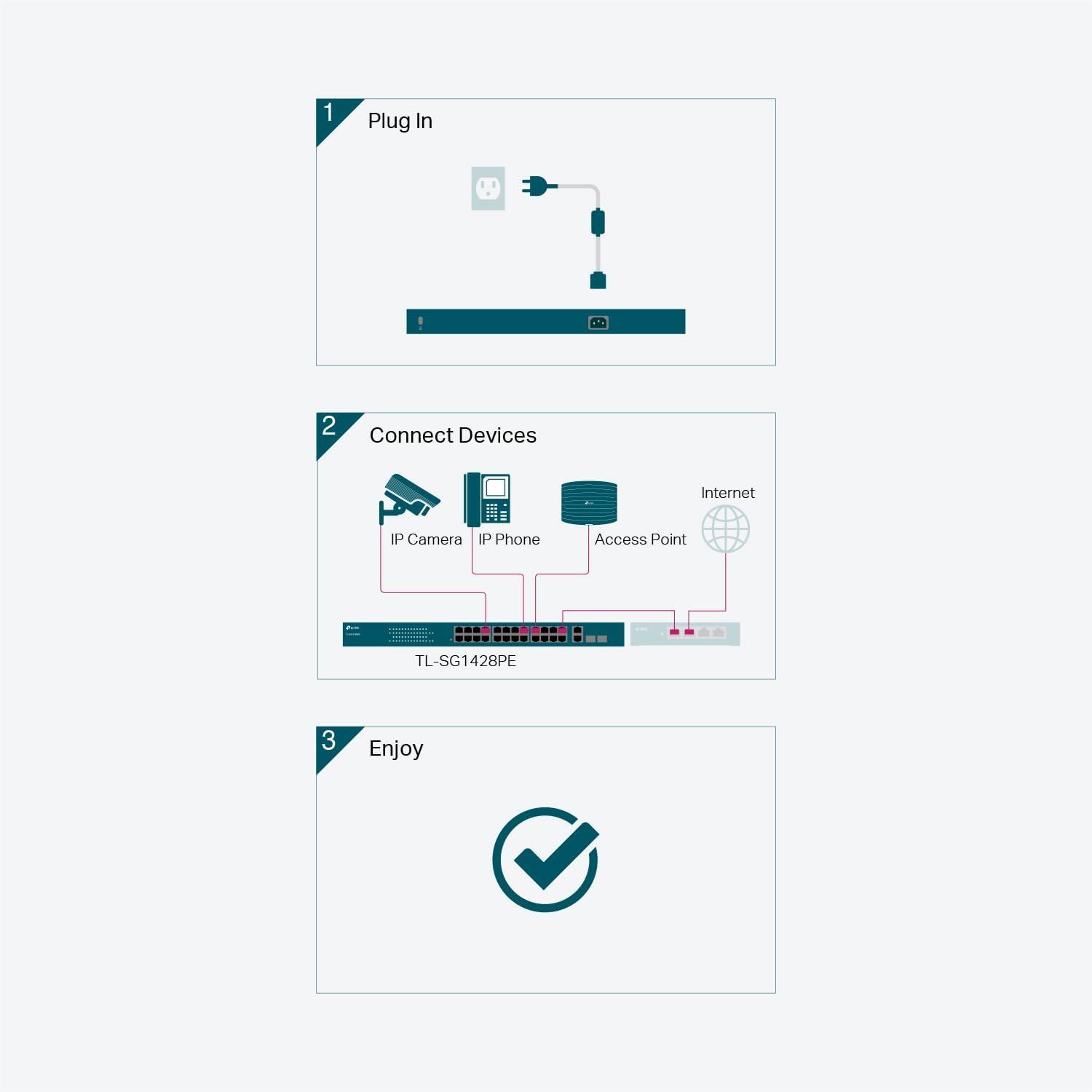
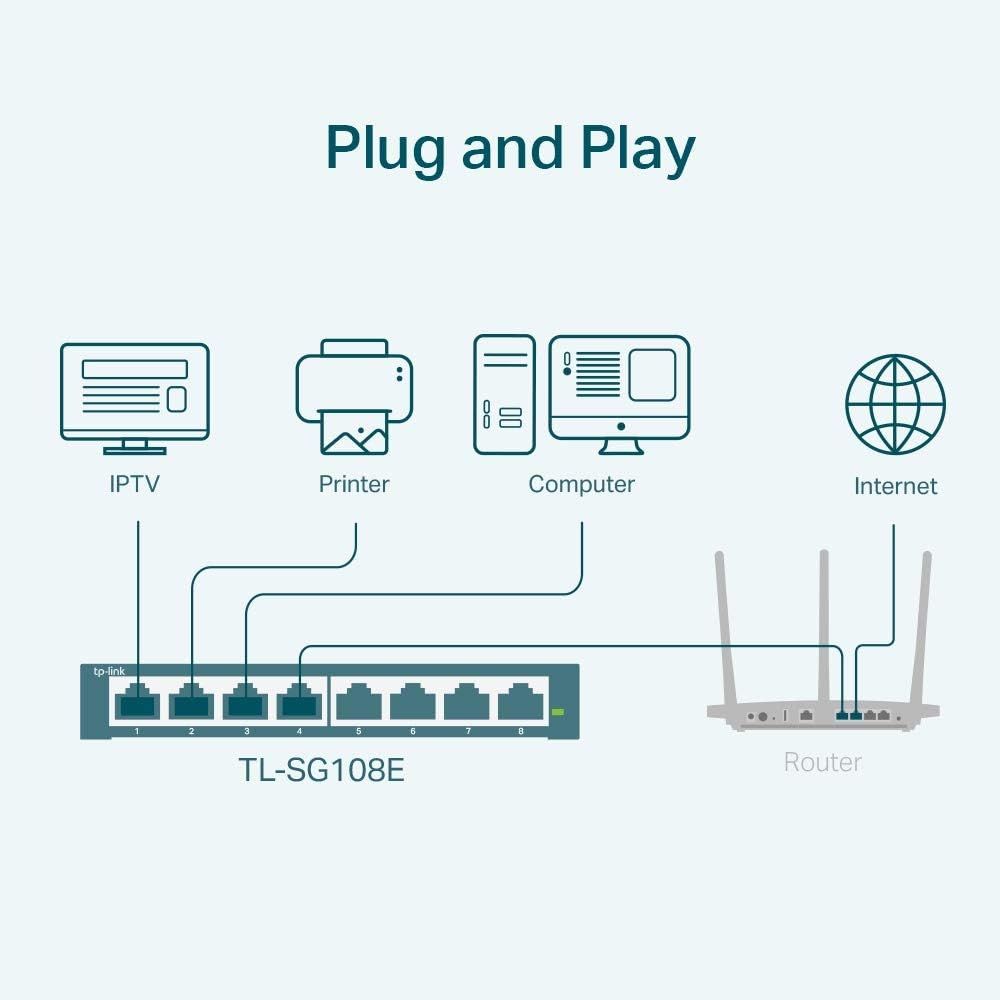
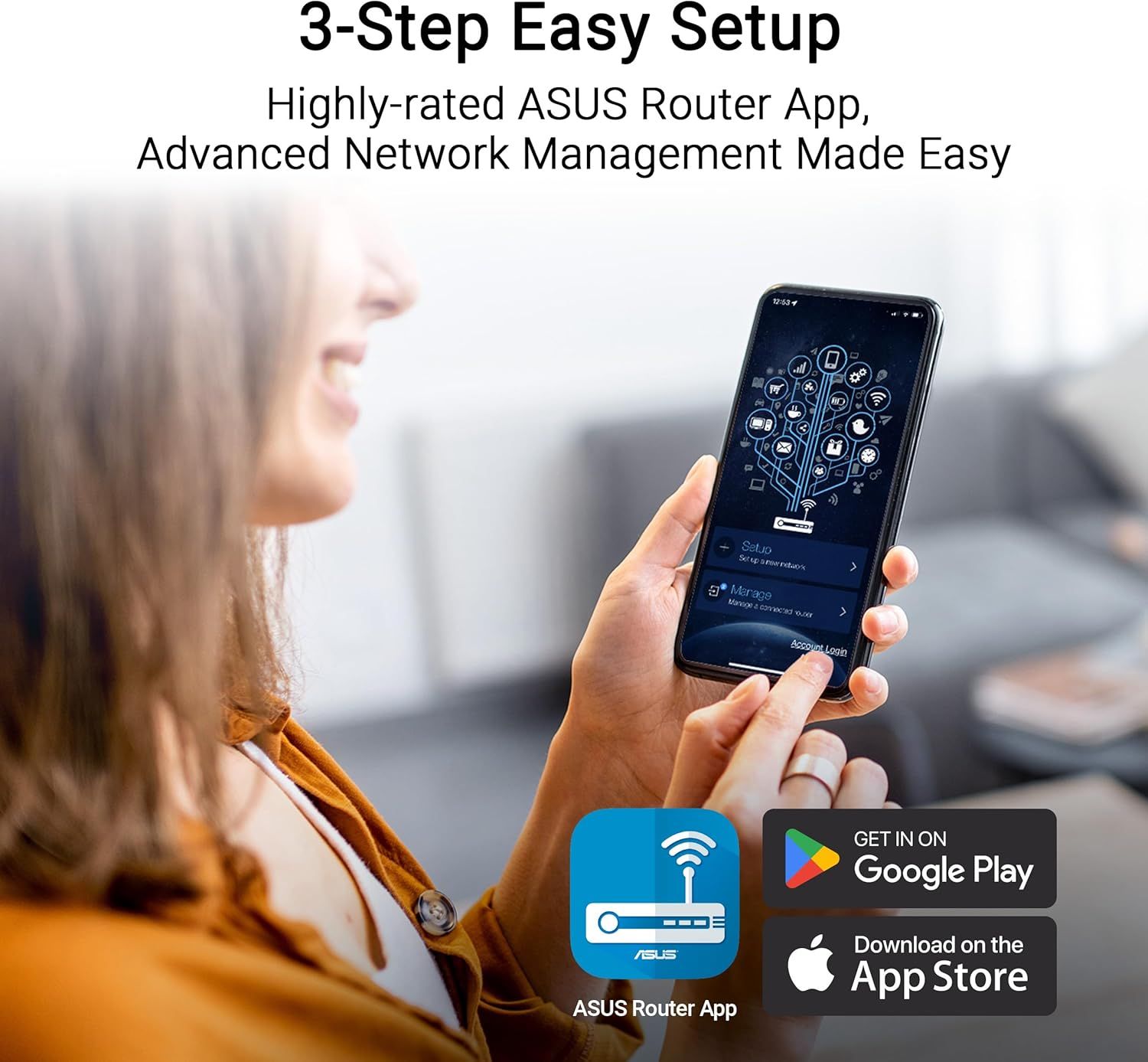
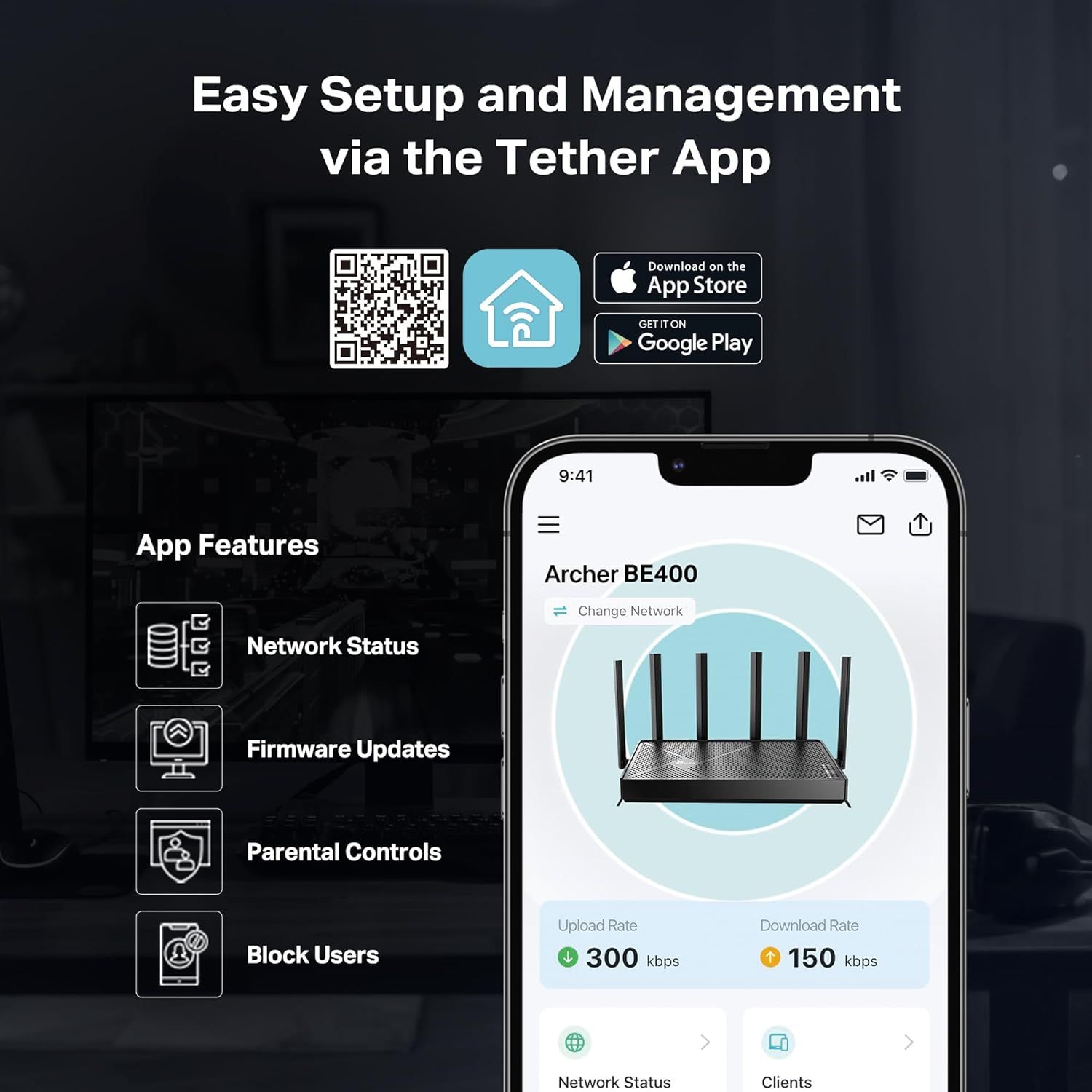
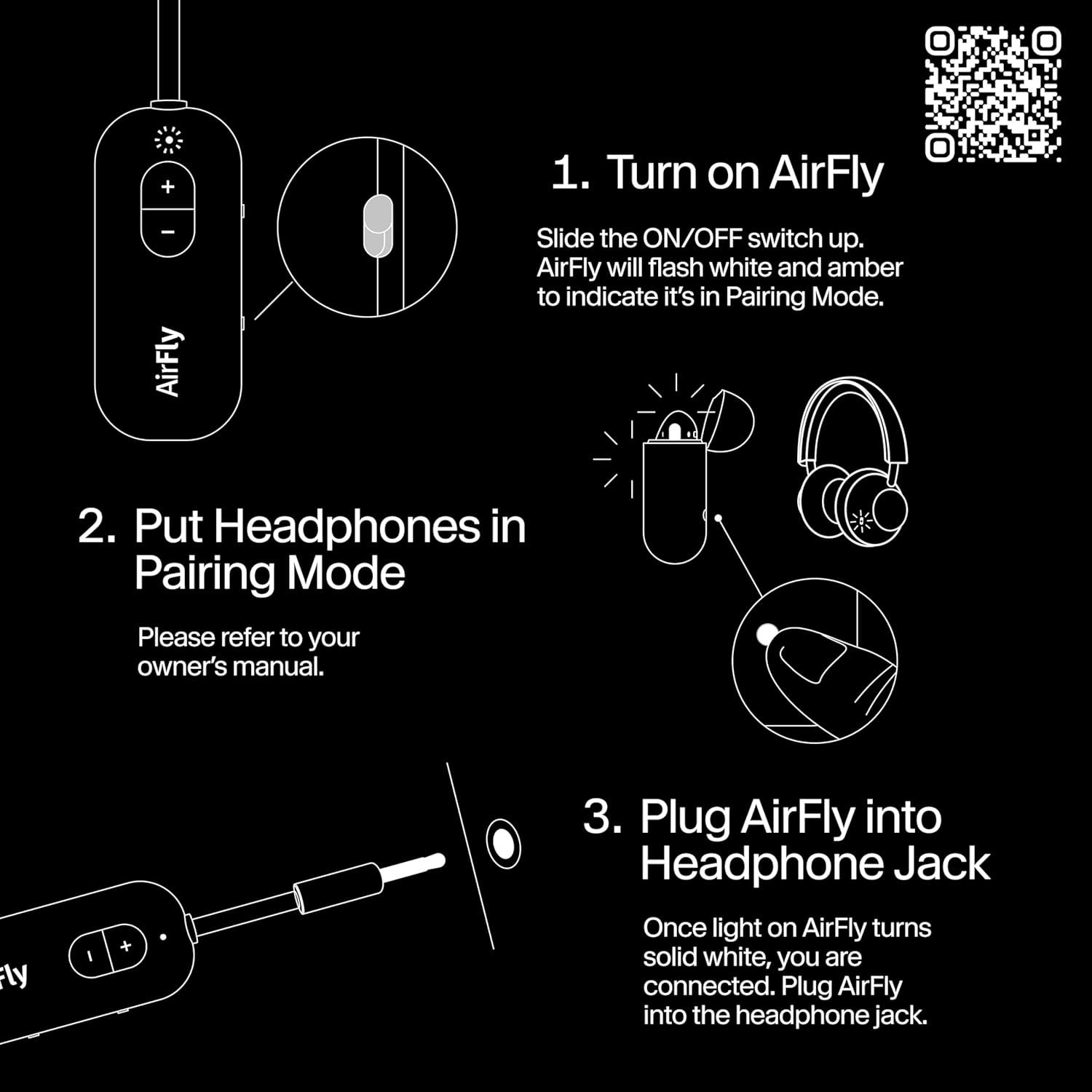
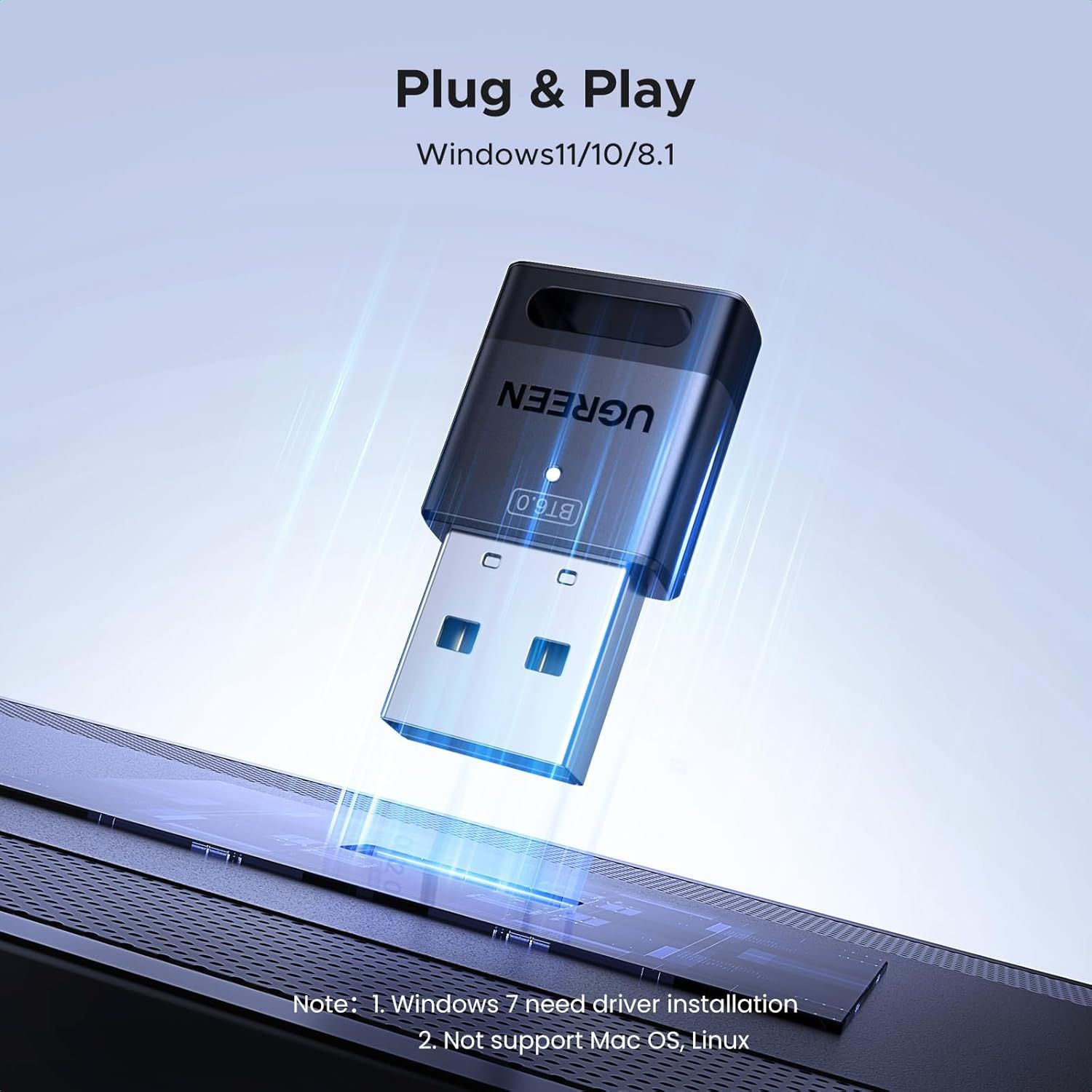
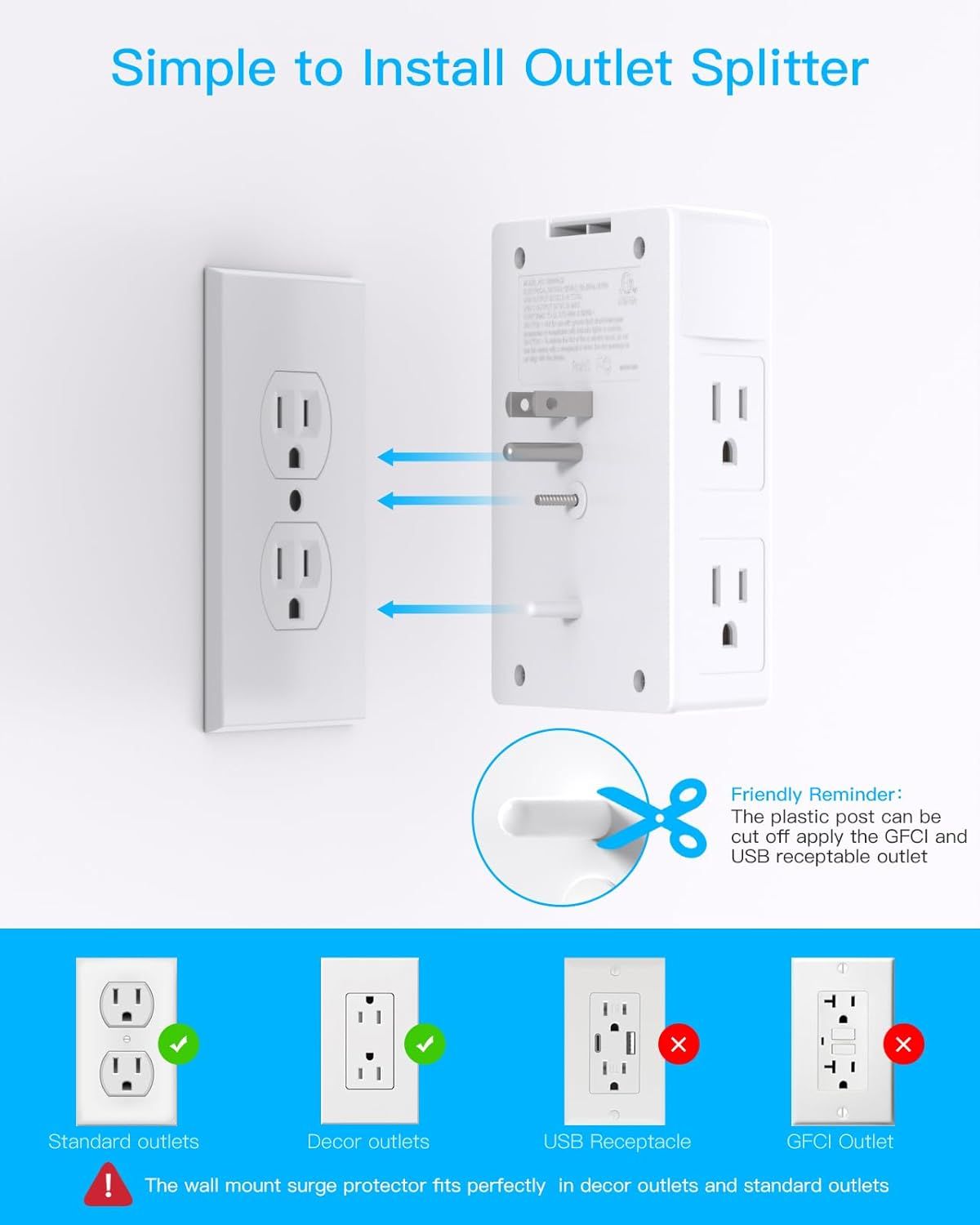
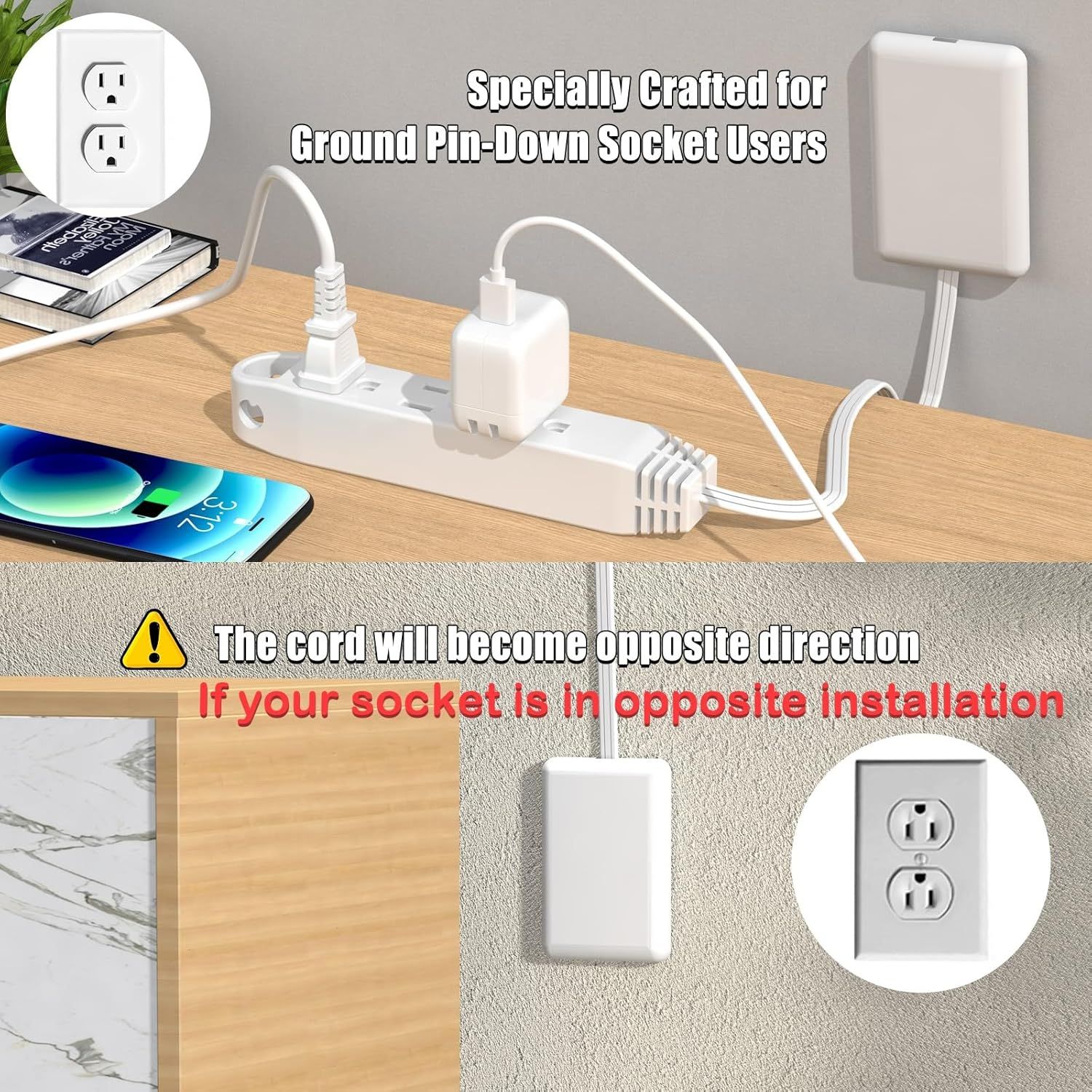
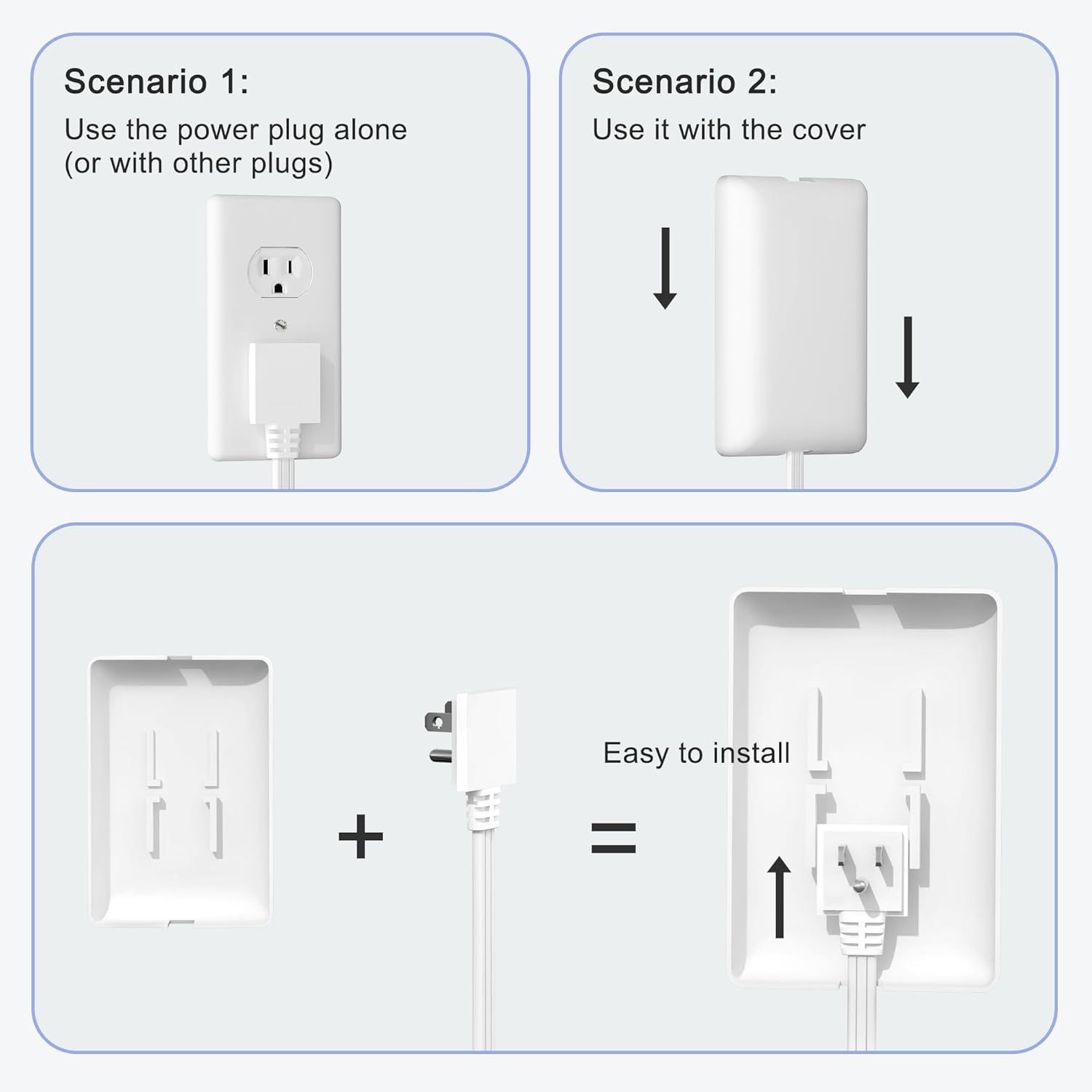
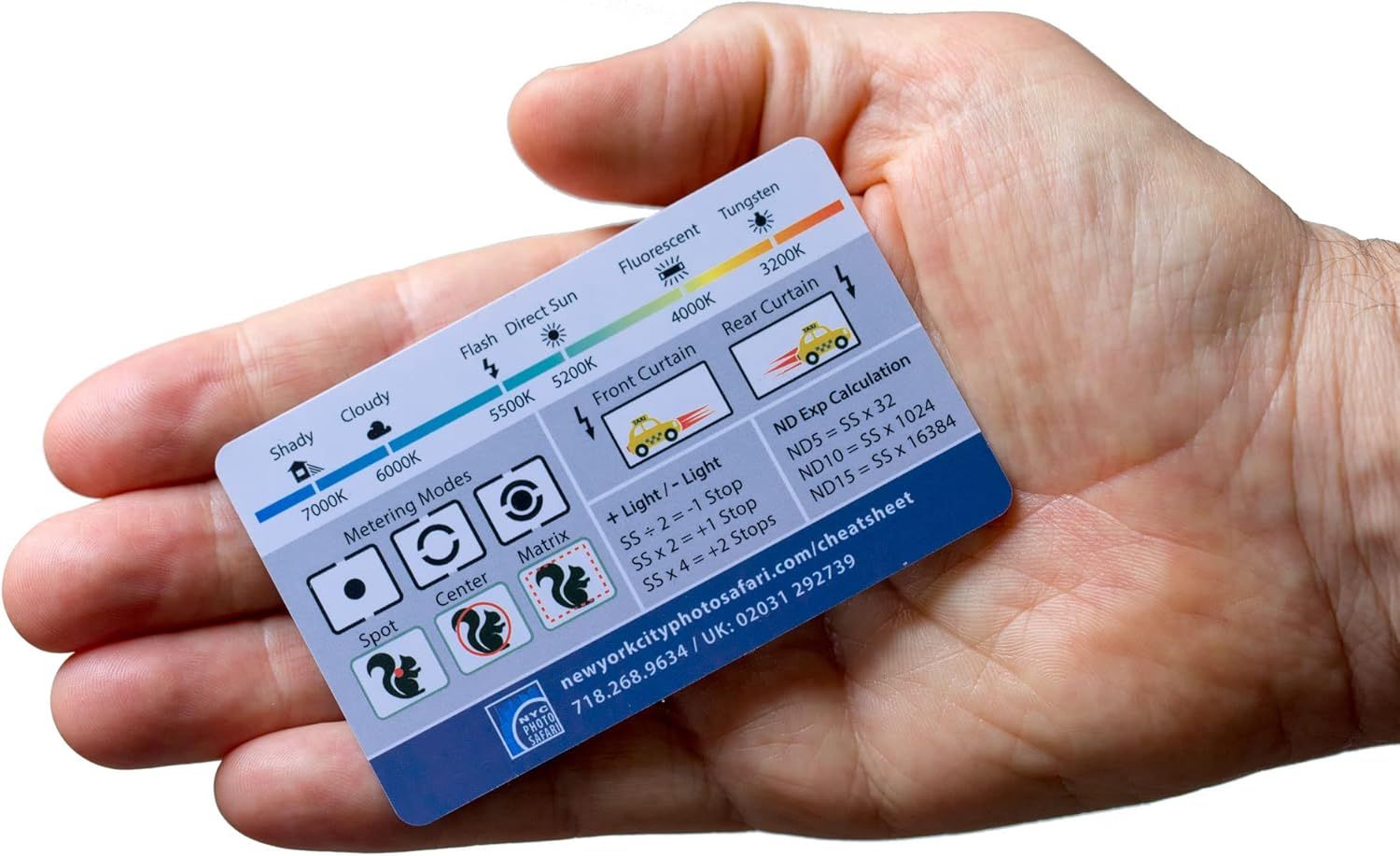
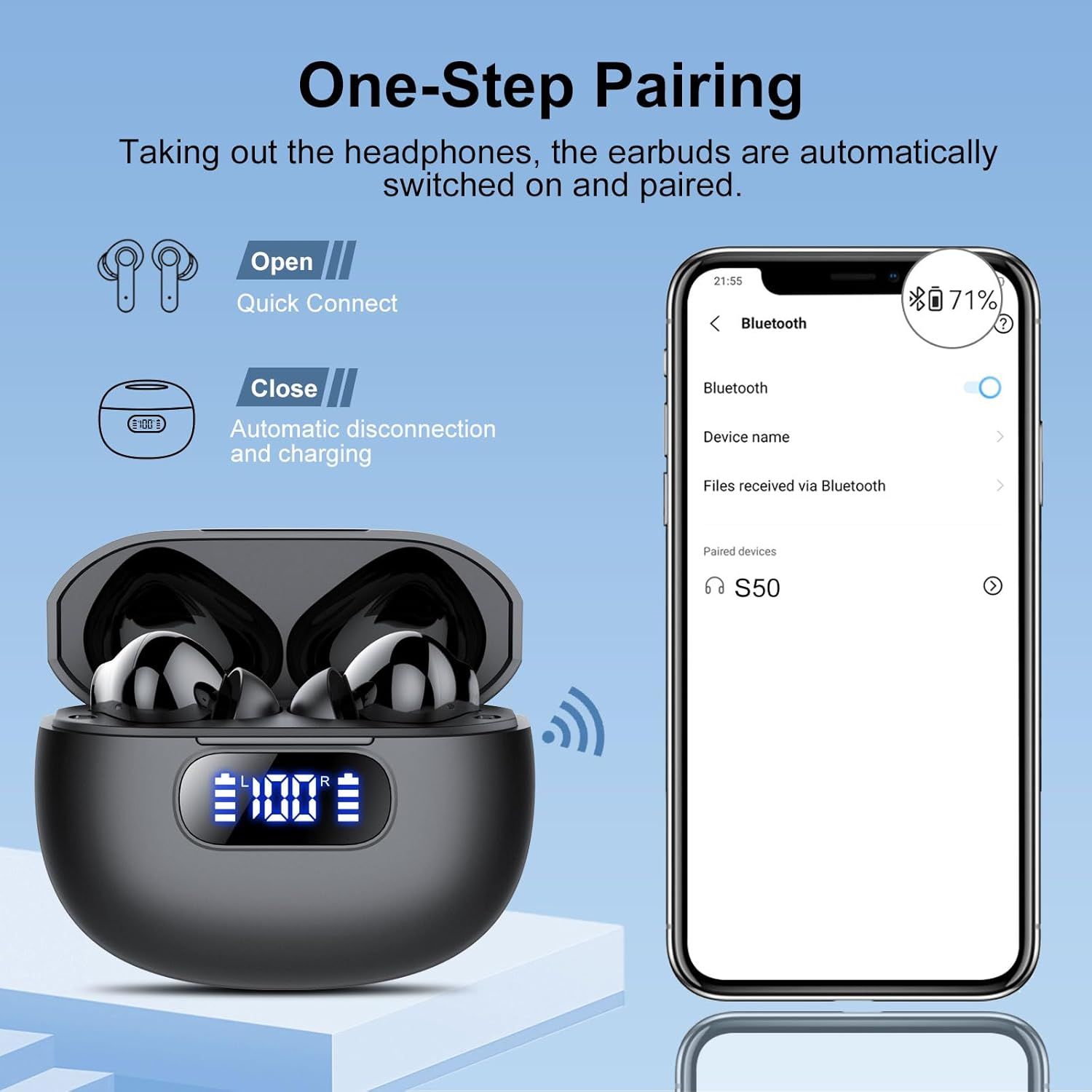
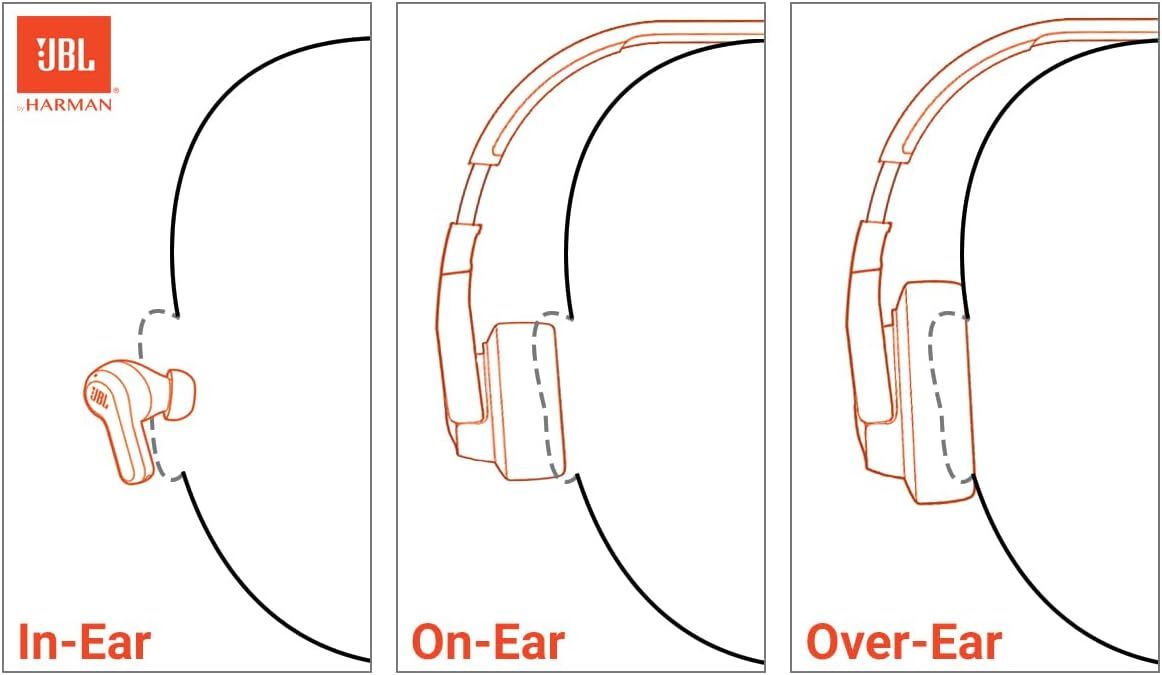
Explains how to use the dual USB ports on the product, showing that one port can power the fan via computer connection and the other can connect to external USB devices like keyboards and mice.…AICHESON Laptop Cooling Pad for 12-15.6 InchDemonstrates the simple 3-step installation process to reassure shoppers that the product can be assembled quickly without requiring additional tools.Tablet Floor Stand with 5LB Metal BaseDemonstrates the adjustable wall clearance distances of the monitor arm in different configurations, helping shoppers understand space-saving flexibility and installation requirements. Shows three…HUANUO FlowLift™ Dual Monitor StandCommunicates the high-wattage charging capability of the USB hub, emphasizing its ability to deliver 85W pass-through charging to power laptops while using the hub. Demonstrates how the hub connects…Anker USB C HubInstructs the shopper on the correct way to install the legs of the pen holder to ensure proper hanging and functionality.OPNICE Desk Organizer and AccessoriesCommunicates that the product is preformatted and requires no complex installation—just connect it to a Windows PC and start using it immediately, emphasizing ease of use and convenience. Highlights…Seagate Portable 2TB External Hard Drive HDDDemonstrates the product's ability to record ultra high resolution 4K 60fps videos directly onto the T7 Portable SSD using cameras or mobile devices, emphasizing professional video recording…Samsung T7 Portable SSDThis image provides detailed instructions on how to properly apply Thermal Grizzly thermal paste, guiding users through the setup process to ensure correct installation and optimal performance. The…Thermal Grizzly Kryonaut ExtremeProvides step-by-step instructions on how to properly apply the thermal paste, ensuring customers understand the correct application method for optimal performance. Establishes brand authenticity…Thermal Grizzly KryonautShows everything included in the package—thermal paste tube, application spatula, certificate of origin, and instructions—to reassure buyers they have all necessary components for installation.…Thermal Grizzly KryonautDemonstrates how to properly apply thermal paste to a CPU, showing the installation process to reassure shoppers about ease of use and proper setup.Noctua NT-H2 3.5gDemonstrates the simple three-step process for setting up and using ThePhotoStick Omni, reassuring shoppers that the product is easy to use with clear visual instructions. Emphasizes the product's…ThePhotoStick® Omni 128GB USB Flash Drive & Memory StickDemonstrates the simple three-step process for setting up and using ThePhotoStick Omni, reassuring shoppers that the product is easy to use with clear visual instructions. Emphasizes the product's…ThePhotoStick® Omni 128GB USB Flash Drive & Memory StickInstructs the user on the correct application method for the product, specifically that it should be applied using contact pressure from the cooler itself rather than with a spatula. Communicates…ARCTIC MX-6 (4 g)Demonstrates how to use the product by showing the mobile app interface and the physical device, communicating ease of use for backing up and managing files.ThePhotoStick® Omni 128GB USB Flash Drive & Memory StickDemonstrates the simple 3-step setup process to reassure shoppers that the WiFi device is easy to install and use, reducing purchase hesitation. Highlights that the product is compatible with all…TP-Link AX1500 WiFi Extender Internet Booster(RE500X)Demonstrates how to set up and manage the TP-Link router using the Tether mobile app, reassuring shoppers that the product is easy to configure and monitor. Highlights the convenience of managing…TP-Link BE3200 Wi-Fi 7 Range Extender RE223BE w/Ethernet PortDemonstrates the simple 3-step setup process to reassure shoppers that the product is easy to install and configure using a mobile app. Highlights the product's universal compatibility with WiFi…TP-Link RE615X AX1800 WiFi 6 Range Extender w/Ethernet PortInstructs shoppers on how to easily set up the Wi-Fi extender using the WPS button for quick, secure connection with their router. Highlights the product's ease of installation and one-touch…TP-Link BE3200 Wi-Fi 7 Range Extender RE223BE w/Ethernet PortExplains two different setup modes for the range extender, showing shoppers how to configure the device either as a range extender or access point with 1 Gbps wired connection. Demonstrates the…TP-Link BE3200 Wi-Fi 7 Range Extender RE223BE w/Ethernet PortDemonstrates how to set up and manage the Wi-Fi network using the TP-Link Tether mobile app, reassuring shoppers that network control is easy and accessible from their smartphone. Highlights the…TP-Link AC1900 WiFi Range Extender RE550Communicates the quantifiable performance capabilities of the Wi-Fi range extender, including coverage area, device capacity, and dual-band speeds to demonstrate its effectiveness in boosting…TP-Link AC1900 WiFi Range Extender RE550Explains how the product's intelligent power management system works by showing a before-and-after scenario where power overload is prevented through automatic detection and redistribution,…TP-Link TL-SG1428PE 24 Port Gigabit PoE+ SwitchExplains how the PoE Auto Recovery feature works by showing the automatic detection and reboot process for connected IP cameras, reassuring buyers of the product's reliability and ease of use.…TP-Link TL-SG1428PE 24 Port Gigabit PoE+ SwitchDemonstrates the simple 3-step setup process for the network switch, reassuring shoppers that installation is quick and straightforward.TP-Link TL-SG1428PE 24 Port Gigabit PoE+ SwitchDemonstrates how to connect multiple devices (IPTV, printer, computer) to the network switch and router, emphasizing the plug-and-play ease of setup. Shows the variety of devices that can be…TP-Link 8 Port Gigabit SwitchDemonstrates the simple 3-step setup process to reassure shoppers that the product is easy to install and use without technical expertise.TP-Link TL-SG105S-M2Demonstrates the simple three-step process for setting up the router using the Tether app, reassuring shoppers that installation is quick and straightforward. Highlights the ease of setup as a key…TP-Link Dual-Band BE3600 Wi-Fi 7 Router Archer BE230Communicates that the router can be set up easily in 3 steps using the ASUS Router App, reassuring shoppers that advanced network management is simple and accessible via mobile app. Highlights the…ASUS RT-BE58U WiFi 7 BE3600 AiMesh Extendable RouterDemonstrates how to set up and manage the router using the Tether app, reassuring shoppers that the product is easy to configure and control through a mobile interface. Highlights multiple app…TP-Link BE6500 Dual-Band WiFi 7 Router (BE400)Provides step-by-step instructions for setting up and connecting the AirFly device with headphones, making the pairing process clear and easy to follow.Twelve South AirFly SEInstructs the shopper on how to operate the device using the click button, explaining the start/pause and on/off functions to ensure ease of use. Highlights the product's user-friendly single-button…Bluetooth Audio Adapter for Music Streaming Sound SystemDemonstrates the simple plug-and-play setup process for the USB adapter, reassuring shoppers that installation is effortless on compatible Windows systems. Communicates compatibility information and…UGREEN USB Bluetooth Adapter for PCDemonstrates how the product can be manually rotated 90 degrees left or right to fit into tight spaces or adjust outlet orientation, emphasizing ease of use and flexibility. Highlights the product's…USB Multi Plug Outlet ExtenderDemonstrates how the outlet's automatic light sensor works, turning on at night and off during the day, and shows the three adjustable brightness levels available to the user. Highlights multiple…POWRUI Multi Plug 6 Outlet Surge Protector Extender with 3 USB Ports (1 USB C) and Night…Demonstrates how to install the outlet splitter onto a standard wall outlet, showing the simple installation process with arrows and a compatibility guide to reassure shoppers about ease of setup.…One Beat 1680J 3 Side Power Strip Multi Plug ExpanderExplains how to properly use the product with ground pin-down socket configurations and warns about cord direction when the socket is installed in the opposite orientation. Demonstrates the product…3FT Ultra Flat Plug Extension Cord Power Strip with 3 OutletsDemonstrates the product's versatility by showing two different usage scenarios (standalone or with cover) and emphasizes easy installation, reassuring shoppers that the product adapts to their…3FT Ultra Flat Plug Extension Cord Power Strip with 3 OutletsProvides photographers with a portable reference card showing camera settings for different lighting conditions, metering modes, and exposure calculations to help them quickly configure their…DSLR/mirrorless Photography Cheat Sheets Credit Card Size Reference Card Fits in…Demonstrates the simple pairing process for the wireless earbuds, showing shoppers that connecting to their device is effortless and automatic when opening the case. Highlights the convenience and…Wireless EarbudsDemonstrates how to use the companion app to customize audio settings and access white noise features, reassuring shoppers that the product offers flexible sound personalization. Highlights multiple…Soundcore by Anker Q20i Hybrid Active Noise Cancelling HeadphonesDemonstrates the three different ways to wear the earbuds (in-ear, on-ear, over-ear) to help shoppers understand the product's versatile fit options and choose the right wearing style for their…JBL Tune 510BTDemonstrates the three different ways to wear the earbuds (in-ear, on-ear, over-ear) to help shoppers understand the product's versatile fit options and choose the right wearing style for their…JBL Tune 510BTDemonstrates the three different ways to wear the earbuds (in-ear, on-ear, over-ear) to help shoppers understand the product's versatile fit options and choose the right wearing style for their…JBL Tune 520BTDemonstrates the three different ways to wear the earbuds (in-ear, on-ear, over-ear) to help shoppers understand the product's versatile fit options and choose the right wearing style for their…JBL Tune 510BTDemonstrates the three different ways to wear the earbuds (in-ear, on-ear, over-ear) to help shoppers understand the product's versatile fit options and choose the right wearing style for their…JBL Tune 510BTDemonstrates the three different ways to wear the earbuds (in-ear, on-ear, over-ear) to help shoppers understand the product's versatile fit options and choose the right wearing style for their…JBL Tune 510BTGuides the shopper through the simple setup process using the mobile app, reassuring them that installation is quick and straightforward with video and app support available.H3C AX5400 WiFi 6 Router for Wireless Internet(NX54)


More Electronics image types

Need Electronics listing images designed?

Our design team makes Amazon listing images, infographics and A+ content. £750 per day, with revisions the next day.