How To Secondary Image Examples for Electronics

247 real how to secondary images examples from Electronics listings on Amazon, with the purpose of each image explained. See all Electronics examples.
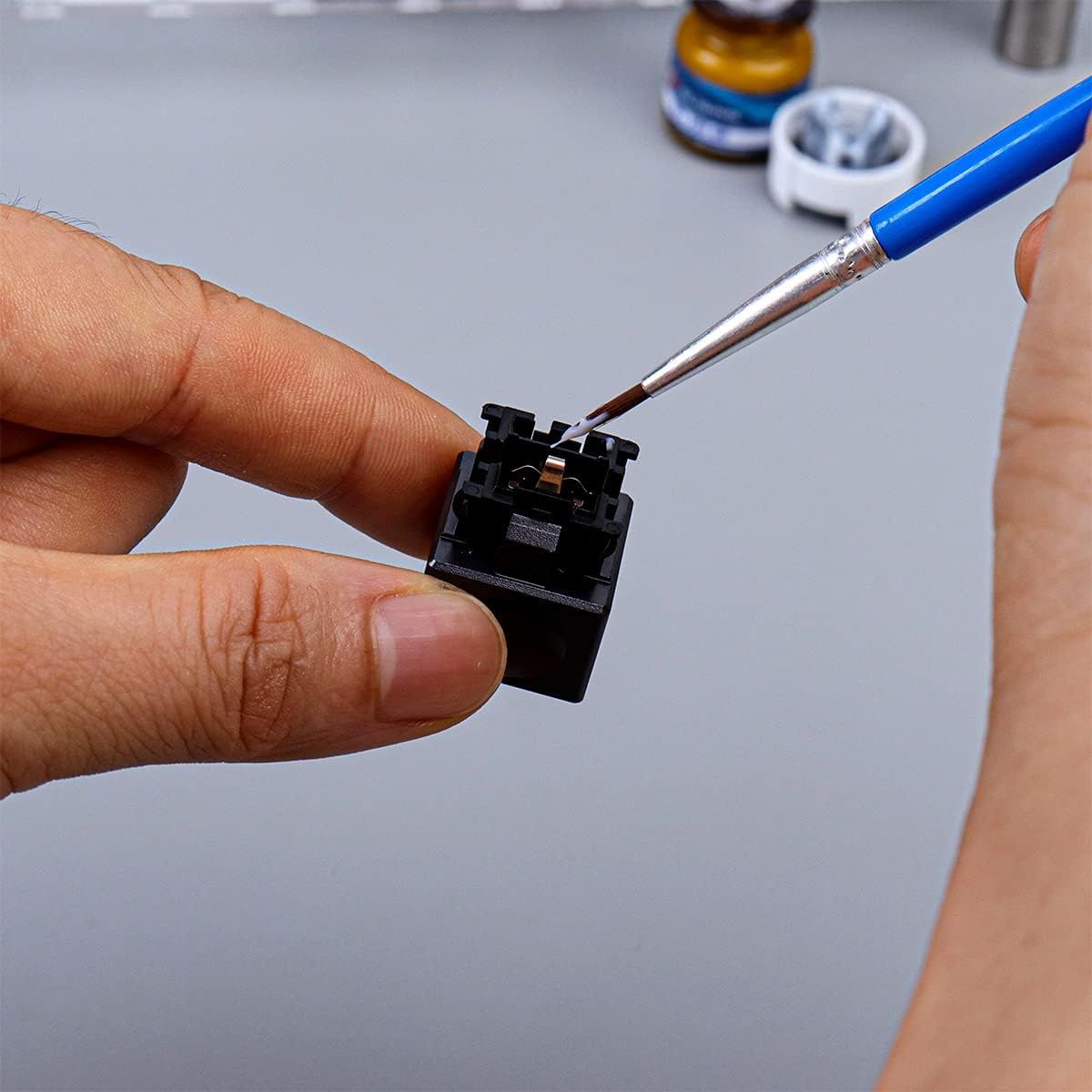
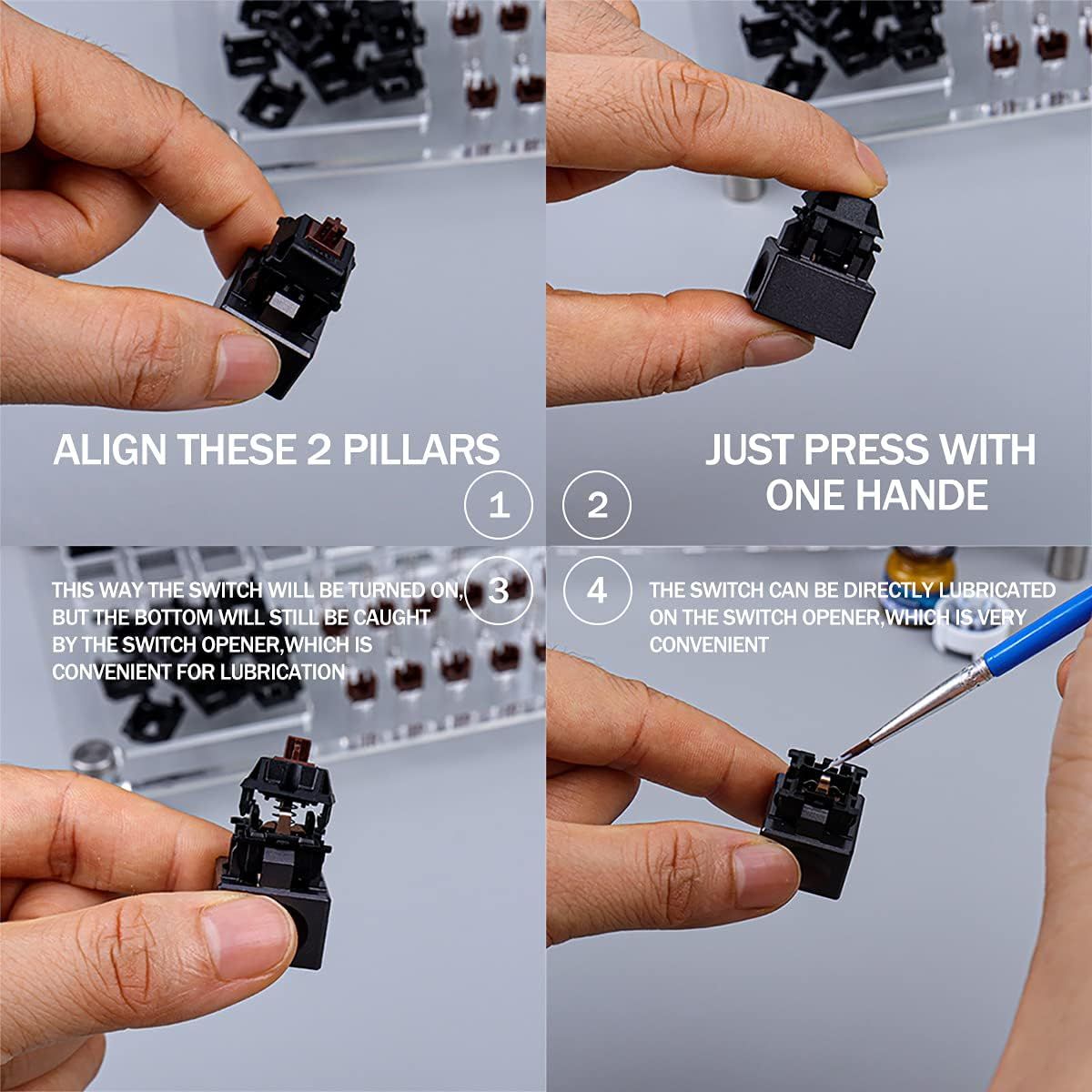
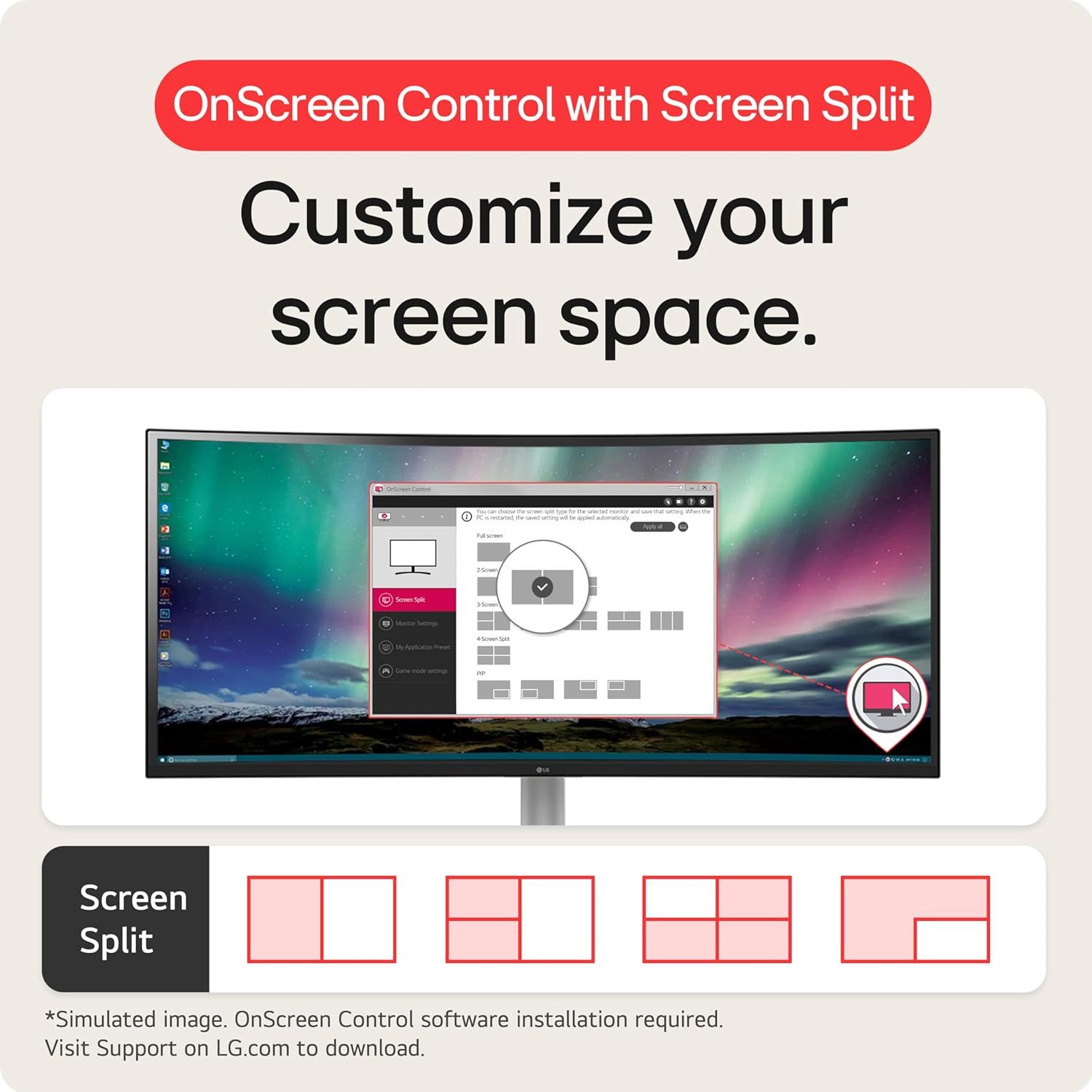
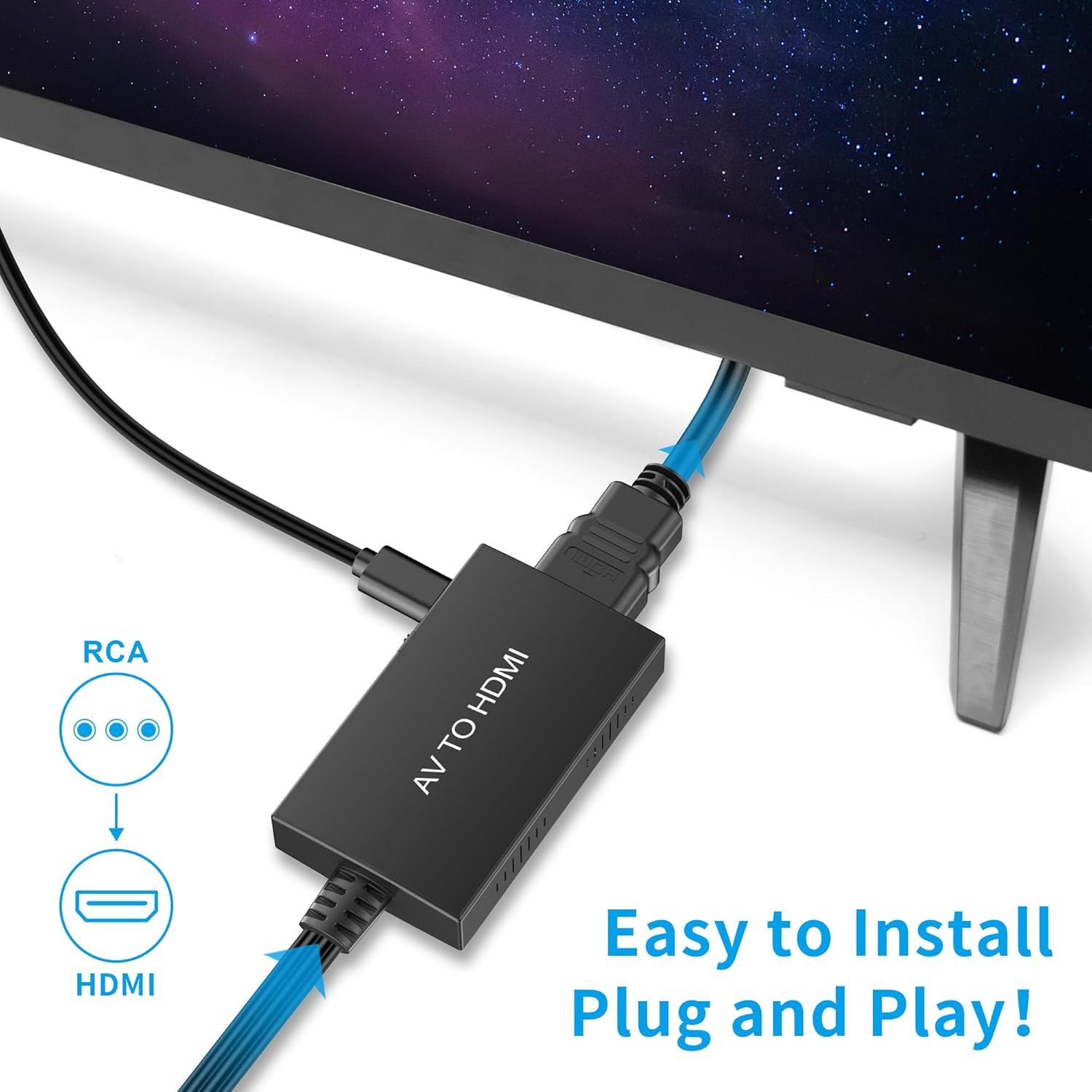
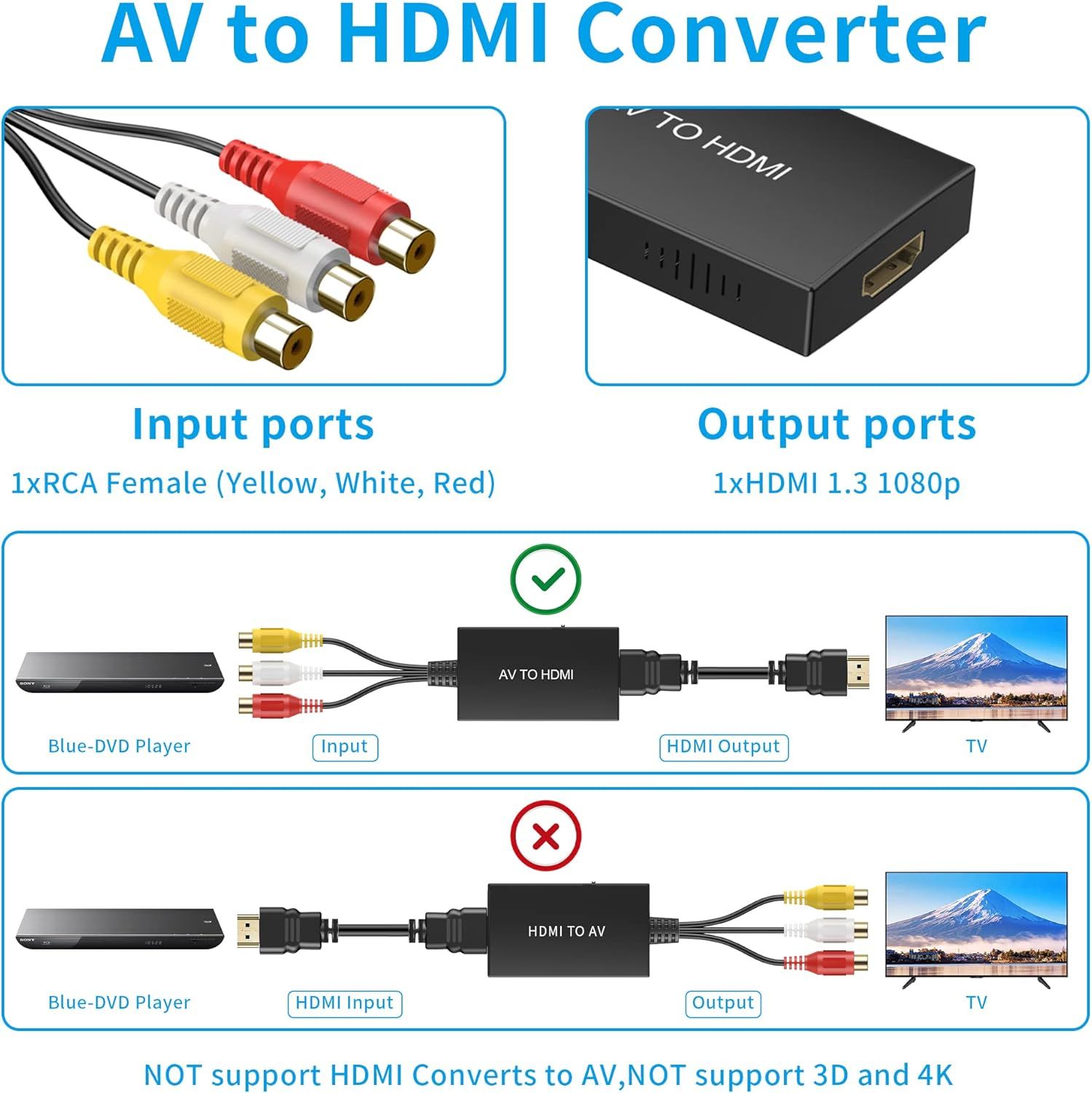
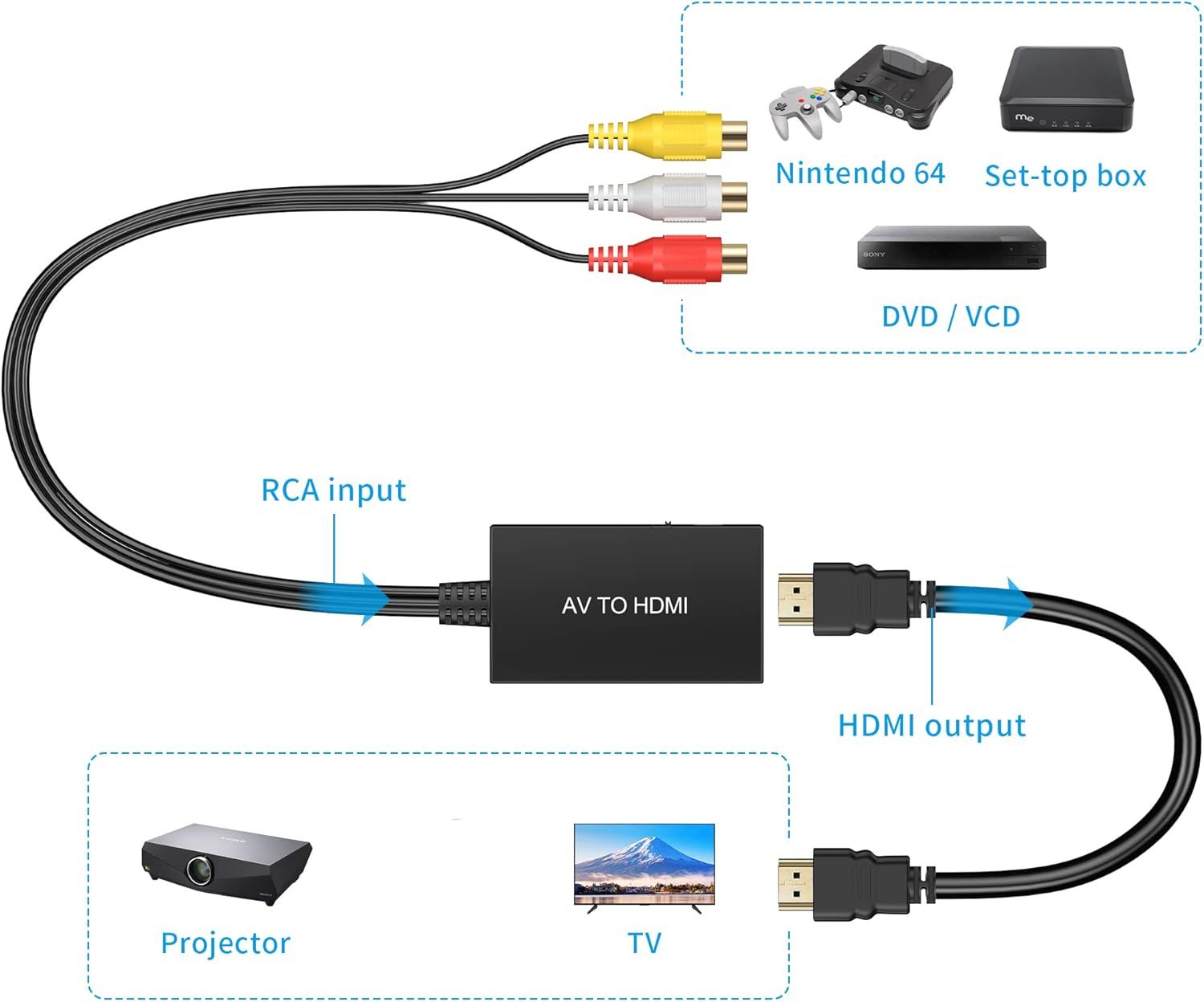
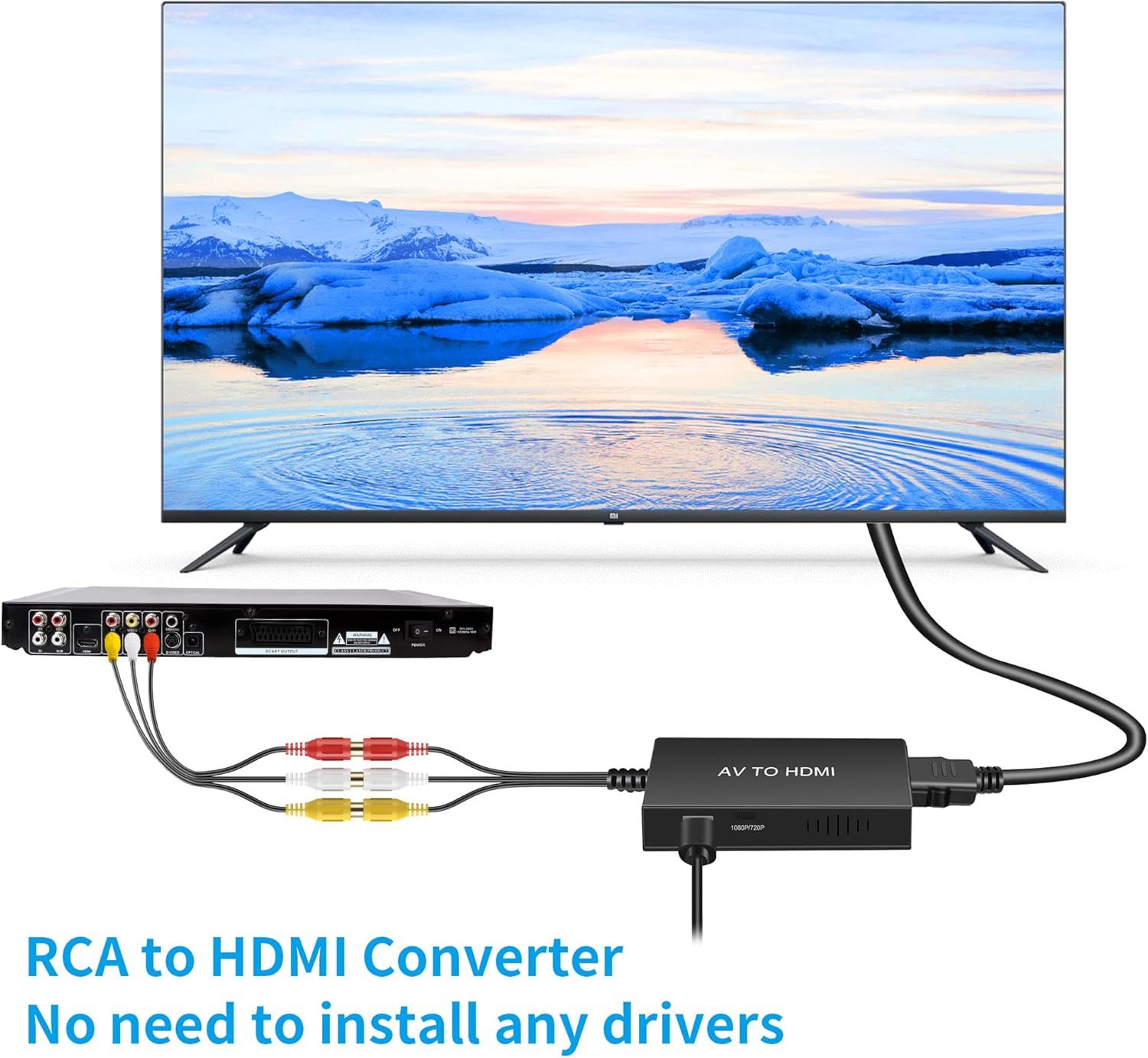
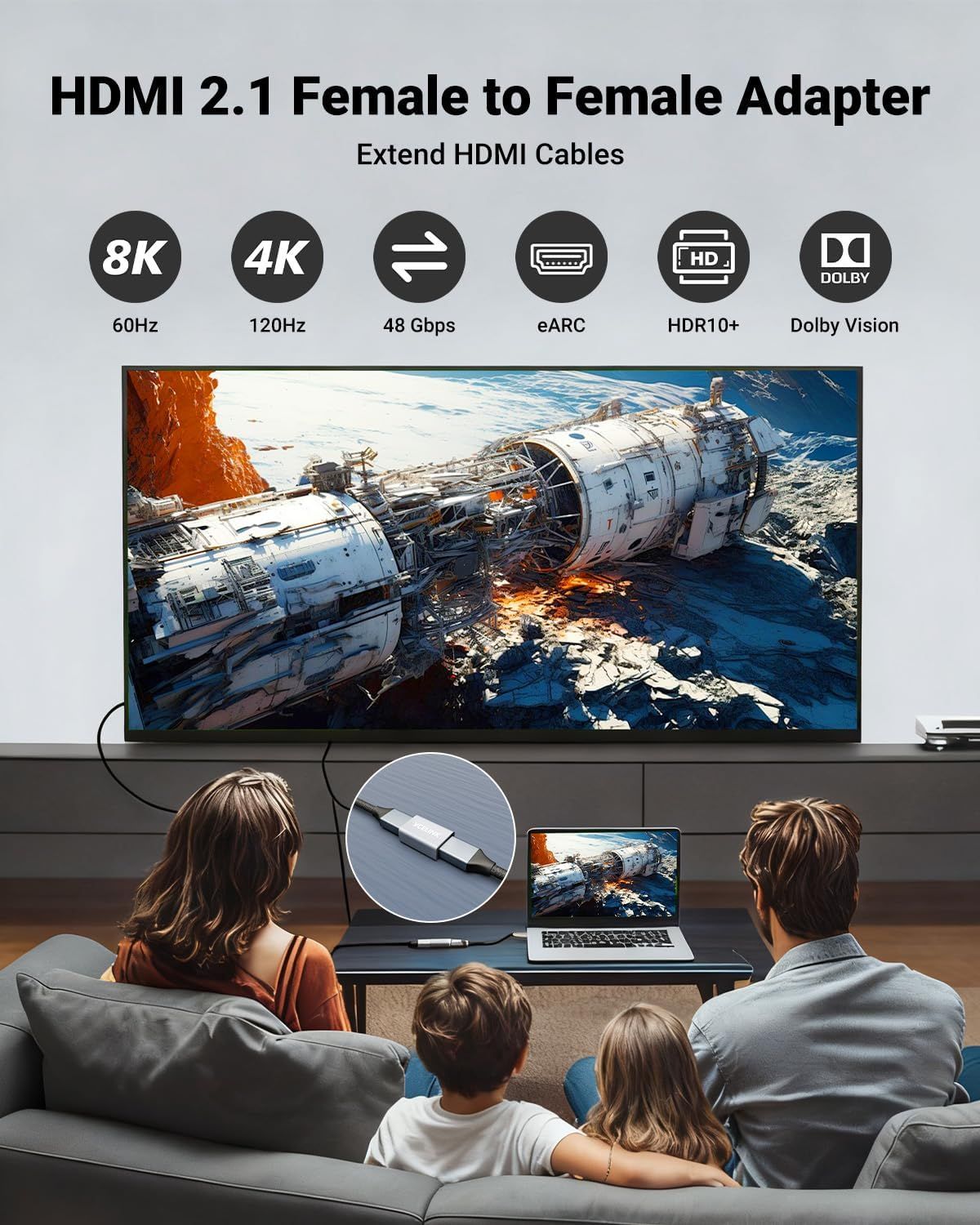
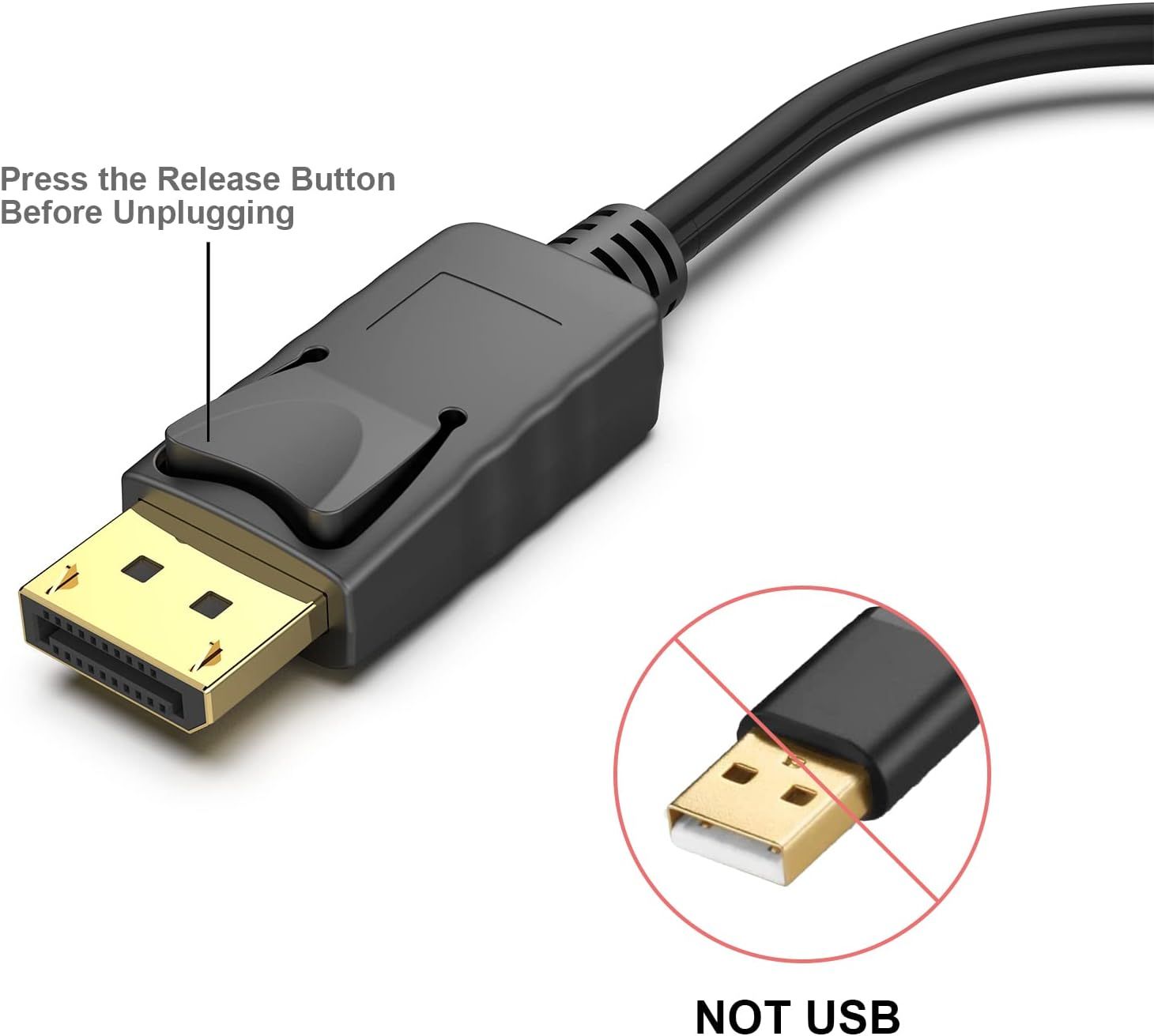
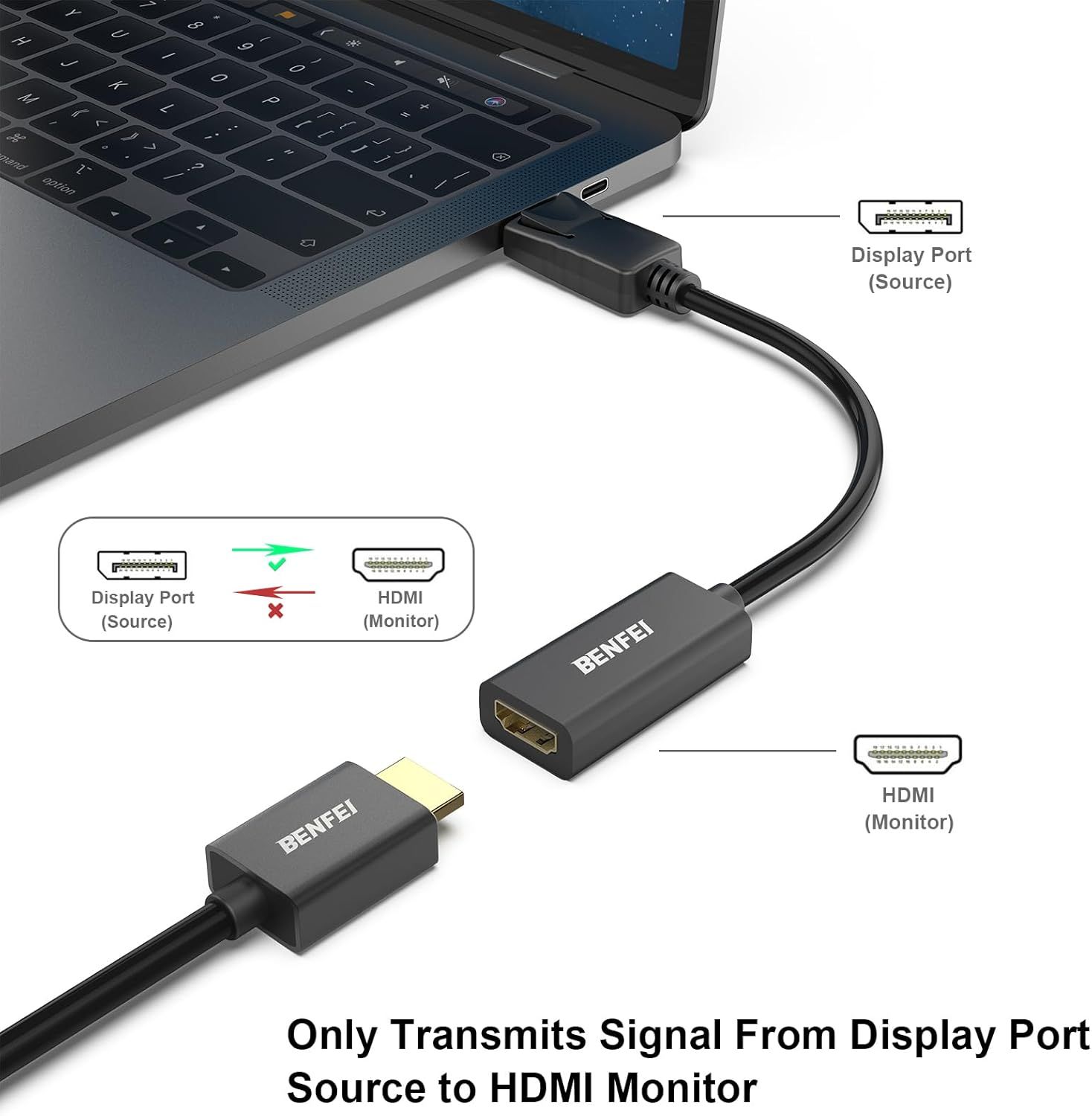
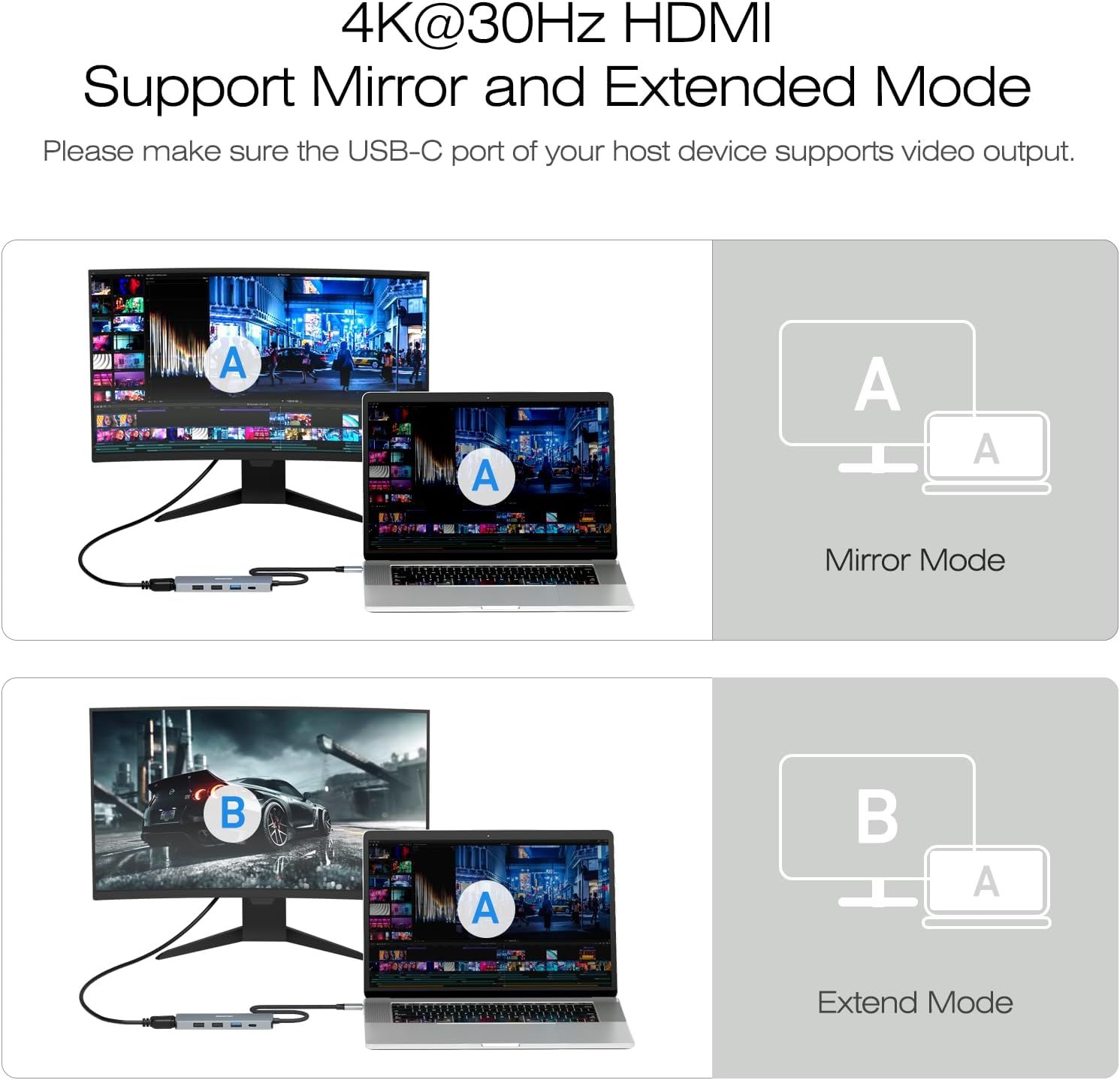
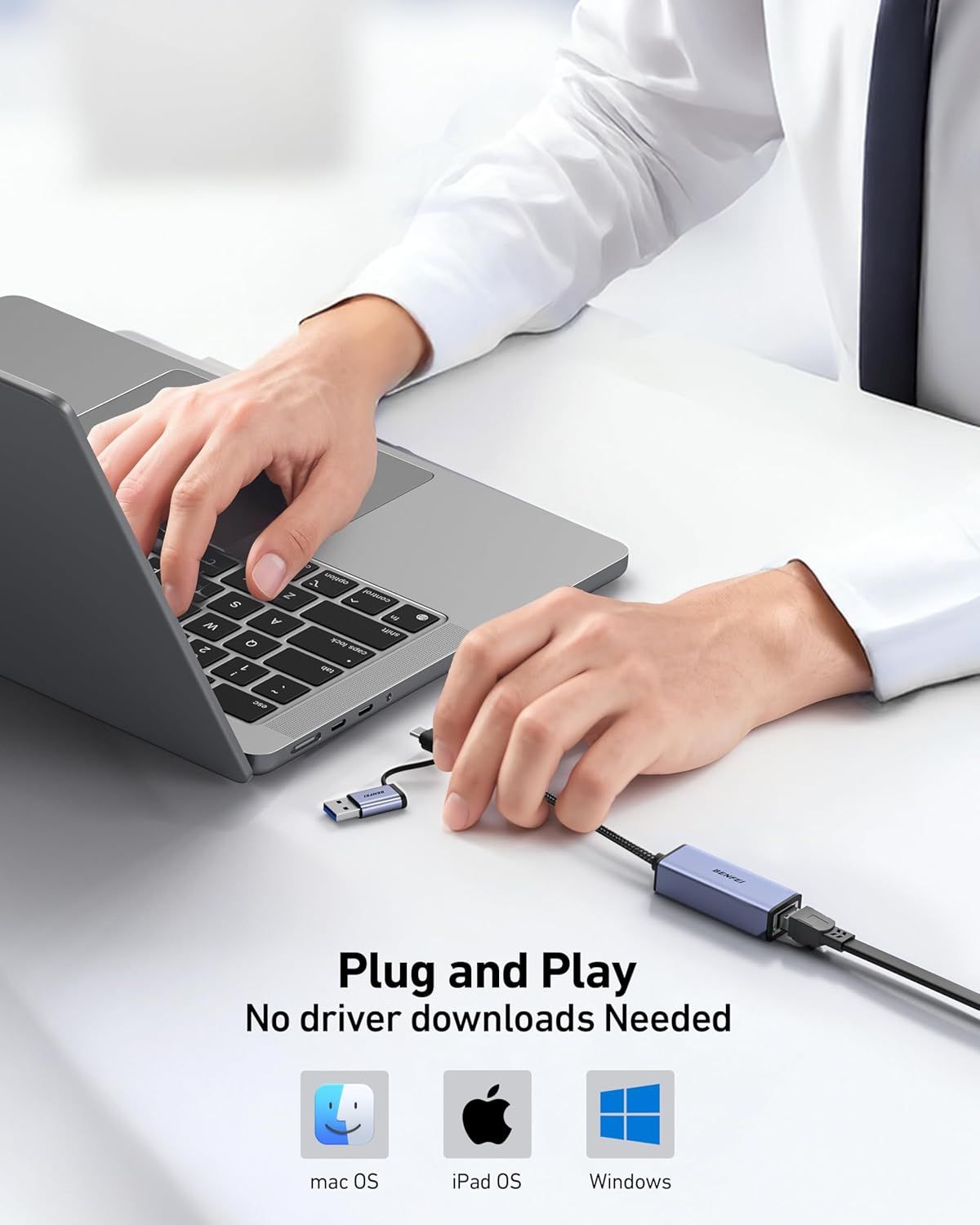
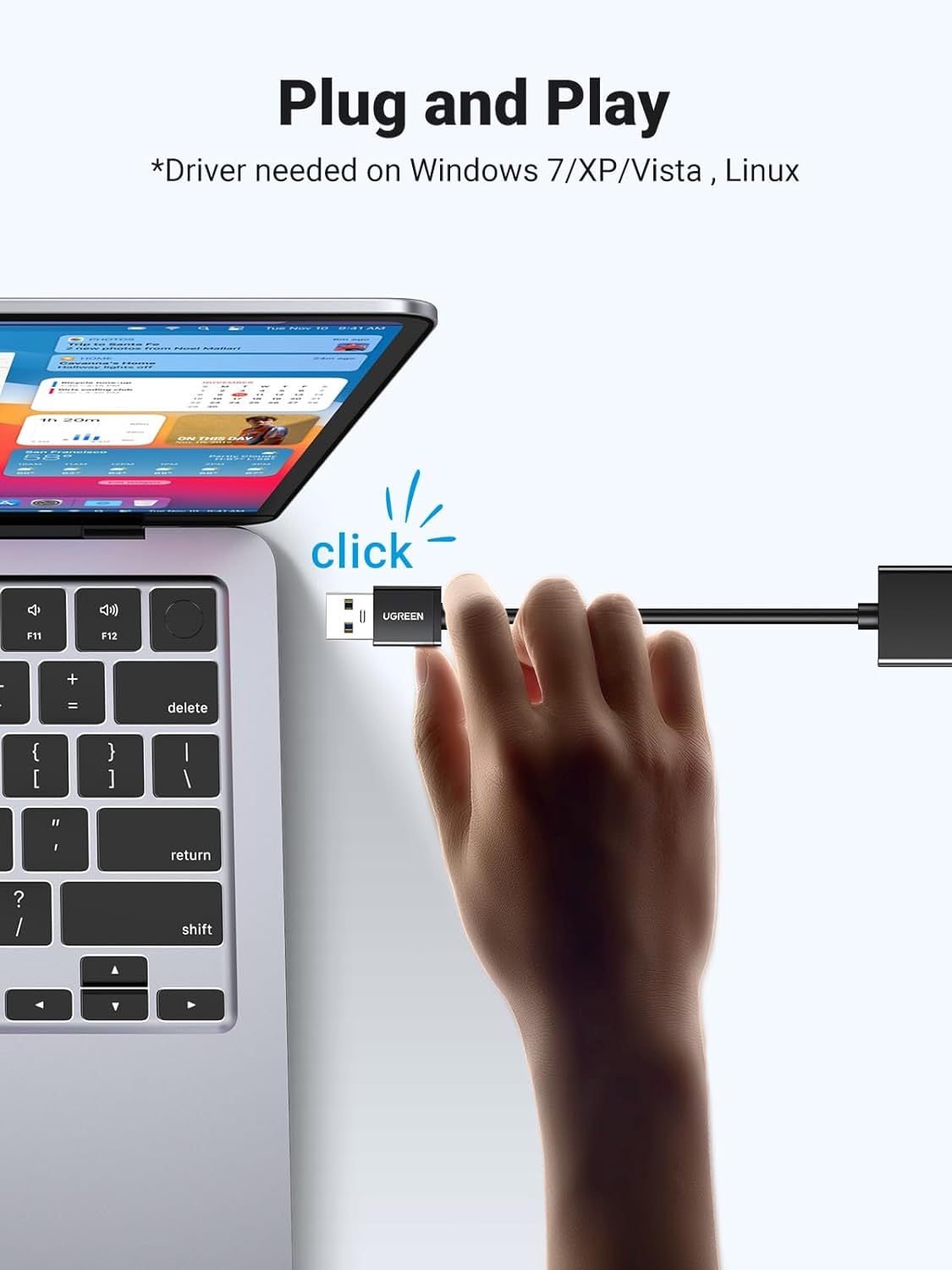
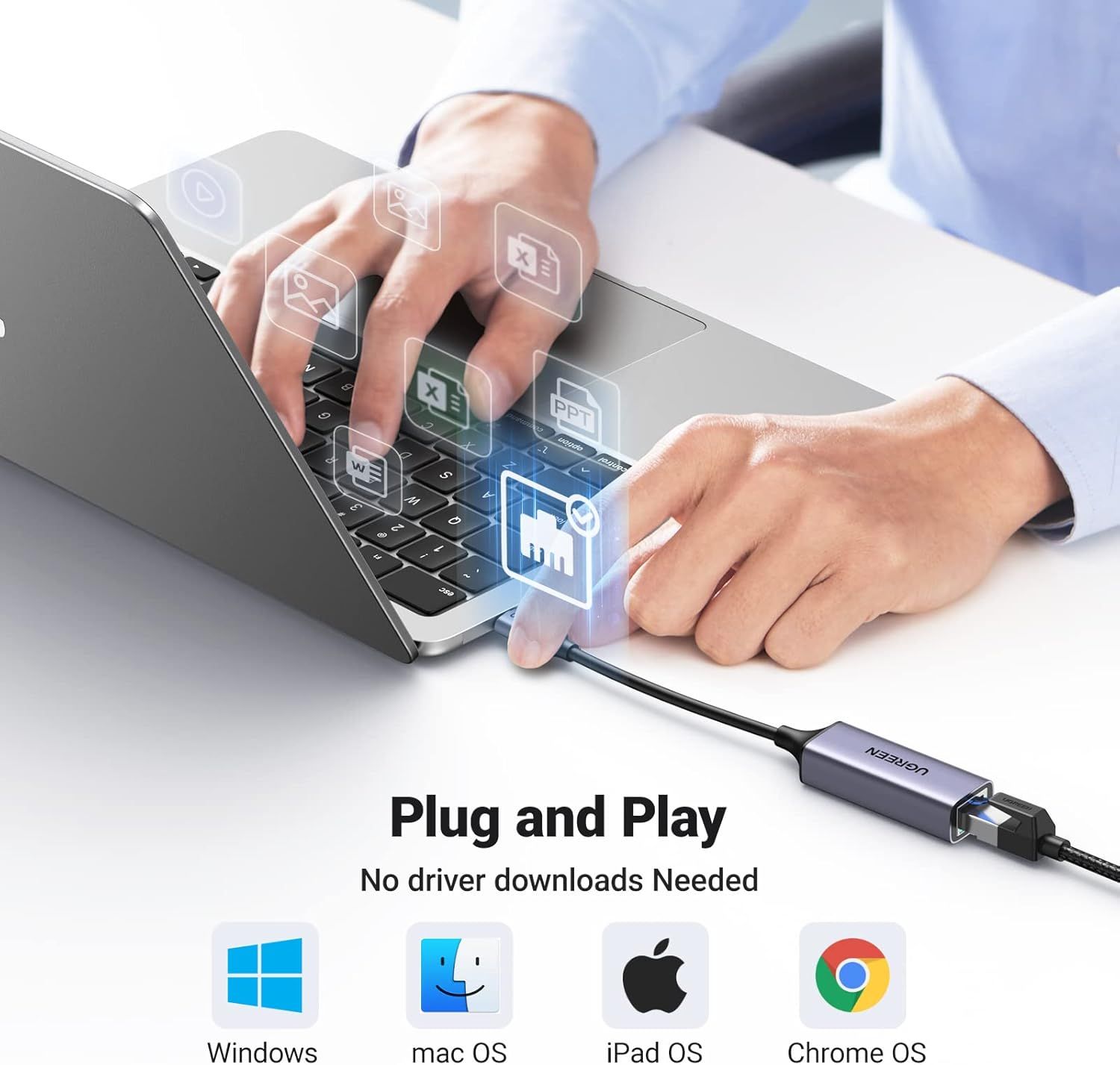
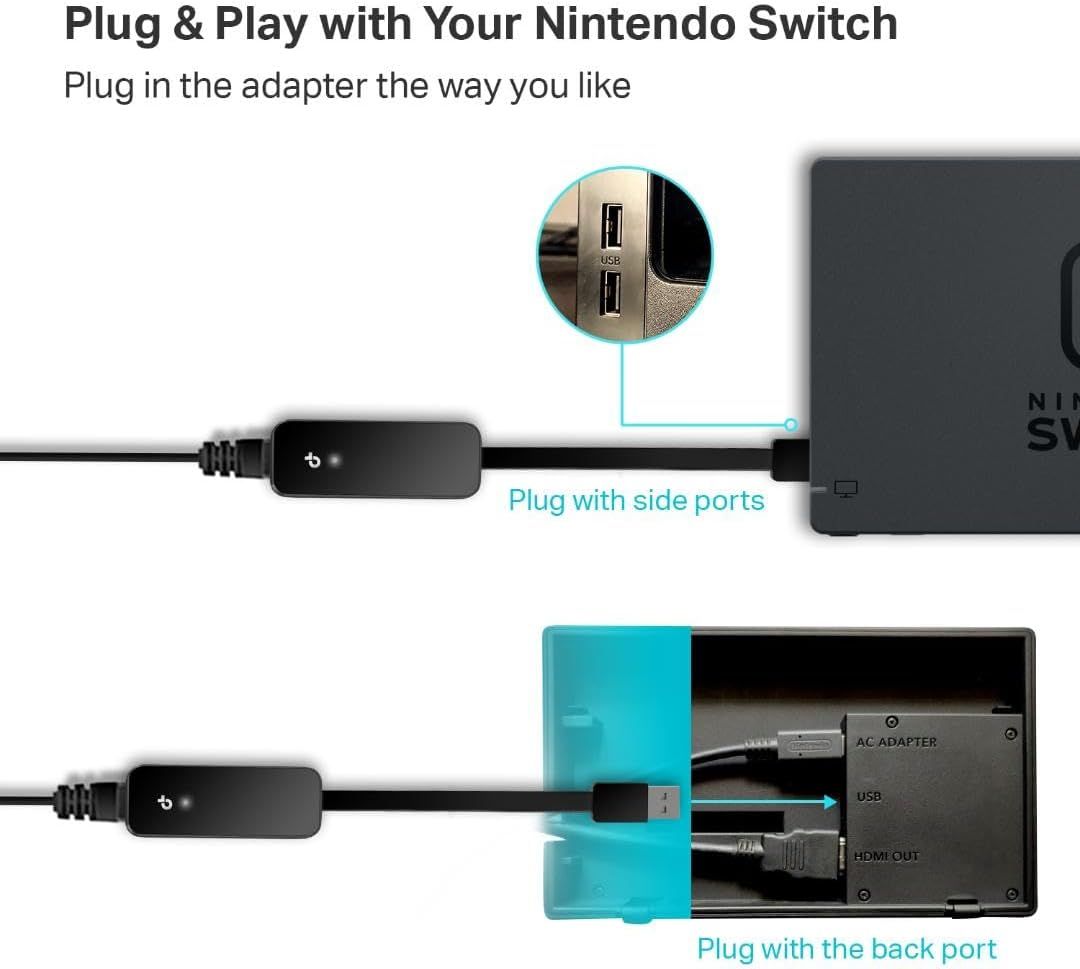
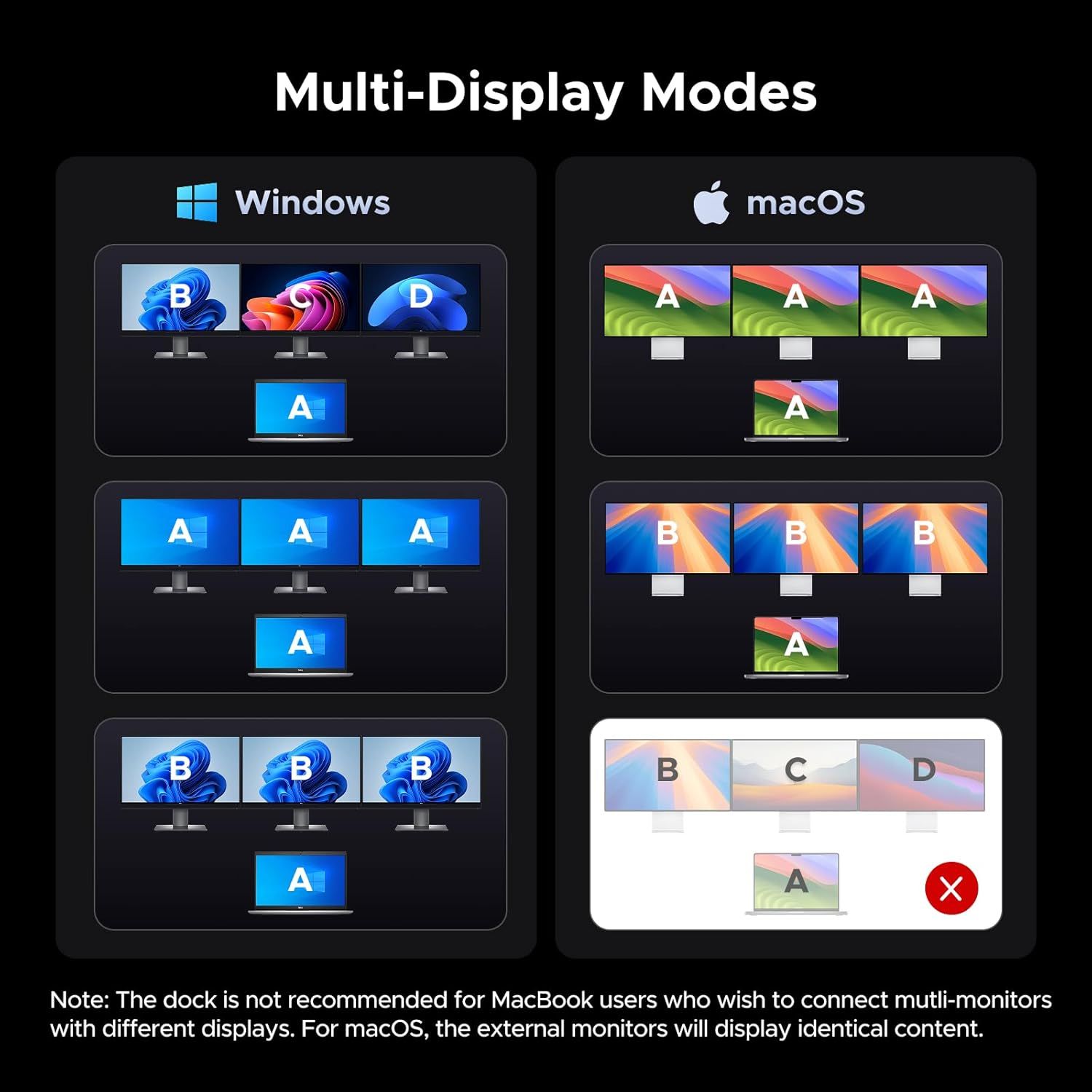
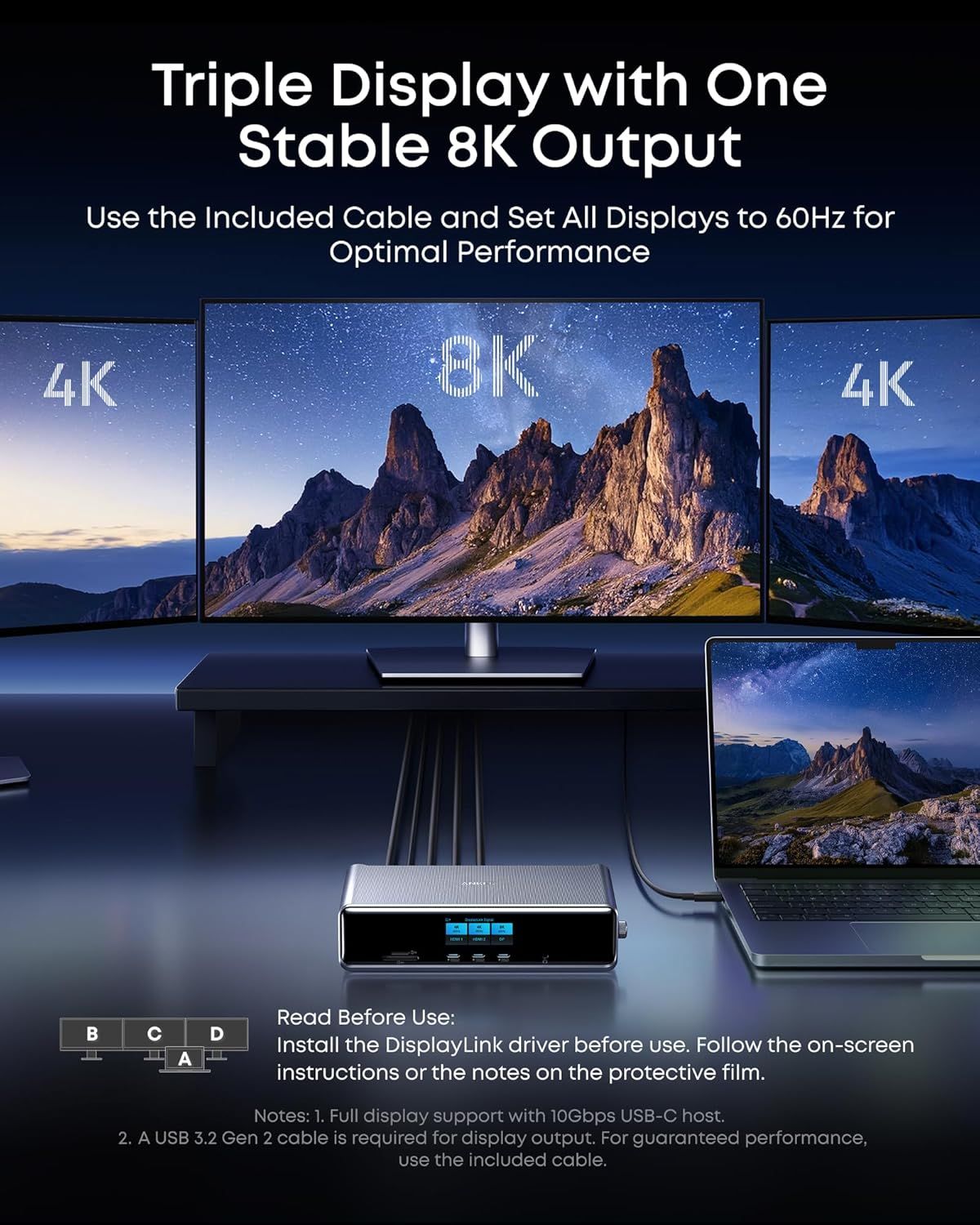
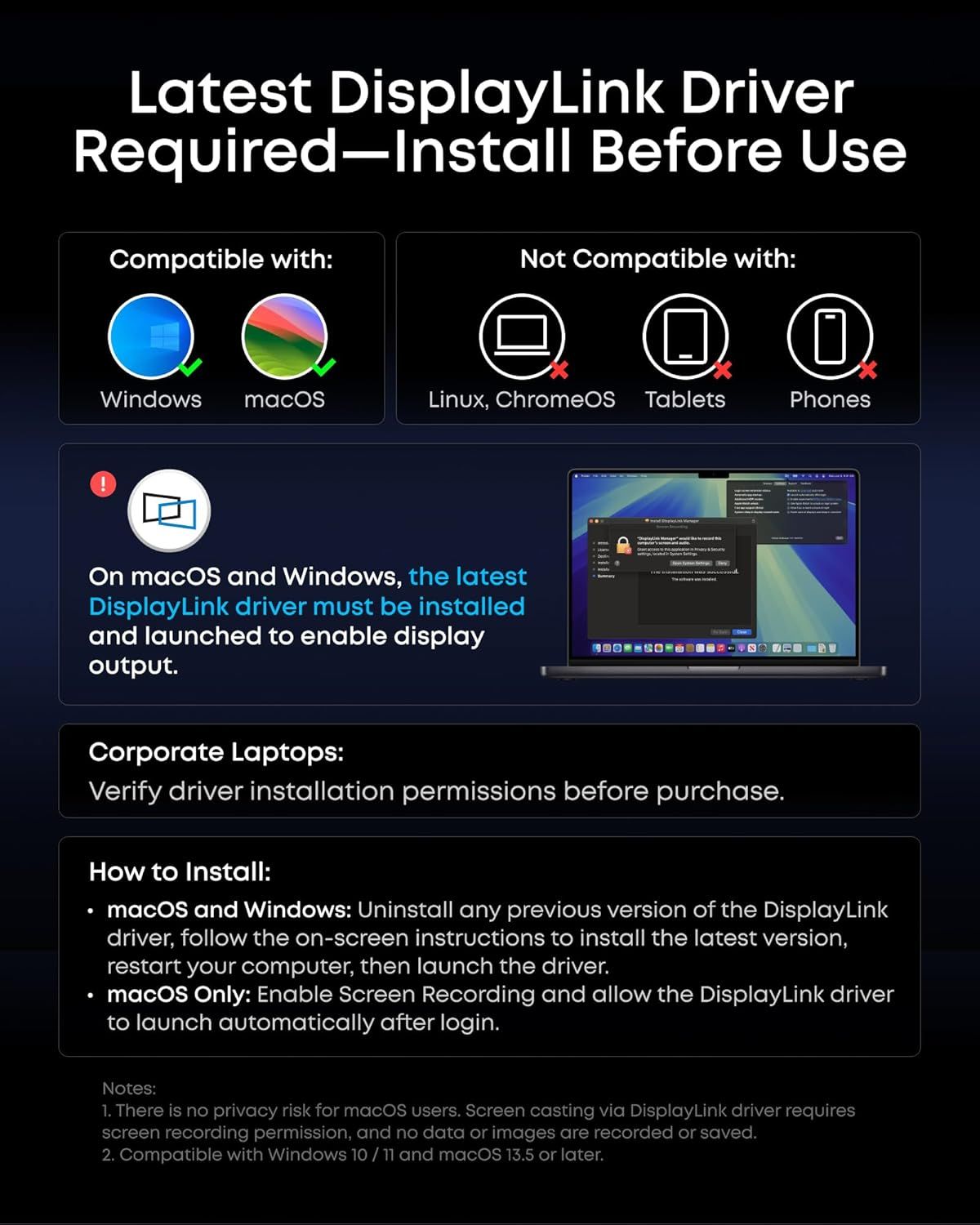
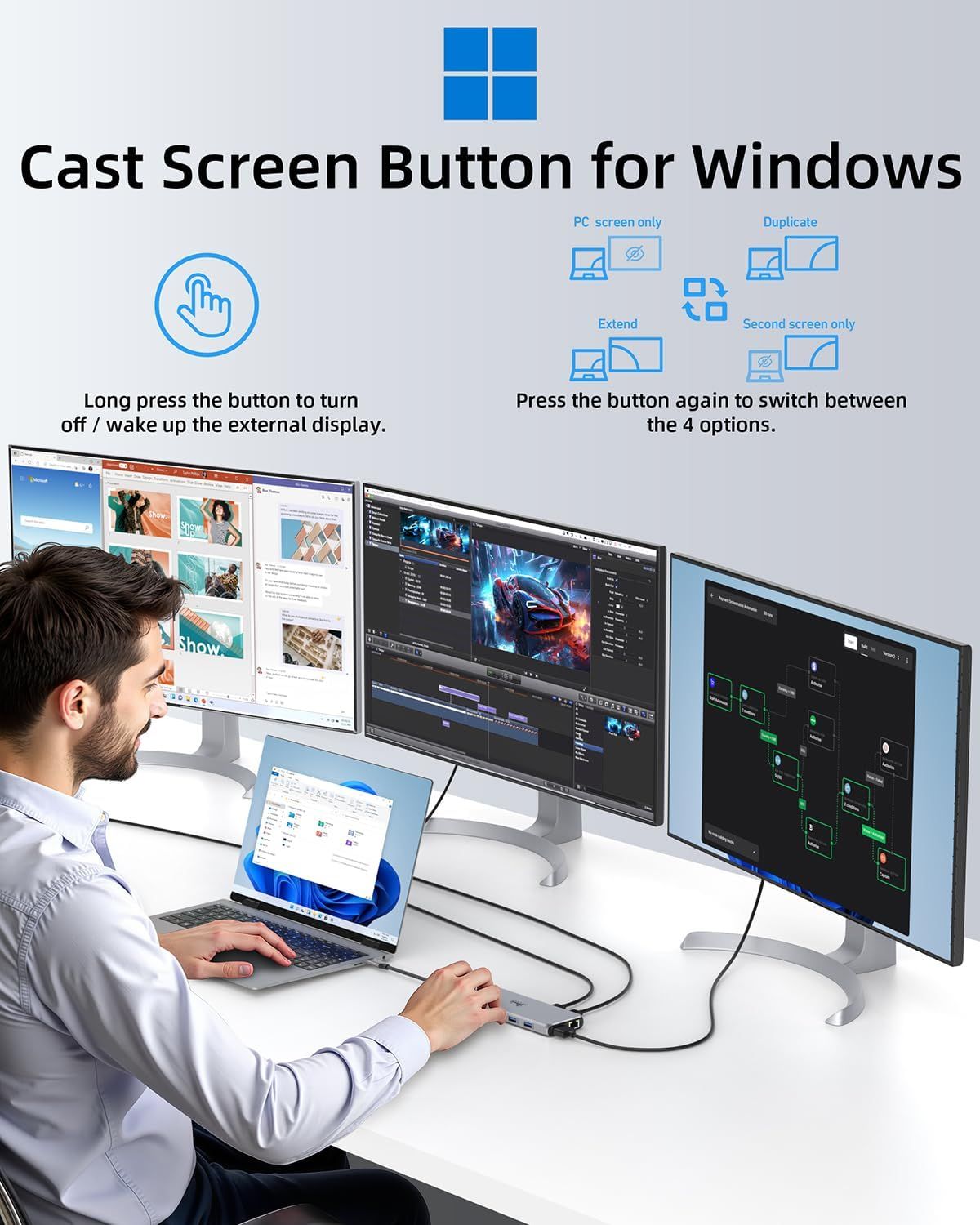
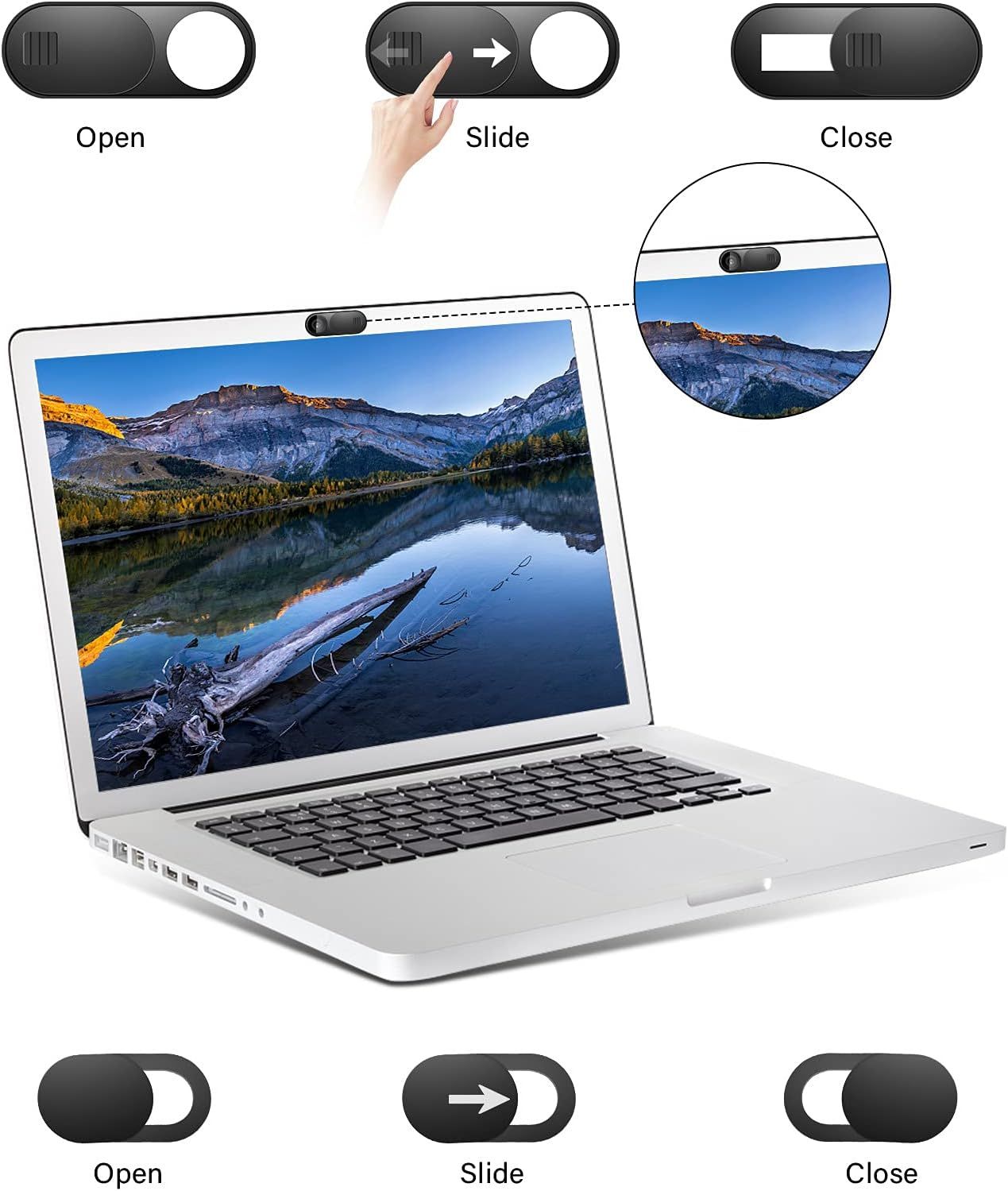
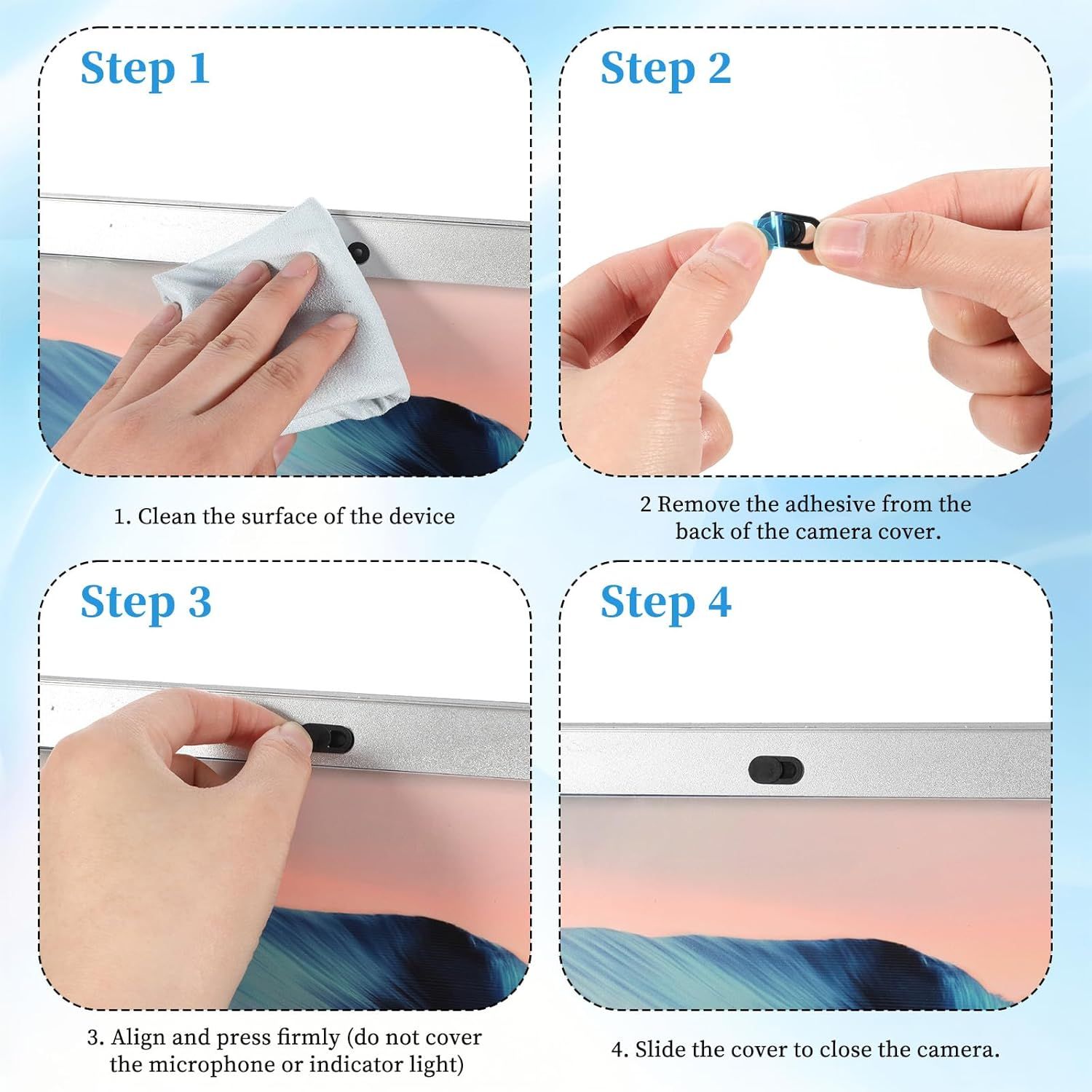
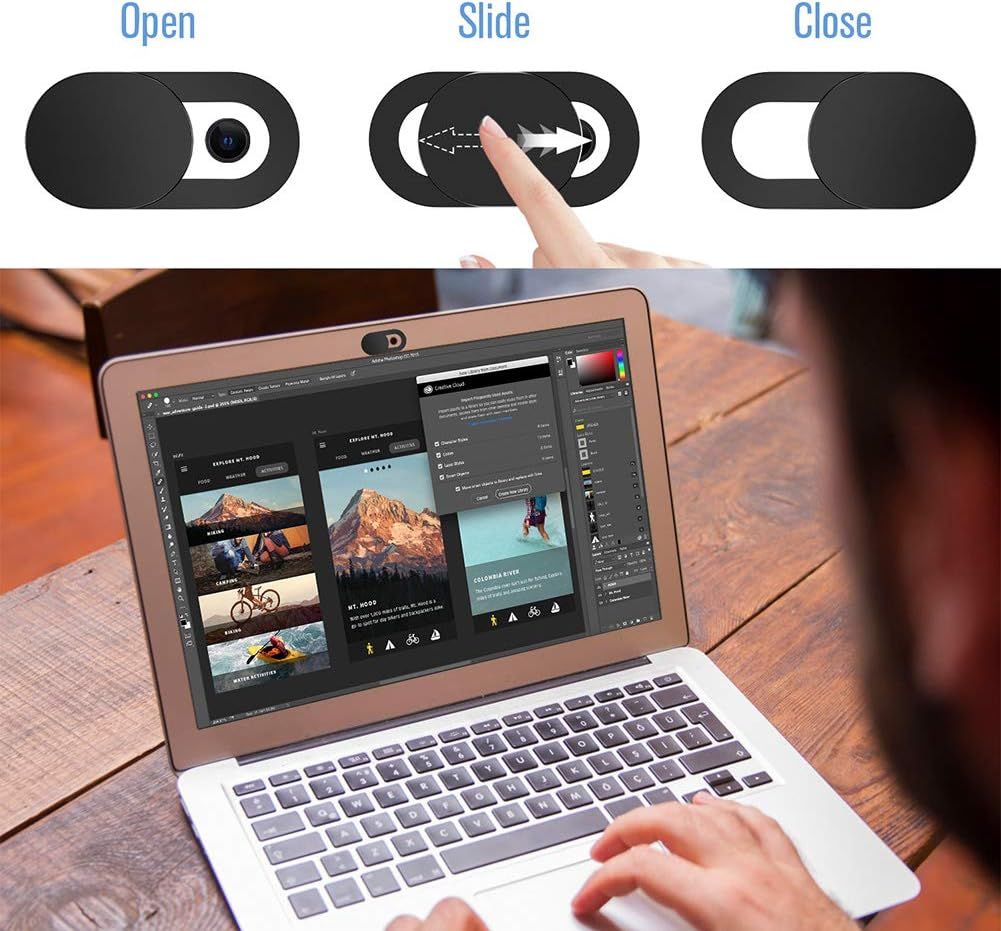
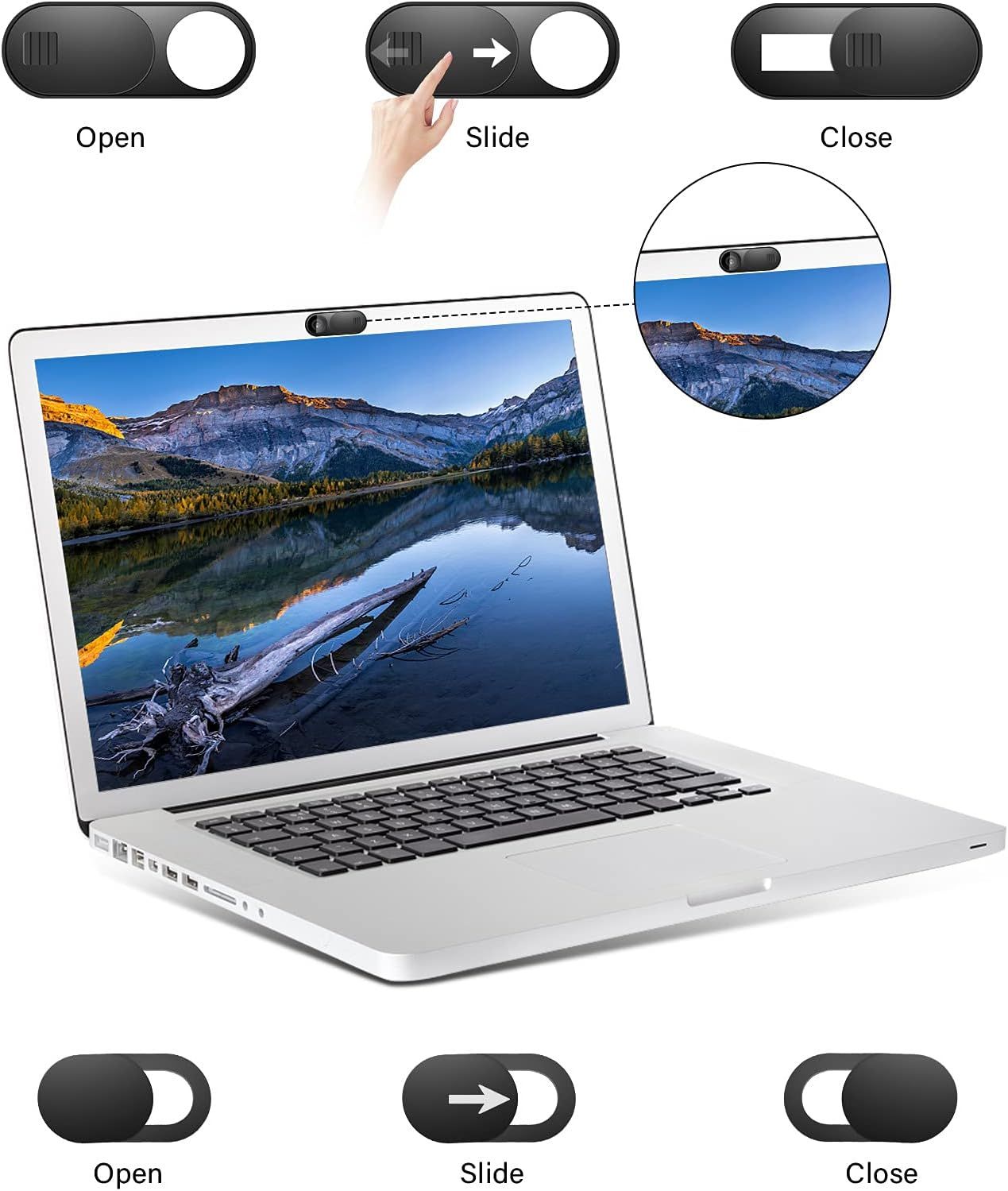
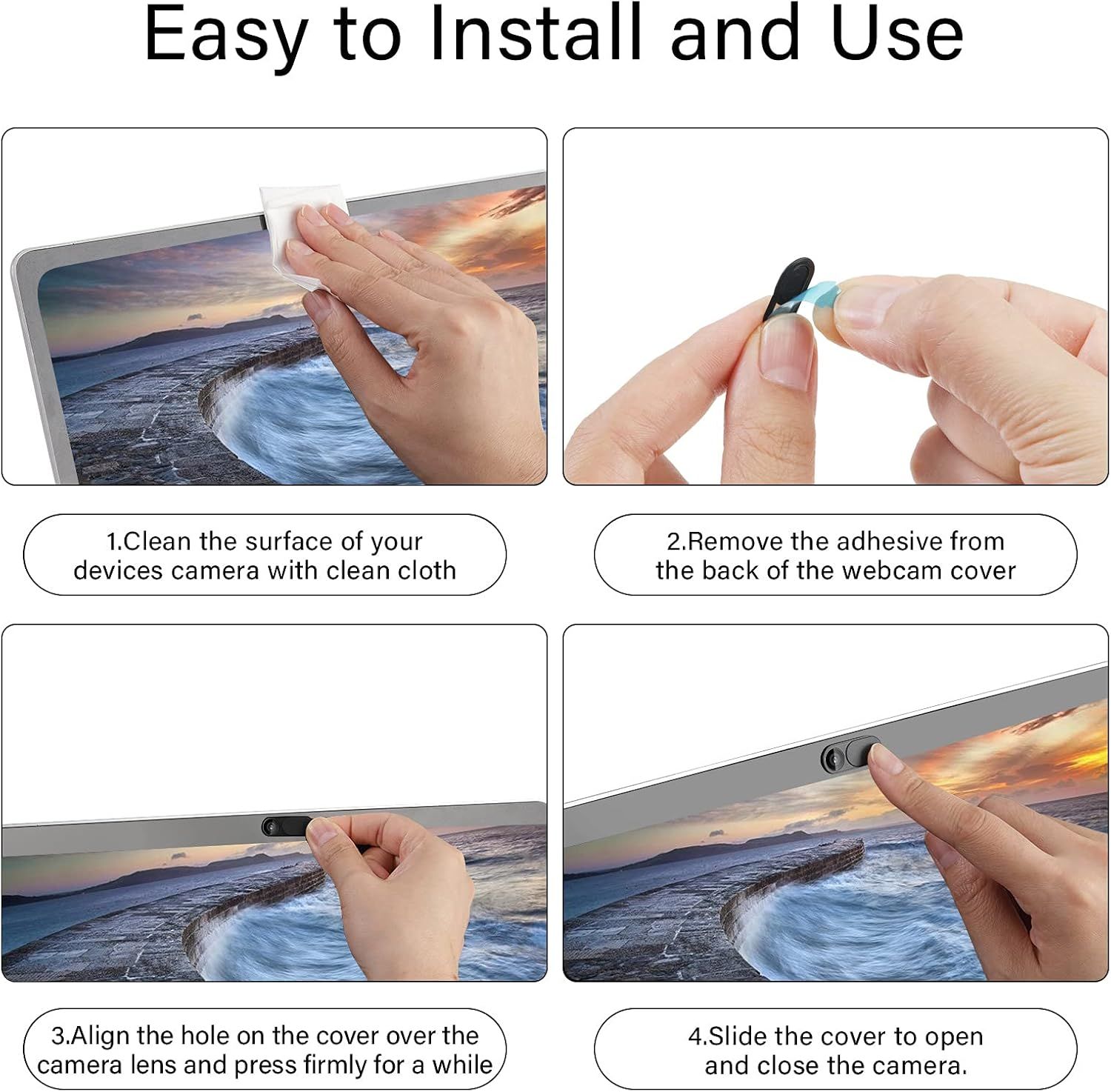
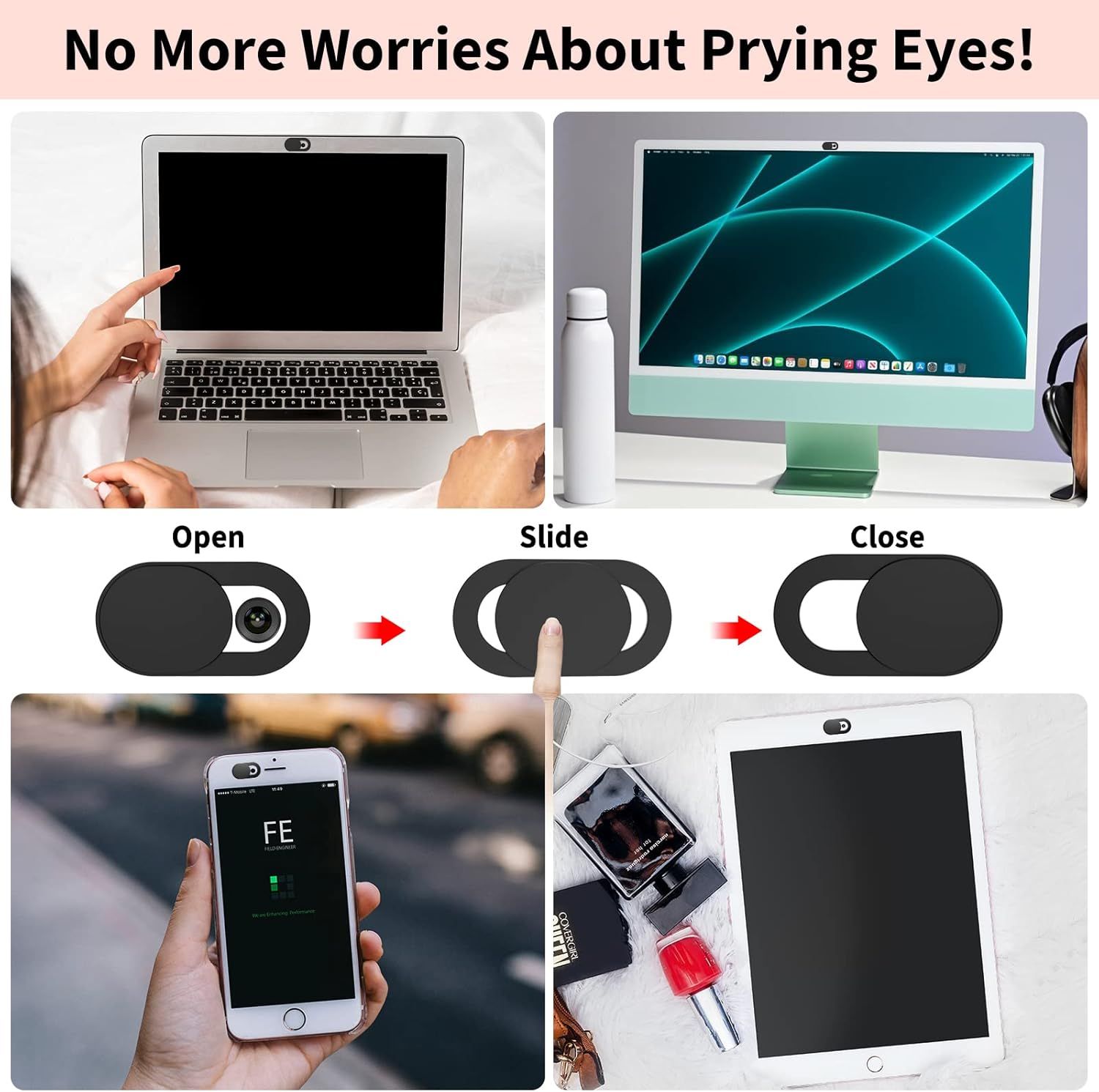
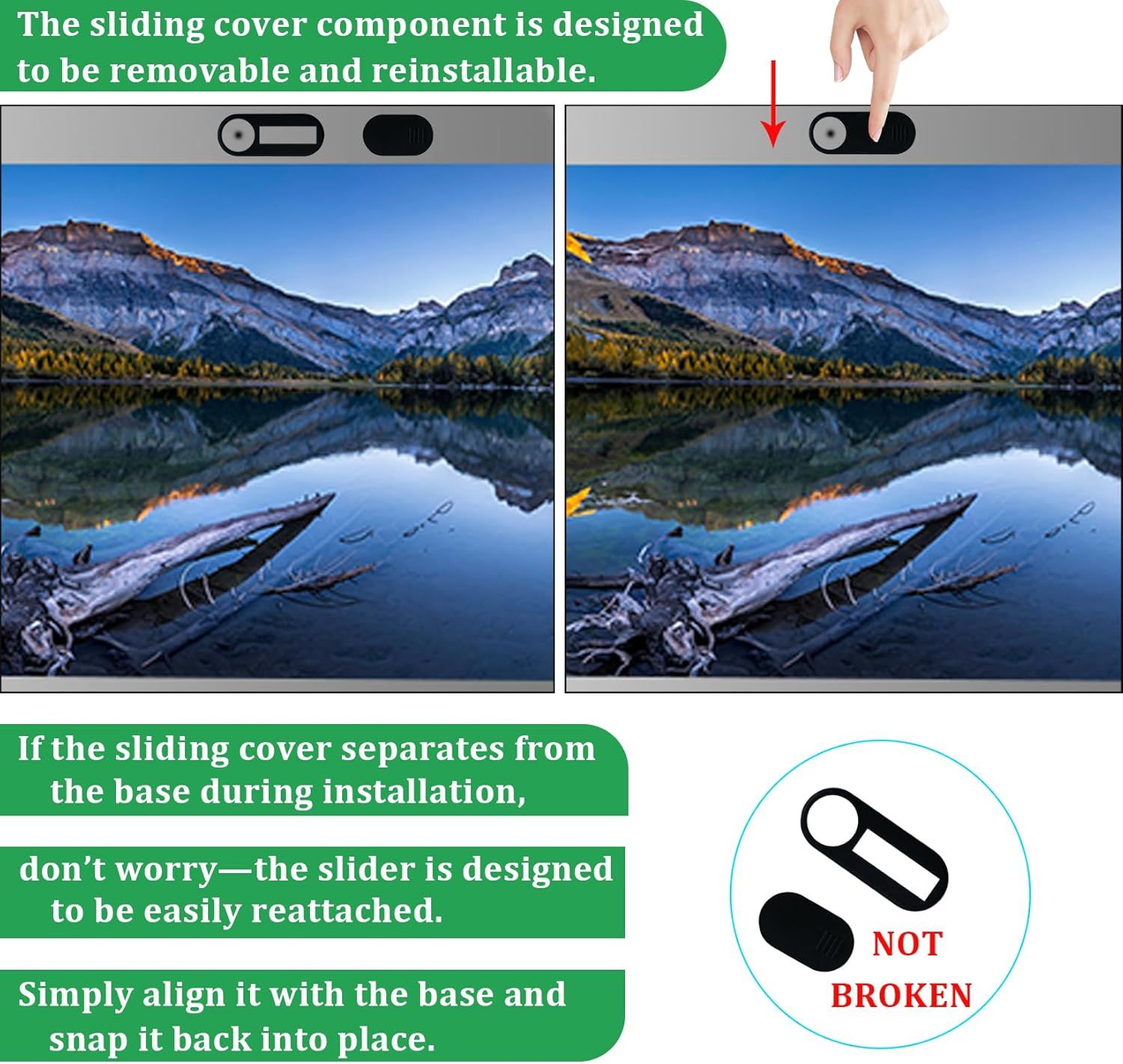
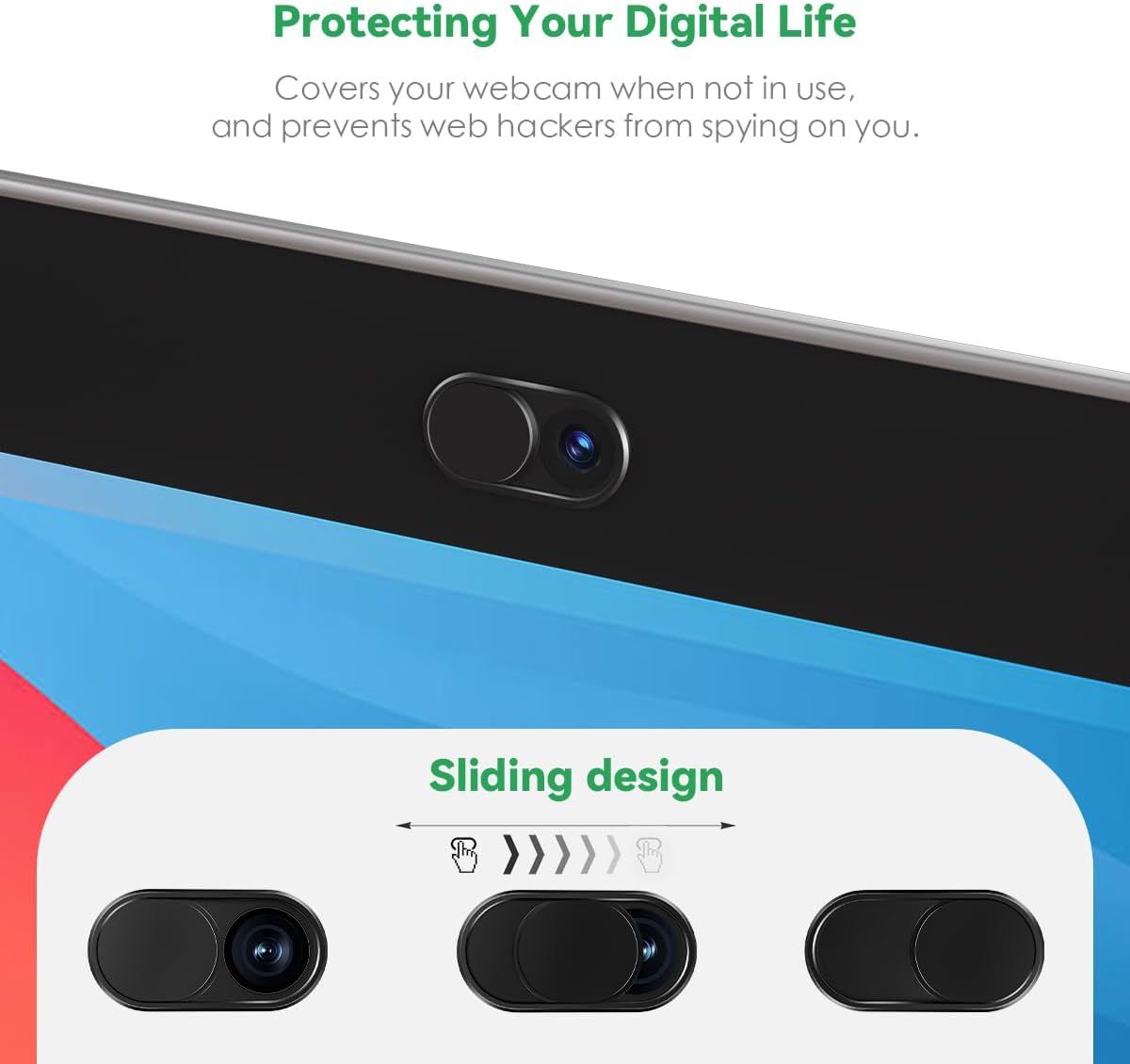
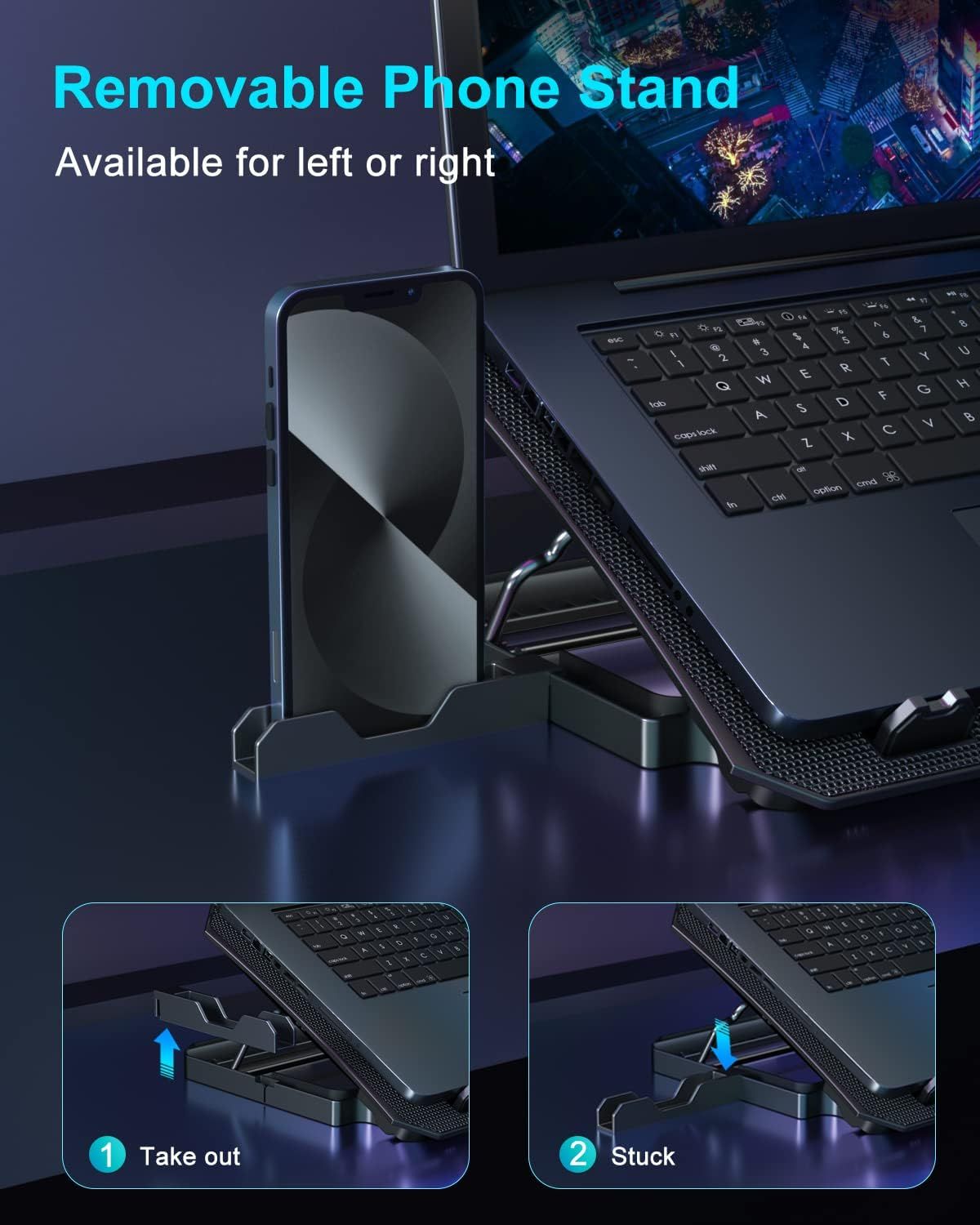
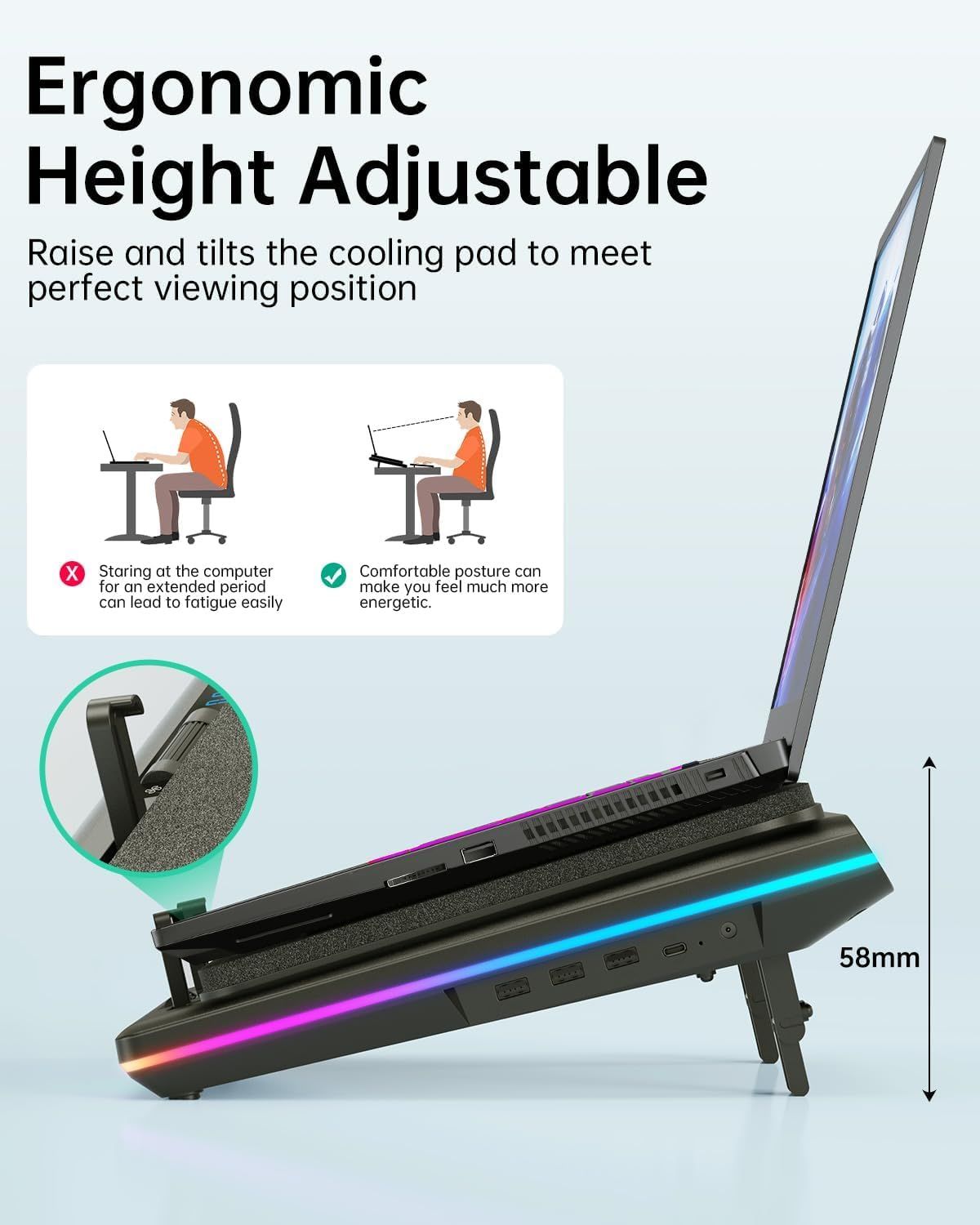
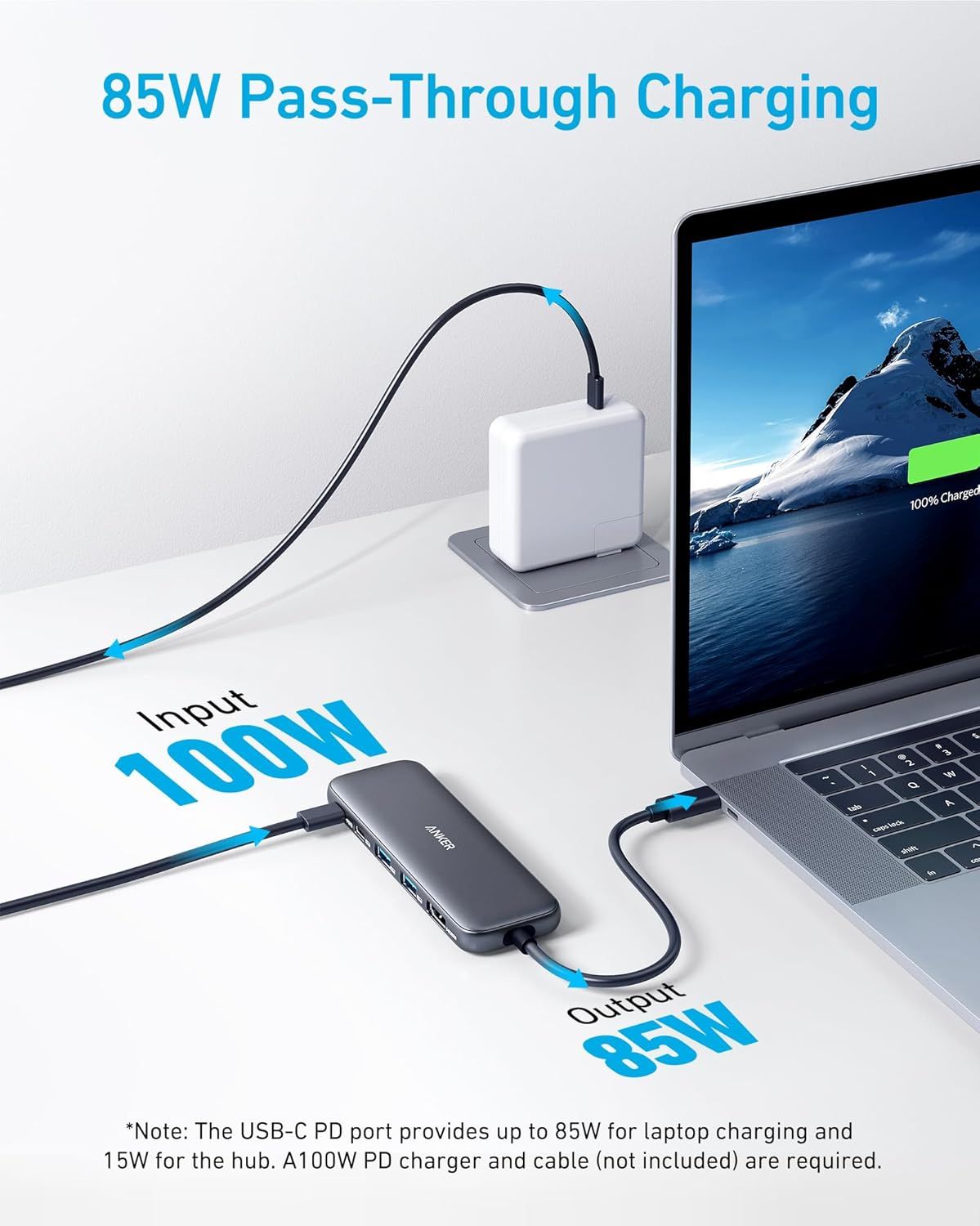
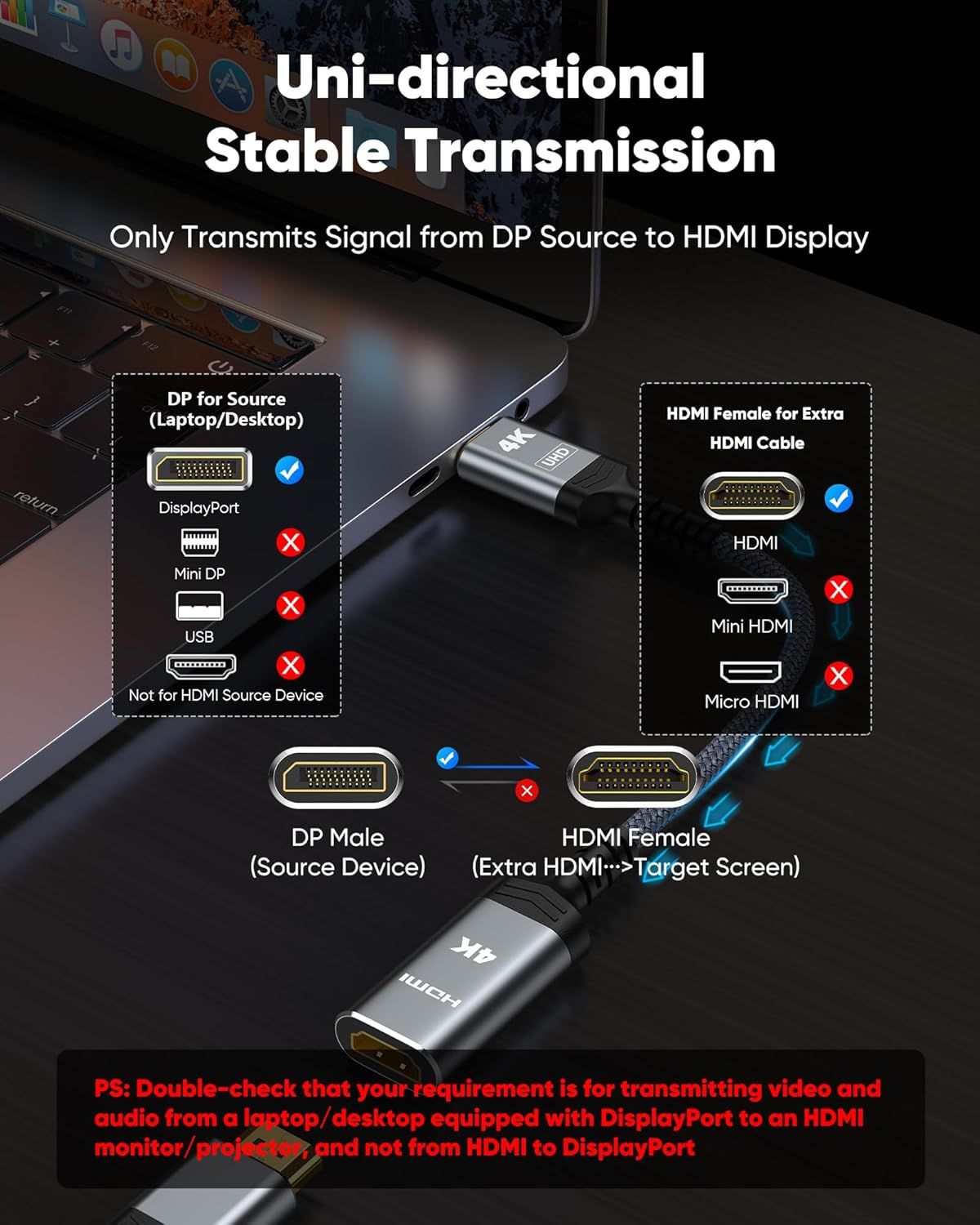
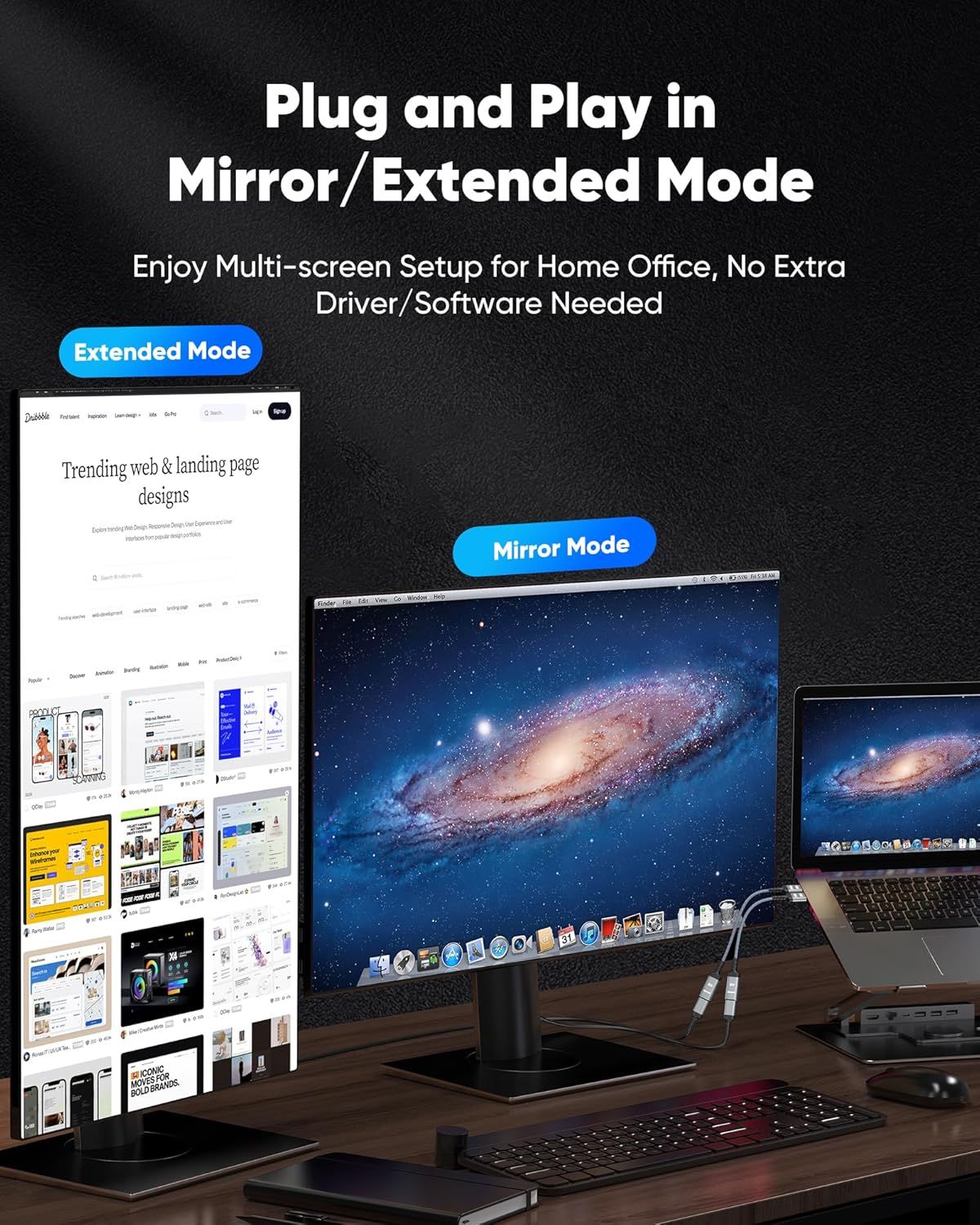
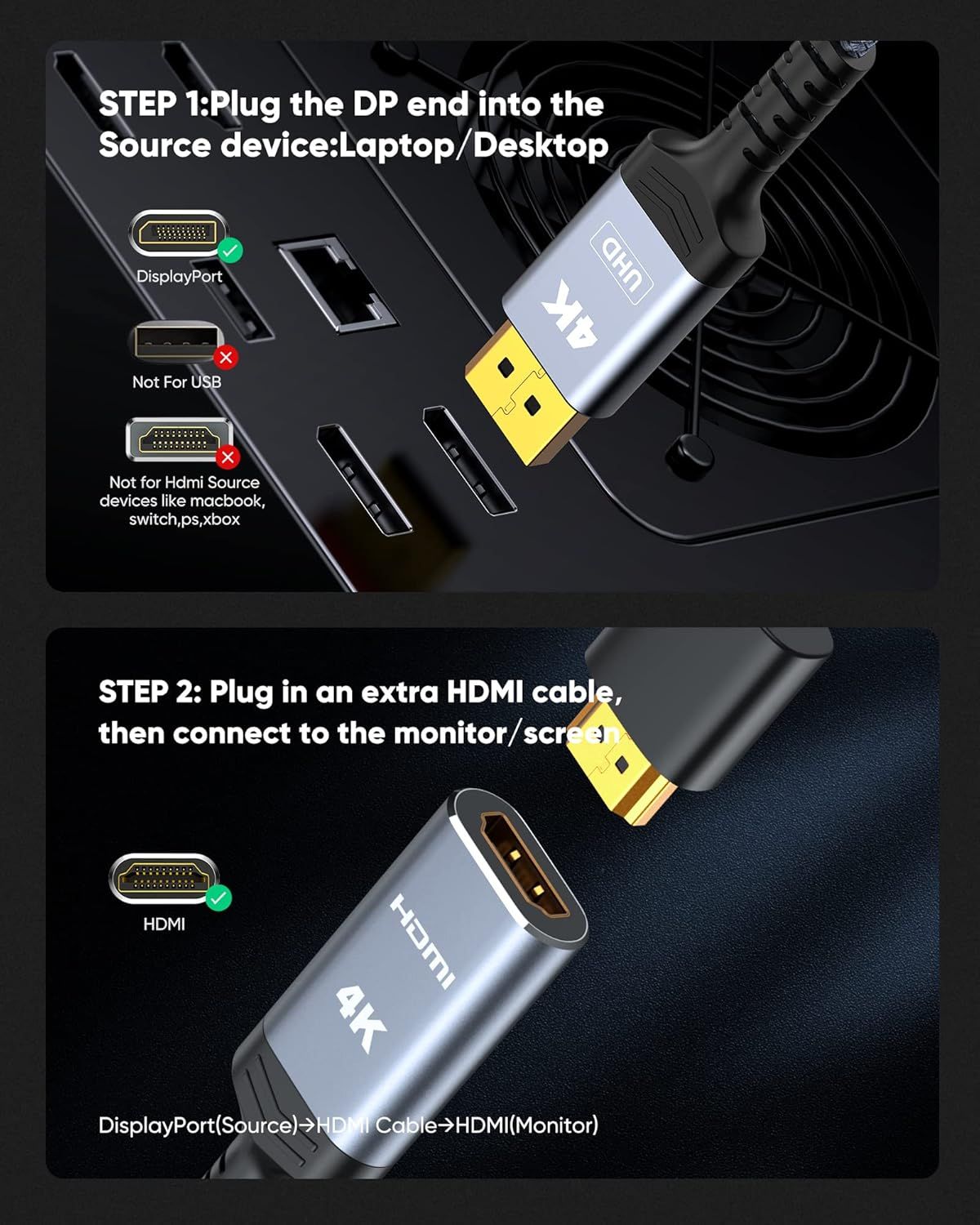
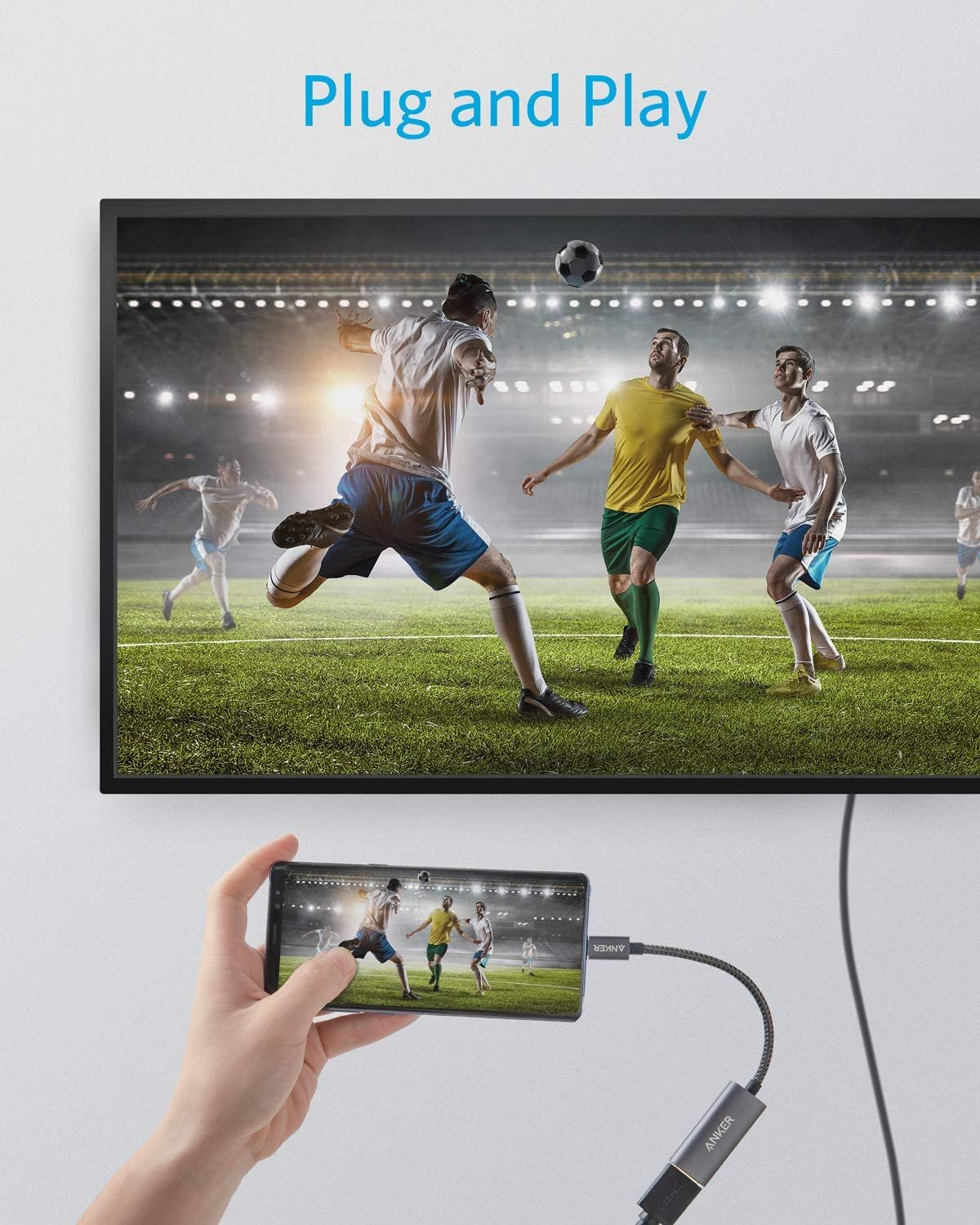
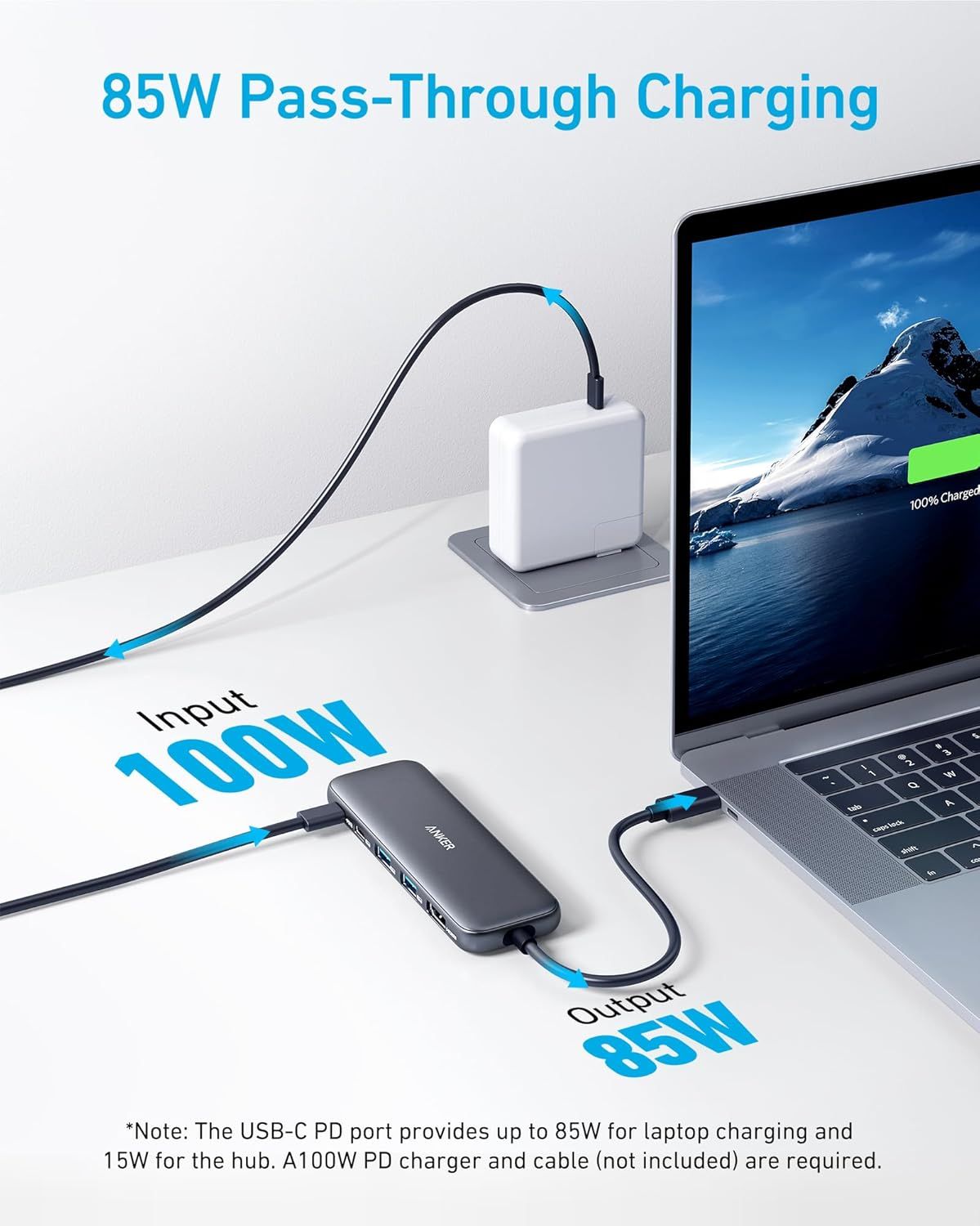
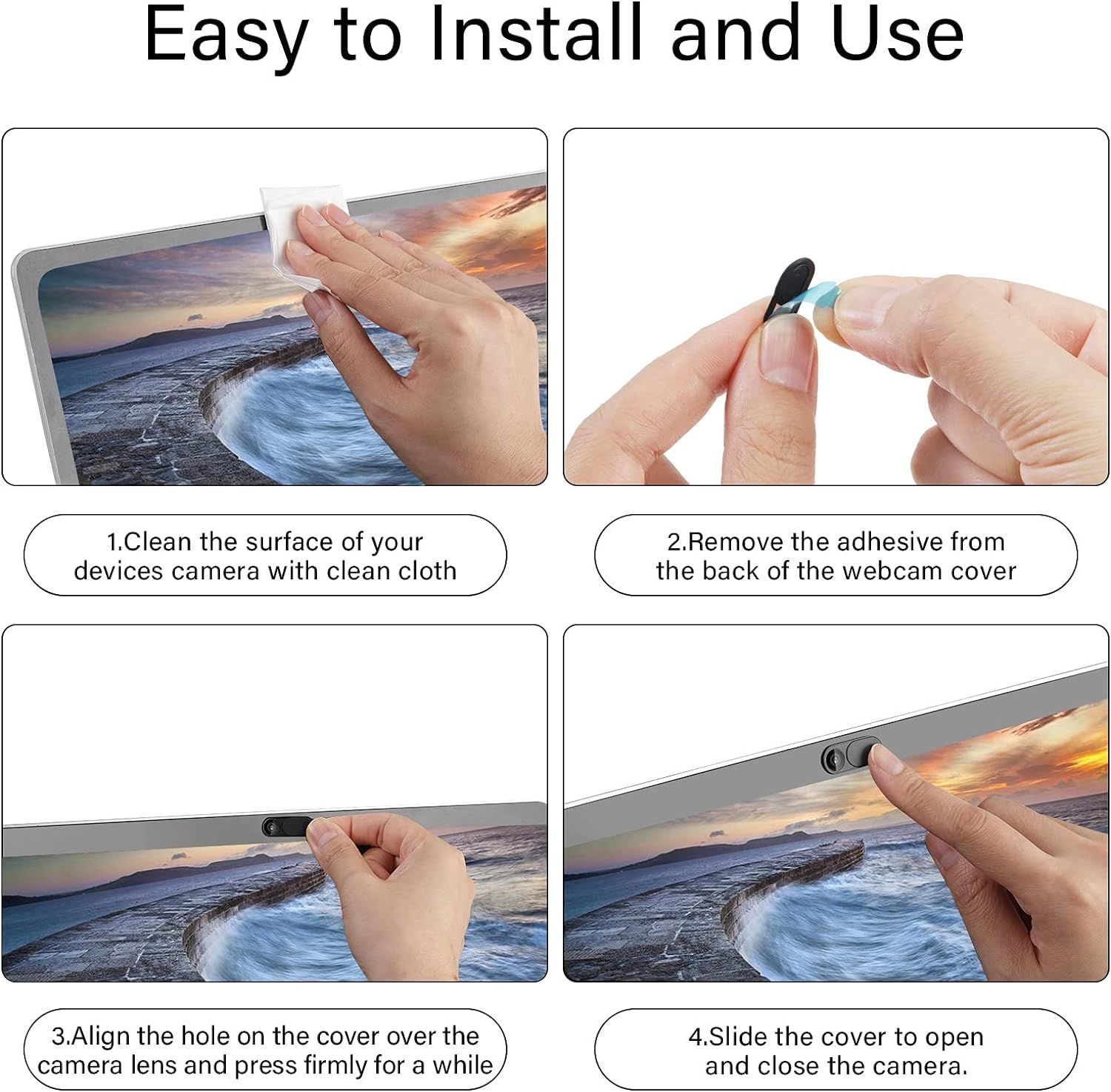
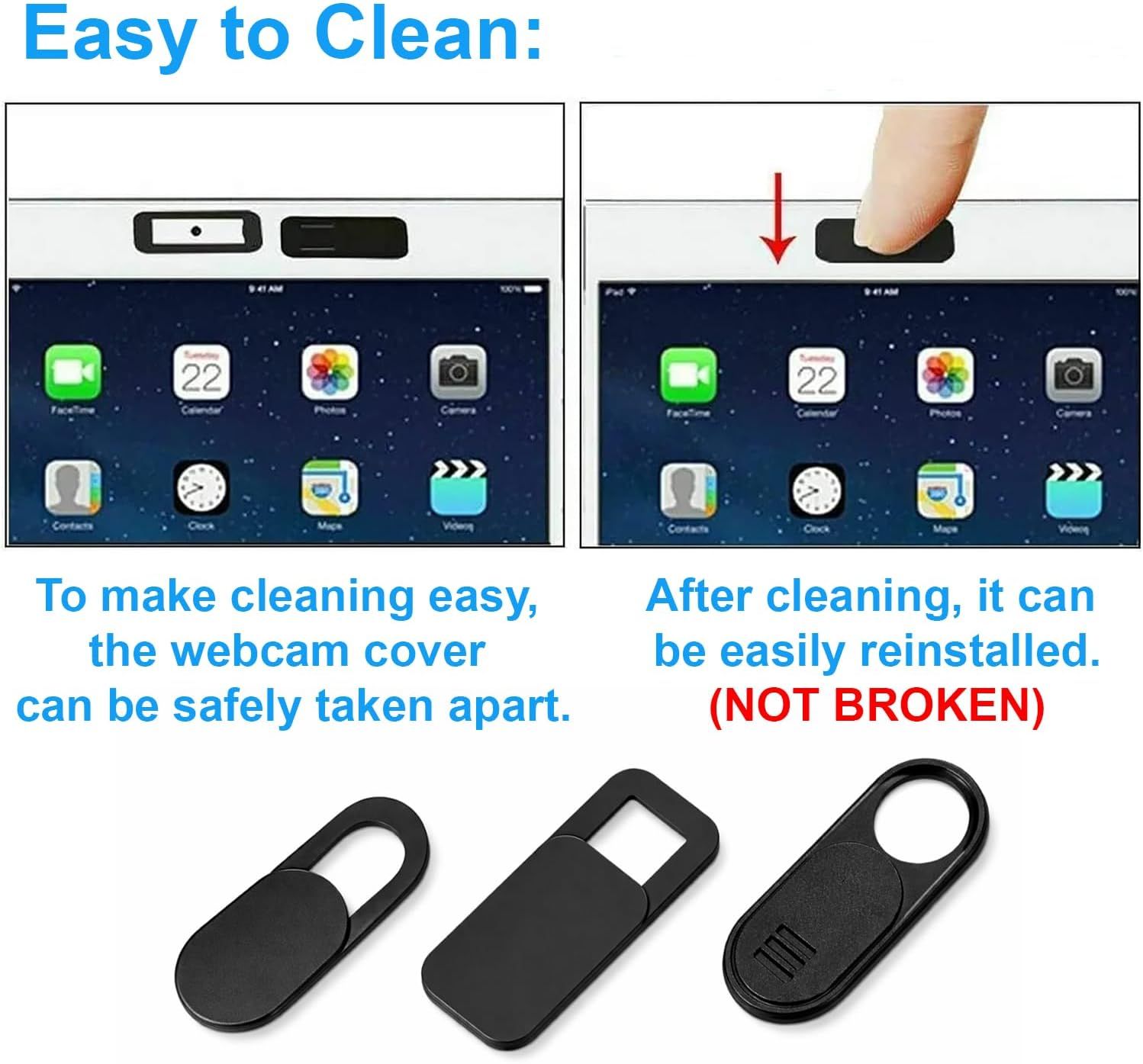
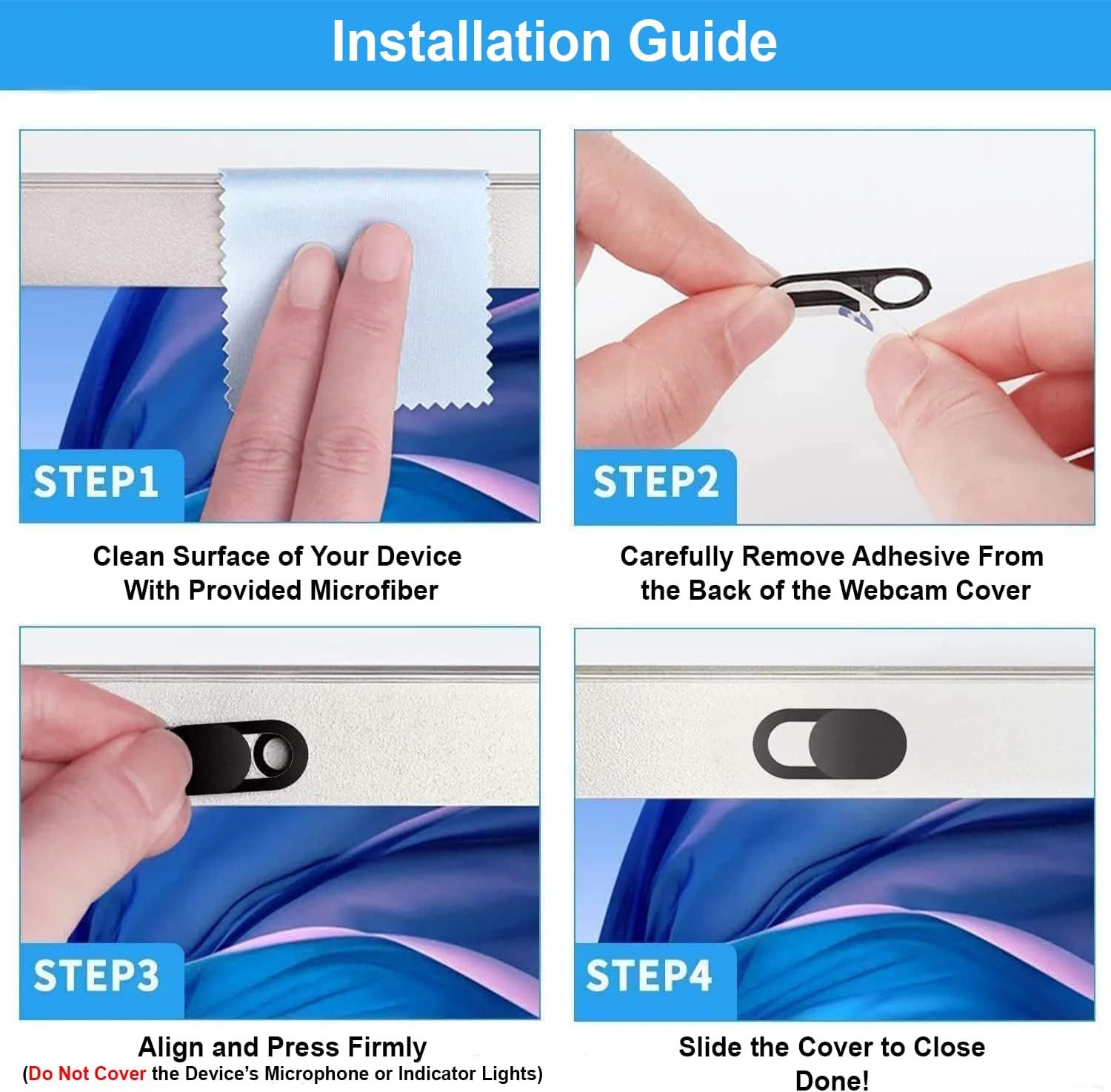
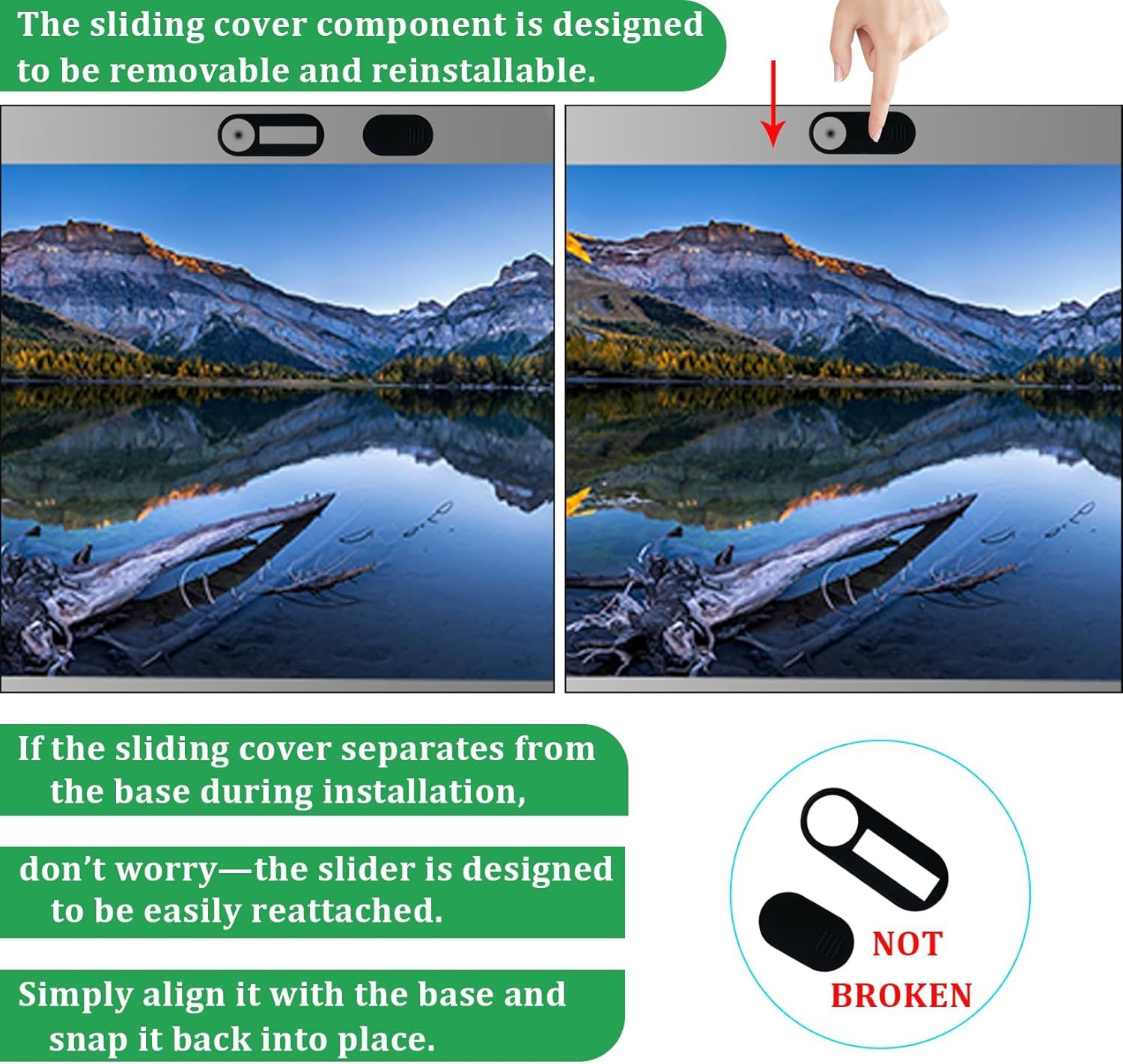
Demonstrates how to use the product (likely a soldering tool or precision screwdriver) to perform detailed repair or assembly work on small electronic components. Shows the product's ability to…Metal Switch Opener GPL 205G0 0.35ozDemonstrates the step-by-step process for installing and lubricating keyboard switches, emphasizing ease of use and convenient maintenance access.Metal Switch Opener GPL 205G0 0.35ozDemonstrates how to properly apply the product using the included brush tool, showing the correct technique for use.GPL 205G0 Keyboard Lube Grease 15gDemonstrates how the product's reward system works by showing the connection between the smartwatch interface, mobile app, and real-world rewards to help parents motivate children to complete tasks.…Smart Watch for KidsDemonstrates how to use the OnScreen Control software to customize screen space with split-screen layouts, showing shoppers the product's multitasking and workspace organization capabilities.…LG 32MR50C-B Curved Monitor 32-Inch FHD 100Hz AMD FreeSync OnScreen Control Dynamic…Communicates the high-wattage charging capability of the USB hub, emphasizing its ability to deliver 85W pass-through charging to power laptops while using the hub. Demonstrates how the hub connects…Anker USB C HubDemonstrates the simple plug-and-play installation process, showing how the AV to HDMI converter connects RCA cables to HDMI, reassuring shoppers that setup requires no technical expertise.…Tengchi RCA to HDMI ConverterDemonstrates the correct way to connect the AV to HDMI converter (input to output) and warns against incorrect reverse connection, ensuring shoppers understand proper installation. Highlights…Tengchi RCA to HDMI ConverterDemonstrates the product's compatibility with multiple devices (Nintendo 64, Set-top box, DVD/VCD players) as inputs and multiple output options (Projector, TV), showing versatility and broad…Tengchi RCA to HDMI ConverterDemonstrates how to connect the RCA to HDMI converter to a TV, reassuring shoppers that setup is simple and requires no driver installation. Highlights the plug-and-play convenience of the…Tengchi RCA to HDMI ConverterCommunicates the comprehensive technical specifications and capabilities of the HDMI adapter, reassuring shoppers that it supports high-end video and audio features for premium home entertainment.…VCELINK HDMI Coupler 8KEducates shoppers on the proper unplugging procedure by highlighting the release button feature and clarifies that this is not a USB connector to prevent confusion. Instructs users on the correct…BENFEI 4K DisplayPort to HDMI AdapterDemonstrates the proper way to connect the adapter cable from Display Port source to HDMI monitor, ensuring shoppers understand the one-way signal transmission and avoid connection errors.BENFEI 4K DisplayPort to HDMI AdapterExplains how the product supports both mirror and extended display modes, helping shoppers understand the two ways they can use the USB-C HDMI adapter with their devices.BENFEI USB C Hub 5-in-1 with 4K HDMI(Certified)Explains how to properly connect the adapter by showing which ports are compatible (DisplayPort source to HDMI display only) and which connections will not work, preventing customer confusion and…Highwings 4K Display Port to HDMI AdapterDemonstrates how the product enables easy multi-screen setup for home office use with both mirror and extended display modes, requiring no additional drivers or software installation. Shows multiple…Highwings 4K Display Port to HDMI AdapterProvides clear step-by-step instructions on how to properly connect the DisplayPort to HDMI adapter, showing which ports to use and which to avoid, ensuring correct setup and preventing user error.Highwings 4K Display Port to HDMI AdapterDemonstrates how simple it is to connect a smartphone to a TV using the cable adapter, showing the plug-and-play functionality for screen mirroring. Highlights the ease-of-use benefit where users…Anker USB C to HDMI Adapter (4K@60Hz)Demonstrates the ease of use by showing the simple plug-and-play setup process, reassuring shoppers that no technical installation or driver downloads are needed across multiple operating systems.…BENFEI USB 3.0 to Ethernet AdapterDemonstrates the simple plug-and-play installation process to reassure shoppers that the product requires minimal setup effort and is easy to use. Highlights the convenience and simplicity of the…UGREEN USB to Ethernet AdapterDemonstrates the ease of use and setup process, reassuring shoppers that the product works immediately without technical configuration or driver downloads across multiple operating systems.…UGREEN USB C to Ethernet AdapterDemonstrates two different ways to connect the adapter to the Nintendo Switch, showing shoppers the product's ease of use and flexible installation options. Shows the product can be used in multiple…TP-Link USB to Ethernet Adapter (UE306)Explains how the docking station supports multiple display configurations across Windows and macOS systems, showing various monitor arrangement options to help shoppers understand setup…UGREEN 14 in 1 USB C Docking Station 3 Monitors Revodok Pro 314 with 8K DP/4K HDMICommunicates the high-wattage charging capability of the USB hub, emphasizing its ability to deliver 85W pass-through charging to power laptops while using the hub. Demonstrates how the hub connects…Anker USB C HubDemonstrates how to set up a triple display configuration with 8K output and provides installation guidance to help shoppers understand the setup process and optimal performance settings. Shows the…Anker Prime Docking Station (DL7400)Provides step-by-step instructions for installing the DisplayLink driver and explains system compatibility requirements to ensure shoppers can successfully set up and use the product.Anker Prime Docking Station (DL7400)Instructs users on how to use the cast screen button to control external displays on Windows, including turning on/off displays and switching between four display modes (PC screen only, Duplicate,…13 in 1 USB C Docking StationExplains how to use the 4K display with macOS, showing the difference between mirror mode and non-mirror mode configurations, and instructing users on button functions for switching between modes.…13 in 1 USB C Docking StationExplains how to set up and use the triple 4K display adapter for Windows, showing both Extend Mode and Non-Mirror Mode configurations with button instructions. Demonstrates the two different display…13 in 1 USB C Docking StationDemonstrates how to operate the webcam cover's sliding mechanism to open and close the privacy shutter, reassuring shoppers about ease of use.Laptop Camera Cover SlideDemonstrates multiple use cases and features of the camera privacy cover: compatibility with specific Tesla models, how it protects privacy with a low-profile design, how it matches the interior,…9 Pack(3 Large + 3 Medium + 3 Small) 0.03 inch Ultra Thin Webcam Cover Slide Camera…Provides step-by-step visual instructions showing shoppers exactly how to install and use the webcam cover, reassuring them that setup is quick and simple.Laptop Camera Cover SlideDemonstrates how to use the webcam cover by sliding it open and closed, reassuring shoppers that it's simple to operate and protects their privacy when the laptop is closed. Highlights the…9 Pack(3 Large + 3 Medium + 3 Small) 0.03 inch Ultra Thin Webcam Cover Slide Camera…Demonstrates how the webcam cover can be safely removed for cleaning and easily reinstalled without breaking, reassuring shoppers about maintenance and durability. Highlights the product's…9 Pack(3 Large + 3 Medium + 3 Small) 0.03 inch Ultra Thin Webcam Cover Slide Camera…Provides clear step-by-step instructions to guide shoppers through the installation process of a webcam cover, ensuring proper application and usage.9 Pack(3 Large + 3 Medium + 3 Small) 0.03 inch Ultra Thin Webcam Cover Slide Camera…Instructs the shopper on how to remove and reinstall the sliding cover component, reassuring them that if it separates during installation, it can be easily reattached.Laptop Camera Cover SlideDemonstrates how the ultra-slim webcam cover works by showing the laptop with the cover open versus closed, reassuring shoppers that it provides simple privacy protection while keeping the laptop…50 Pcs Webcam Cover SlideProvides step-by-step visual instructions to guide the shopper through the proper installation process of a camera privacy cover, ensuring correct setup and functionality.50 Pcs Webcam Cover SlideDemonstrates how to operate the webcam cover's sliding mechanism to open and close the privacy shield, reassuring shoppers about ease of use. Highlights the privacy protection benefit and simple…Webcam Cover SlideDemonstrates how to operate the webcam cover's sliding mechanism to open and close the privacy shutter, reassuring shoppers about ease of use.Laptop Camera Cover SlideDemonstrates the step-by-step installation process for a webcam cover, reassuring shoppers that the product is simple to install and use.Laptop Camera Cover SlideDemonstrates how to use the sliding camera cover in three simple steps (Open, Slide, Close) to protect privacy and prevent unauthorized camera access. Shows the camera cover works across multiple…Webcam Cover (3 Pack)Demonstrates the simple 4-step installation process for a webcam privacy cover, reassuring shoppers that protecting their privacy is quick and straightforward.Webcam Cover (3 Pack)Instructs the shopper on how to remove and reinstall the sliding cover component, reassuring them that if it separates during installation, it can be easily reattached.Laptop Camera Cover SlideDemonstrates how the sliding webcam cover works to protect user privacy by showing the open and closed positions. Communicates the core benefit of protecting digital privacy by preventing…CloudValley Webcam Cover Slide[2-Pack]Demonstrates how to install and use the removable phone stand feature, showing the two-step process of taking out and attaching the stand to reassure shoppers of its ease of use. Highlights the…KeiBn Laptop Cooling PadCommunicates that the cooling pad can be raised and tilted to achieve a comfortable, ergonomic viewing position, reducing fatigue during extended computer use. Demonstrates the correct way to…llano V12 Gaming Laptop Cooling PadExplains how to operate the cooling device using the control panel, including power on/off, RGB light mode switching, and fan speed adjustment to help shoppers understand ease of use.ChillCore RGB Gaming Laptop Cooling Pad with 5.5" Turbo Fan
More Electronics image types

Need Electronics listing images designed?

Our design team makes Amazon listing images, infographics and A+ content. £750 per day, with revisions the next day.