TP-Link BE6500 Dual-Band WiFi 7 Router (BE400): How to Use Images
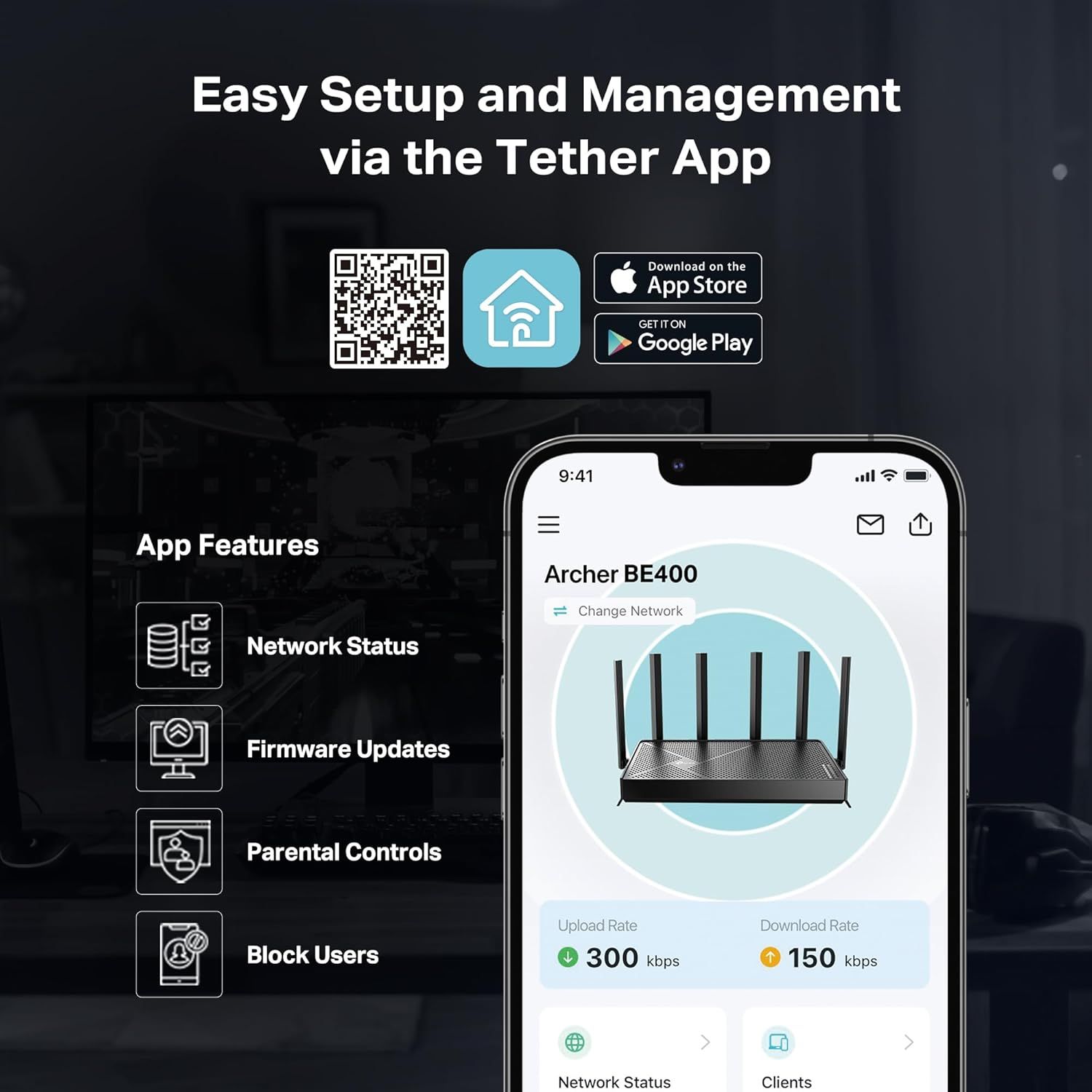
Demonstrates how to set up and manage the router using the Tether app, reassuring shoppers that the product is easy to configure and control through a mobile interface. Highlights multiple app features available through the Tether app to show the comprehensive management capabilities of the router.
- Brand
- TP-Link
- Category
- Electronics › Computers & Accessories › Networking Products › Routers
- Image type
- How to Use Images, Infographic Images, Secondary Images
- Design focus
- Easy Setup and Management via App; Network Status; Firmware Updates; Parental Controls; Block Users
- Listing position
- Image 8
- Marketplace
- United States
- Best Sellers Rank
- #474 in Electronics (See Top 100 in Electronics) #4 in Computer Routers
- Full listing
- See all 10 images in order
- ASIN
- B0DVBP5L6Y
See your listing next to your competitors
Paste your Amazon link. We score every image and show what the top sellers do differently. Your first comparison is free.
What this image does at a glance
- Score
- 15 / 100 · Unreadable small
- Headline
- Easy Setup and Management
- Headline height
- 3.1% of the image
- Headline contrast
- Lc 103
- Text on the image
- 8.9% of the image, 20 blocks
- Blurred to tile size
- headline no longer readable
- lower text "Easy Setup and Managemen" is 2.5% of height, needs 5.5%
- headline unreadable at phone-tile blur
- 20 separate text blocks
Listing bullet points
- 𝐅𝐮𝐭𝐮𝐫𝐞-𝐑𝐞𝐚𝐝𝐲 𝐖𝐢-𝐅𝐢 𝟕 - Designed with the latest Wi-Fi 7 technology, featuring Multi-Link Operation (MLO), Multi-RUs, and 4K-QAM. Achieve optimized performance on latest WiFi 7 laptops and devices, like the iPhone 16 Pro, and Samsung Galaxy S24 Ultra.
- 𝟔-𝐒𝐭𝐫𝐞𝐚𝐦, 𝐃𝐮𝐚𝐥-𝐁𝐚𝐧𝐝 𝐖𝐢-𝐅𝐢 𝐰𝐢𝐭𝐡 𝟔.𝟓 𝐆𝐛𝐩𝐬 𝐓𝐨𝐭𝐚𝐥 𝐁𝐚𝐧𝐝𝐰𝐢𝐝𝐭𝐡 - Achieve full speeds of up to 5764 Mbps on the 5GHz band and 688 Mbps on the 2.4 GHz band with 6 streams. Enjoy seamless 4K/8K streaming, AR/VR gaming, and incredibly fast downloads/uploads.
- 𝐖𝐢𝐝𝐞 𝐂𝐨𝐯𝐞𝐫𝐚𝐠𝐞 𝐰𝐢𝐭𝐡 𝐒𝐭𝐫𝐨𝐧𝐠 𝐂𝐨𝐧𝐧𝐞𝐜𝐭𝐢𝐨𝐧 - Get up to 2,400 sq. ft. max coverage for up to 90 devices at a time. 6x high performance antennas and Beamforming technology, ensures reliable connections for remote workers, gamers, students, and more.
- 𝐔𝐥𝐭𝐫𝐚-𝐅𝐚𝐬𝐭 𝟐.𝟓 𝐆𝐛𝐩𝐬 𝐖𝐢𝐫𝐞𝐝 𝐏𝐞𝐫𝐟𝐨𝐫𝐦𝐚𝐧𝐜𝐞 - 1x 2.5 Gbps WAN/LAN port, 1x 2.5 Gbps LAN port and 3x 1 Gbps LAN ports offer high-speed data transmissions.³ Integrate with a multi-gig modem for gigplus internet.
- 𝐎𝐮𝐫 𝐂𝐲𝐛𝐞𝐫𝐬𝐞𝐜𝐮𝐫𝐢𝐭𝐲 𝐂𝐨𝐦𝐦𝐢𝐭𝐦𝐞𝐧𝐭 - TP-Link is a signatory of the U.S. Cybersecurity and Infrastructure Security Agency’s (CISA) Secure-by-Design pledge. This device is designed, built, and maintained, with advanced security as a core requirement.
- 𝐌𝐮𝐥𝐭𝐢-𝐋𝐢𝐧𝐤 𝐎𝐩𝐞𝐫𝐚𝐭𝐢𝐨𝐧 (𝐌𝐋𝐎) 𝐓𝐞𝐜𝐡𝐧𝐨𝐥𝐨𝐠𝐲 - Simultaneously transfers data across frequency bands, delivering enhanced throughput, lower latency, and improved reliability. Enjoy faster, more stable connections across applications.
- 𝐄𝐱𝐩𝐚𝐧𝐝 𝐘𝐨𝐮𝐫 𝐖𝐢𝐅𝐢 𝐂𝐨𝐯𝐞𝐫𝐚𝐠𝐞 𝐰𝐢𝐭𝐡 𝐄𝐚𝐬𝐲𝐌𝐞𝐬𝐡 - Easily create a Mesh network by pairing your router with any EasyMesh-compatible wifi router/range extender, providing seamless whole-home coverage.
- 𝐄𝐚𝐬𝐲 𝐒𝐞𝐭𝐮𝐩 𝐚𝐧𝐝 𝐔𝐬𝐞 - Set up your Archer BE400 in minutes and manage network settings with the Tether app (Android or iOS) or web interface. Buy with confidence - Our highly trained support team is ready to help resolve any setup or WiFi issues at Support.USA@tp-link.com or +1…
Similar how to use images in Electronics
 GEEKOM A7 Mini PC
 Sennehiser ACCENTUM Plus Wireless Headphones
 Sennehiser ACCENTUM Plus Wireless Headphones
 Sennehiser ACCENTUM Plus Wireless Headphones
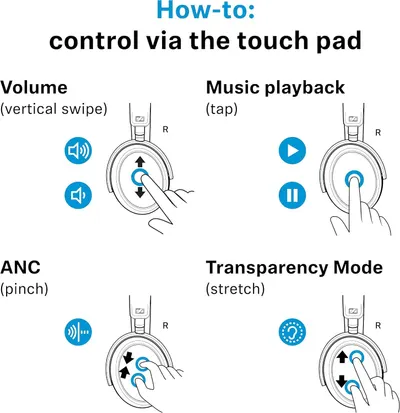 Sennheiser Consumer Audio Momentum 4 Wireless Headphones
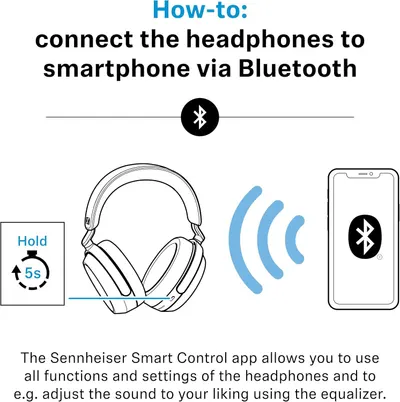 Sennheiser Consumer Audio Momentum 4 Wireless Headphones
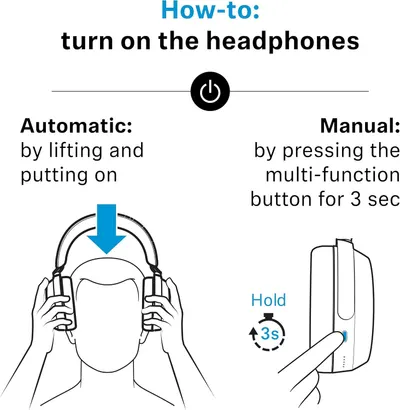 Sennheiser Consumer Audio Momentum 4 Wireless Headphones
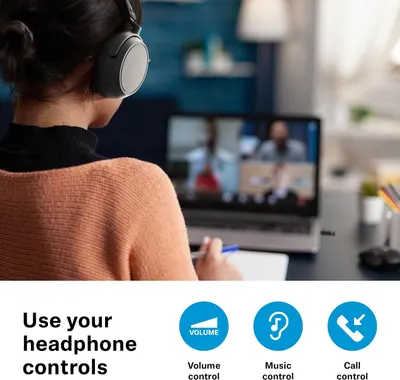 Sennehiser ACCENTUM Wireless Headphones
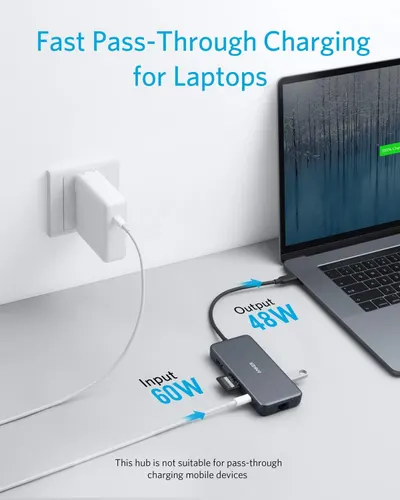 Anker Adaptador hub USB-C
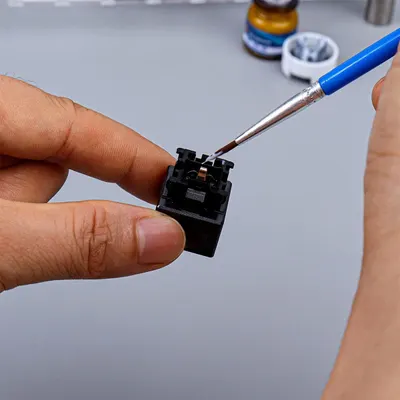 Metal Switch Opener GPL 205G0 0.35oz
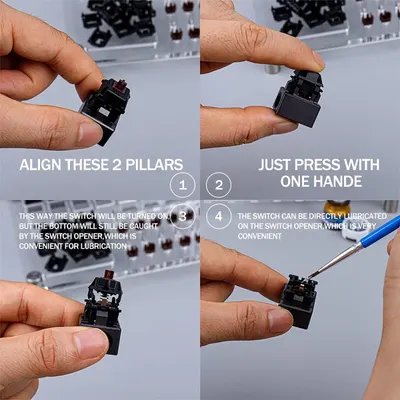 Metal Switch Opener GPL 205G0 0.35oz
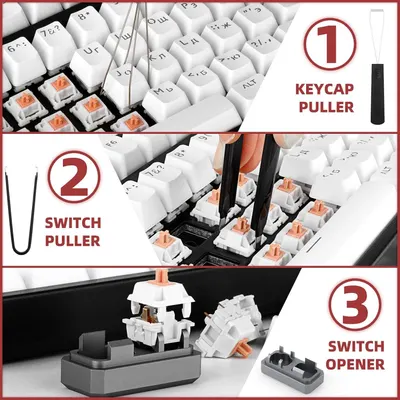 RUNJRX
This image belongs to TP-Link and is shown for design research. Request removal.